
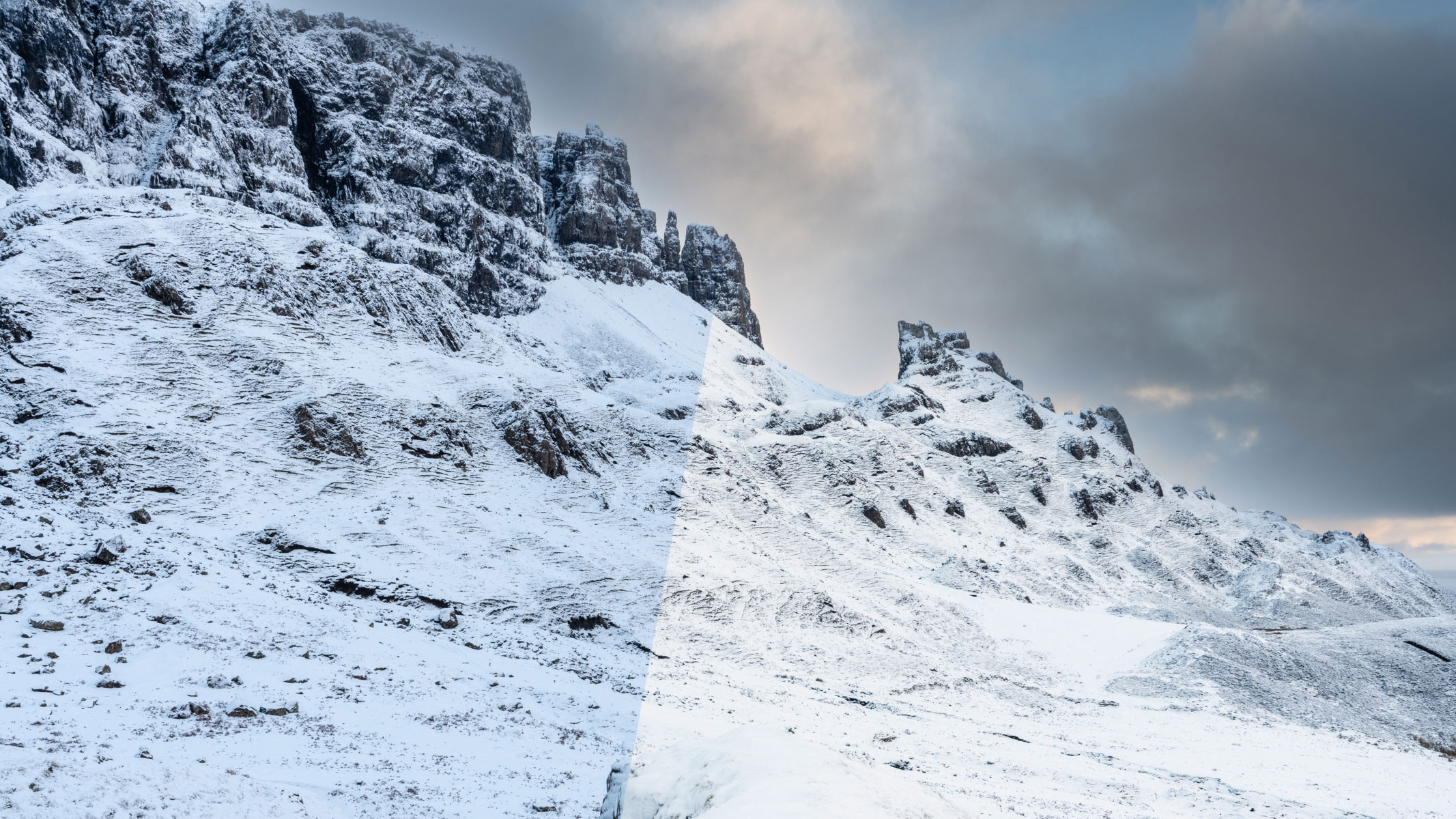
With winter well and truly underway, it’s only a matter of time before we experience snow if we haven’t already. And with snow comes unique opportunities for landscape photographers, but alongside the exposure challenges, there is also an editing challenge.
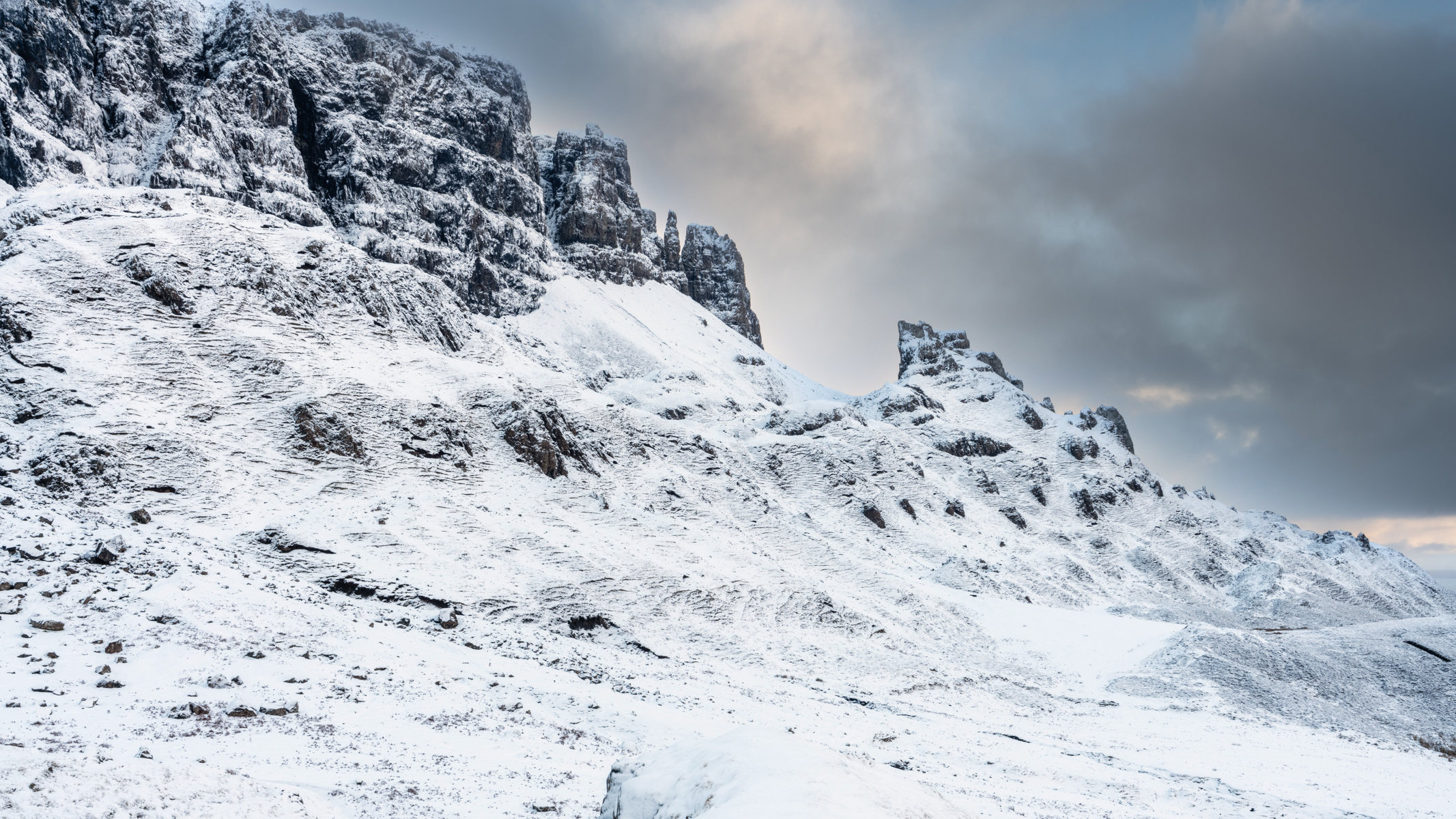
Snow in landscapes tends to have a blue tint, which makes snowy scenes appear cold. Of course, this can work well because snow is, by its nature, cold. But there will be many times when you would prefer a more neutral colour balance.
There are several ways to remedy this for more neutrally balanced snow, and the one that works best only takes a couple of minutes to apply in Photoshop. The result is whiter and brighter snow that looks closer to how the eye saw it, rather than looking slightly blue.
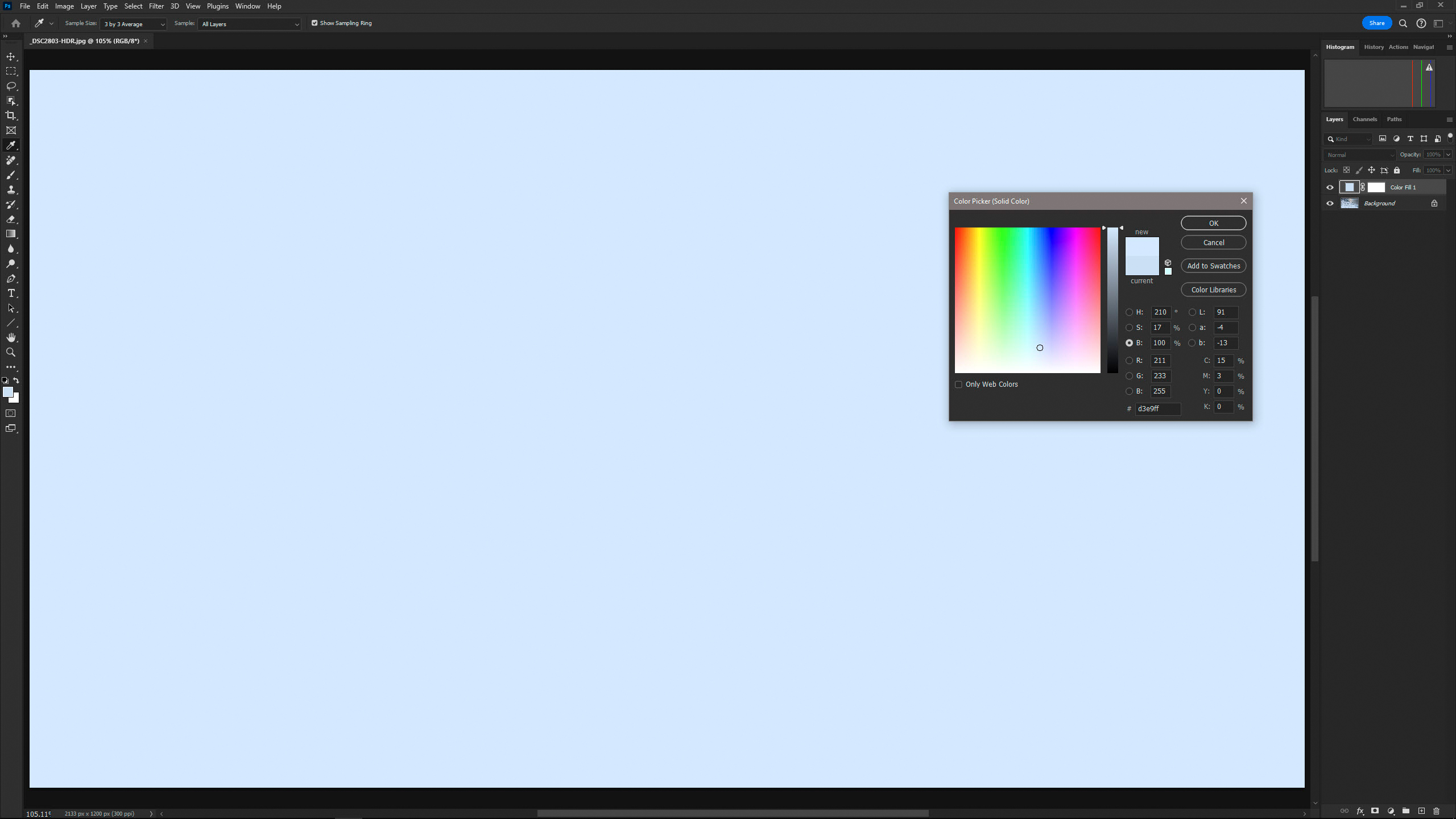
1 Sample the snow colour
Select the Eyedropper Tool, set to 3 by 3 Average, and left mouse click on the snow. Next, go to the Create new fill or adjustment layer icon at the bottom of the Layers panel and select Solid Color. When the dialogue opens, the image will be filled with the sampled colour. Where H, S, B are stacked, make sure B (for brightness) is set to 100% and click on OK to close the dialogue.
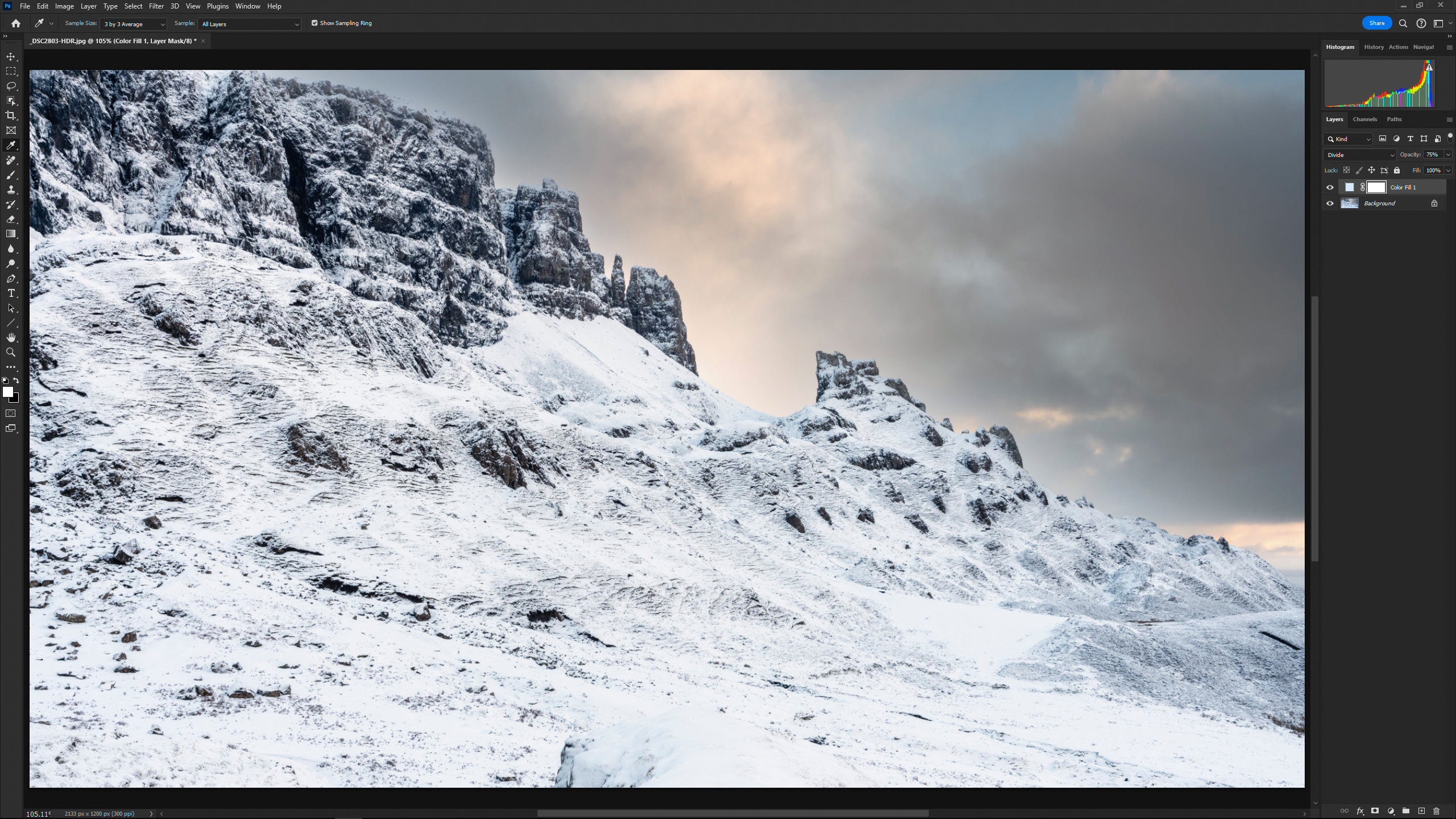
2 Adjust Blending and Opacity
Change the Blending mode of the Solid Color Adjustment Layer from Normal to Divide. This will add transparency and remove the blue tint as if by magic. The effect as it is will be too strong, so reduce the Opacity of the Layer to between 50-75% depending on what you think looks best.
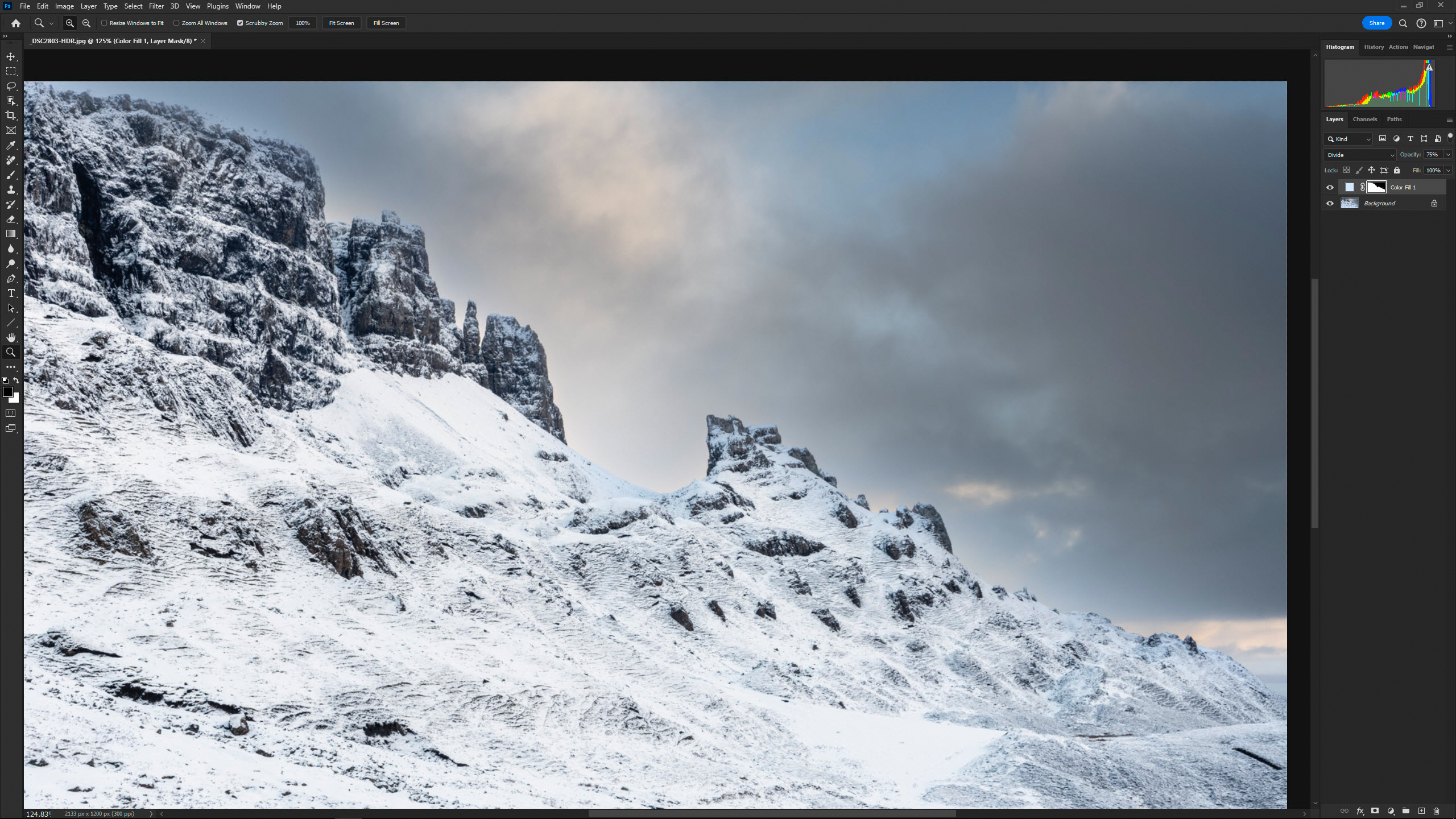
3 Mask out the sky area
If your landscape scene doesn’t have blue in the sky, you can miss this step out. Press D on the keyboard to set the palette colour defaults of black and white and make sure that black is in the foreground. With the Layer Mask active, use a large soft edge brush to paint over the sky, and switch to white if you make a mistake by pressing X to toggle between the two and paint over this area.
Check our guide to the best cameras for hiking and backpacking or if you're coming down the slopes a bit faster check the best action cameras.