

I put my desktop computer to sleep before I go to bed (which is close to my PC). The problem is that it wakes me up in the middle of the night. Almost every night, often at 3am, the hard disk drive jerks into action and the fan starts spinning for no obvious reason. It is driving me mad!
I know I could just turn it off, but I have loads of different software running in Windows 7, including 10-15 web pages in Chrome. It’s stuff I use every day, so I don’t want the hassle of closing everything down and then opening it all in the morning. Is there any way I can tell it to stay asleep all night? Ösp
Modern computers, like many modern gadgets, never really shut down, unless you switch them off at the mains. They can be woken up by mouse or keyboard movements, or by software running on another computer at the other side of the world. If your PC has a virus and has been added to a botnet, somebody might be using it to send spam, so run some extra checks with, for example, Malwarebytes.
You are probably running several programs that “call home” to check for and download new versions. Examples include Google Chrome, Adobe software, Oracle’s Java and, of course, Microsoft Windows when set to auto-update. However, I’d expect such calls to be made while you’re using the PC, not when it’s asleep.
PCs can also wake themselves up to run scheduled tasks. It’s usually OK for anti-virus, backup and defragging software to run at 3am, since this won’t interfere with most users’ work. Or sleep.
Happily, there is a simple way to check if your PC is being woken up remotely, and to stop it. Just unplug the internet cable before you go to bed. (On a laptop, you would turn off the Wi-Fi reception instead. Either way, you don’t need to touch the router.)
Power configurations
The quickest way to find out what’s going on is to run some terminal commands. To begin, click the Start button and type cmd into the search/run box. This will find the cmd.exe program. Next, right-click on the name and select “Run as administrator” from the drop-down menu. This will bring up a black window with a command prompt (C:\Windows etc) where you can type commands.
In this case, we are going to use the power configuration utility, powercfg. You can get a full guide to what it does by typing powercfg /? and pressing Enter. However, Wikipedia provides the same information, and more, at powercfg, and it’s easier to read.
To find out what just woke up your PC in the night, type the command: powercfg –lastwake
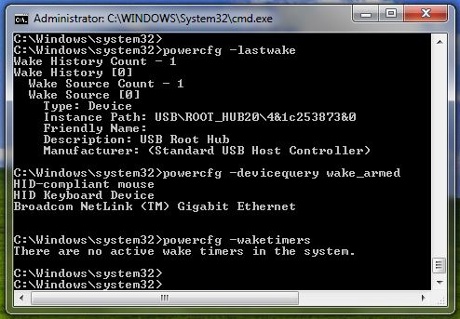
As you can see from the screen shot, my PC was last woken up by a USB device, either the keyboard or the mouse.
To list all the things that can wake your PC, type: powercfg -devicequery wake_armed
My PC can be woken up by the mouse, the keyboard, and the broadband internet connection.
To find out if any programs are scheduled to wake your PC for maintenance, type: powercfg –waketimers
If you find any, you can change the program, or disable waketimers altogether.
Viewing power events
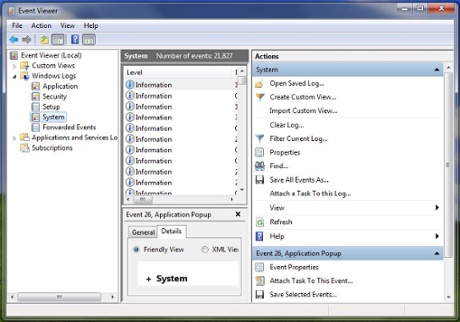
Windows 7 logs almost everything that happens for diagnostic purposes, so it records all the sleep and wake events. To see these, go to the search/run box, type Event and run the Event Viewer.
First, in the left-hand pane, click on the little triangle next to Windows Logs, and then select System. (You will need to make it full screen and adjust some column widths to make sense of it.) Next, click the Source heading to sort entries by source, from Application Popup to WPD Class Installer. Scroll down a short distance to the section for Power-Troubleshooter. Click an entry and the panel at the bottom will tell you when your PC went to sleep, when it woke up and – at the end of Details – what caused it.
Windows logs are generally not very useful to non-technical users, but you might find something interesting. You can ignore the entries that say “USB Root Hub” as those refer to the keyboard and mouse. However, you might be able to find the program that’s waking your PC and change its settings.
Disable Wake-On-LAN
If unplugging the broadband cable has stopped your PC from waking up in the night, you can turn off the Wake-On-LAN feature in Windows 7. To do this, run the Device Management Console and change the setting for the network adapter in your PC – probably a Broadcom or Intel or similar gigabit Ethernet connector.
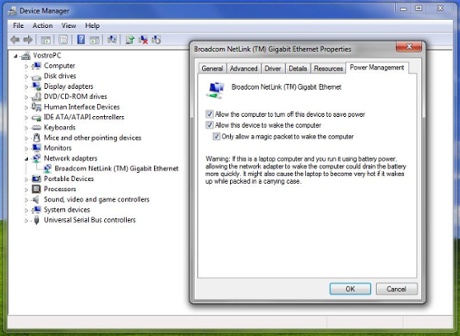
So, go back to the Start menu’s search/run box, type (or paste in) devmgmt.msc and run the program. Open the section labelled “Network adapters” and double-click the name of your Ethernet device to get the properties sheet (or right-click the name and select Properties). Go to the properties tab headed “Power Management” and untick the box next to “Allow this device to wake the computer”. Job done.
Quick starts
You say that you “don’t want the hassle of closing everything down and then opening it all in the morning”. You will still have to do this after Windows installs updates on the second Tuesday of each month, but it doesn’t have to be a hassle.
When Windows boots, it will load everything you put into the Startup folder. This includes programs, such as Chrome, and any personal files that you want handy, such as a to-do list.
To enable this, go to the Start button, select All Programs, right-click the Startup folder and select Open from the drop-down menu. This will open Windows Explorer at the Startup folder for your log-on name. Now all you have to do is to add shortcuts to programs and/or files, and Windows will load them automatically whenever it restarts.
You can do this by picking up a desktop icon or filename (from your normal Windows Explorer) and dragging it to the big empty space in the Startup folder window. When you get there, release the right-click and select “Create shortcuts here” from the drop-down menu. Simply close the Startup folder window when you have finished.
You can also tell your browser – Chrome, Firefox, Internet Explorer etc – to reload all the tabs that you were using when it was closed. In Chrome, click the hamburger button (three horizontal lines) on the far right, and select Settings. Go to “On start-up” – the second entry – and select “Continue where you left off”.
Sadly, it’s easier to open tabs than to close them, and I ended up with more than 600 tabs in Firefox. But you can restrain Chrome’s memory-hogging greed by using the The Great Suspender extension to suspend tabs you’re not using, and a session manager to save and load sets of tabs. This is handy when Chrome “forgets” your tabs, and hitting Ctrl-Shift-T a couple of times doesn’t bring them all back.
Have you got another question for Jack? Email it to Ask.Jack@theguardian.com