

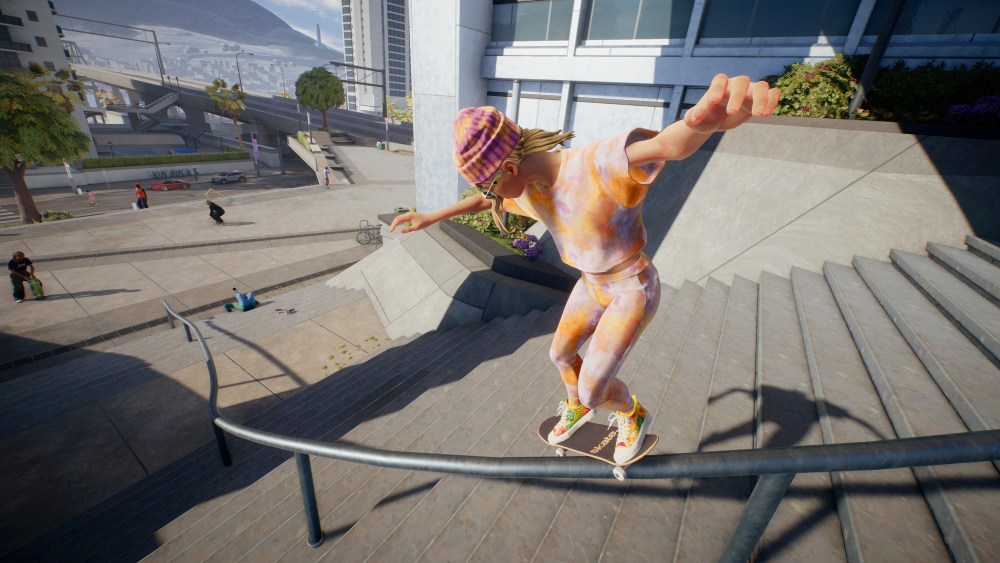
Skateboarding is a matter of precision, skills, and showing off. You can master every head-turning move, but without an audience, you won’t be able to flaunt it. And if you are performing them virtually in a game like Skate, there’s no audience to witness your unicorn of a trick unless it’s captured and posted online.
For that, getting into replays is your best bet. After all, it’s not just skateboarding games — sports titles in general deserve a decent mechanic where getting into the meat and potatoes of your highlight moments is possible. Luckily, with the Season 2 update, EA has got you covered.
Skate players are in for a treat as the game now offers an all-new replay editor. Whether it’s just an ollie over the bench or a full street line, this fresh addition makes any scene cinematic. While it’s not as complex as a full-fledged video editor, here’s a quick tour of all the tools it offers.
Opening The Replay Editor
Before firing up the replay editor, keep in mind that only the past 15s, 30s, 1 minute, 2 minutes, and 5 minutes of the gameplay will be available for you to revise. If the desired moment sits within this time range, then you are good to proceed.
The fastest way to access the editor is by holding the View or Create button. Once you prompt the main screen, it will show basic editing options. As the basics are self-explanatory, we’ll focus on advanced editing tools. Press X or Square to gain command over advanced tweaks.
Trim
Since you won’t be editing the whole 60 seconds anyway, the first thing the editor greets you with is the “Trim” menu; you can also access it in the basics section by pressing R1 or RB.
Here, you’ll have a complete 1-minute timeline that can be shortened to the desired scene. Just put a starting point with D-Pad left and an ending point with D-Pad right to select the part you want to edit. After that, press the right bumper again to jump to the real deal, the Keyframes.
Keyframes
Now this is where all the magic happens. The game allows you to put keyframes on the timeline, each bringing a unique type of shot with it. With decent camera options and adjustments, the replay editor can really tap into the cinematographer in you. Players can access the following options by pressing X or Square.
- Camera: Orbit, Free, and Tripod. Here, the Orbit will follow you around, and Tripod will act as a fixed recording point. On the other hand, a Free camera allows you to move the view yourself, keyframe-by-keyframe.
- Target: This is going to be your focal point. Players can choose between Head, Body, and Skateboard.
- Field of View: You can increase or decrease the overall view of your footage.
- Tilt: Move the frame up and down.
- Roll: After tilting, you can also rotate the frame according to your shot’s nature.
- X-Offset: Move the camera from the center to any part on the X-axis.
- Y-Offset: Move the camera from the center to any part on the Y-axis.
Those were all the camera controls. After choosing your desired layout and changes, the next part is to add keyframes. Simply hover on the timeline and put a keyframe by pressing the D-Pad down.
The layout you planned is saved till this key point. For the next shot, make changes to your view and proceed to the end of it, and simply add another keyframe. These two keys, once played, will show different shots in the same footage. You can keep adding more keys to add more creativity, or jump to the next and final part, exporting.
Save/Export
With all the keyframes finalized, the last step is to export your footage. Here, you have the following things to consider before getting the video:
- Video Format: WebM or MP4
- Frame Rate: 24, 30, or 60 FPS
- Resolution: 360P, 480P, 720P, 1080P, 1440P, or 2160P
Once you have chosen your desired format, frame rate, and resolution, press the View or Create button to open drafts. From here, just press X or Square and wait till your footage exports.
That’s it for this new, cool feature. You can also head to the editor’s settings and tailor it according to your liking. Changes such as timeline hovering speed, turning off nearby players, and other handy tweaks are available for players to make. After this update, there’s really no better time to perform high jumps or Laserflips and show them off with flashy replays.