As the age of AI brought us chatbots and image generators, it was only a matter of time before AI-powered web browsers entered the scene.
Leading the charge is Perplexity’s AI browser, Comet, which promises to handle everything from uncovering your unread emails to comparing prices for your next big purchase. The user interface resembles that of mainstream browsers and it’s pretty straightforward to use.
"Comet has basically become my daily workspace," Nick Davidov, co-founder and managing partner of Davidovs Venture Collective, told me as I was preparing this guide. "I use it for everything — from searching and organizing information, checking my inbox and drafting messages, to summarizing YouTube videos or even ordering lunch from my favorite nearby restaurant."
Davidov, who was an early investor in Perplexity, said what stands out most to him is the speed. "Perplexity on Comet feels faster than any browser I’ve tried," he said. If you’re ready to let AI supercharge your browsing experience, follow the steps below.
1. Visit Comet’s website
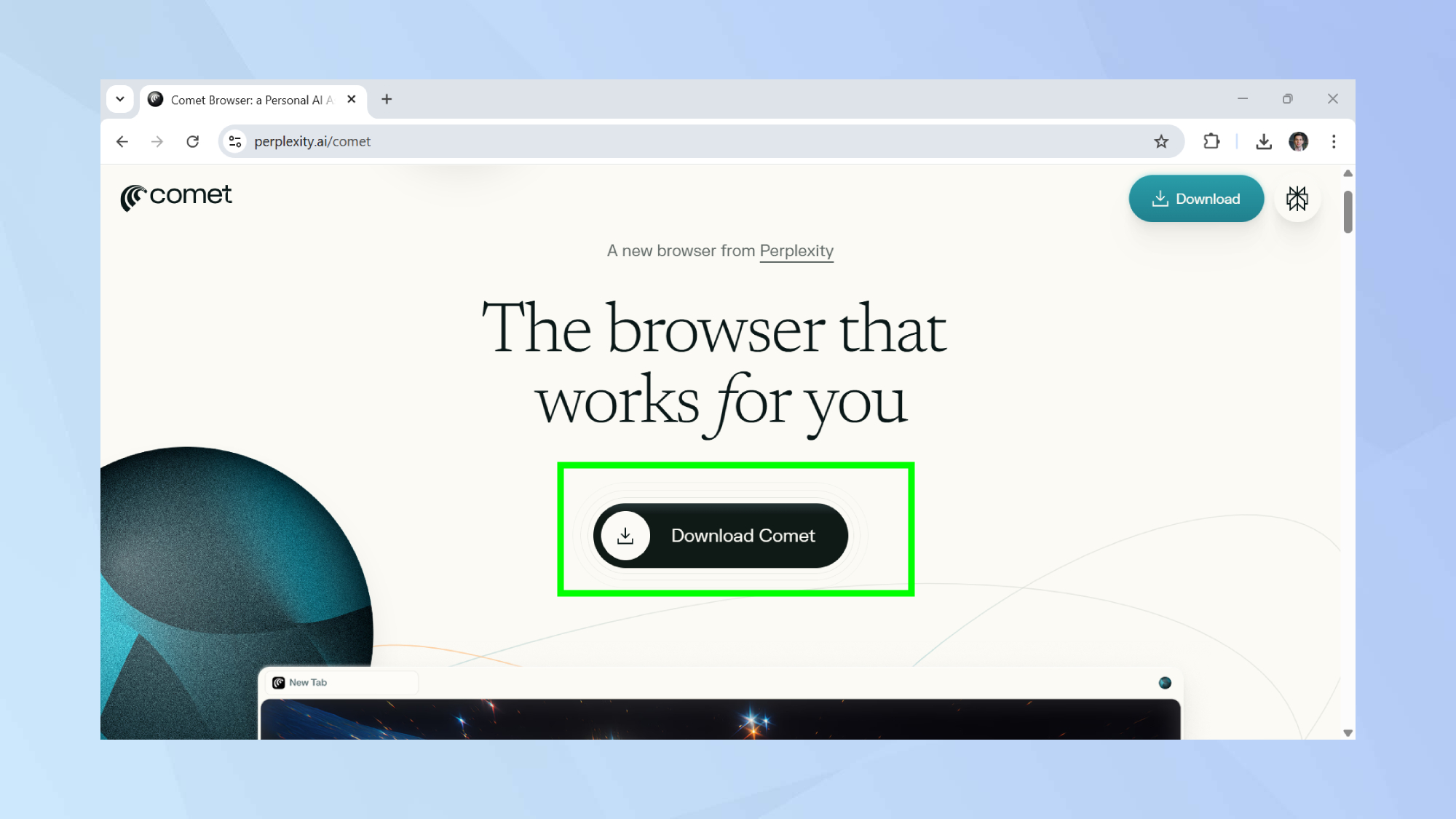
Comet is a web browser that you’ll need to install to use. You’re also in luck because there’s no longer a waiting list to use the browser. Head on over to Perplexity’s website and download Comet. The file is around 14 MB large.
2. Install Comet
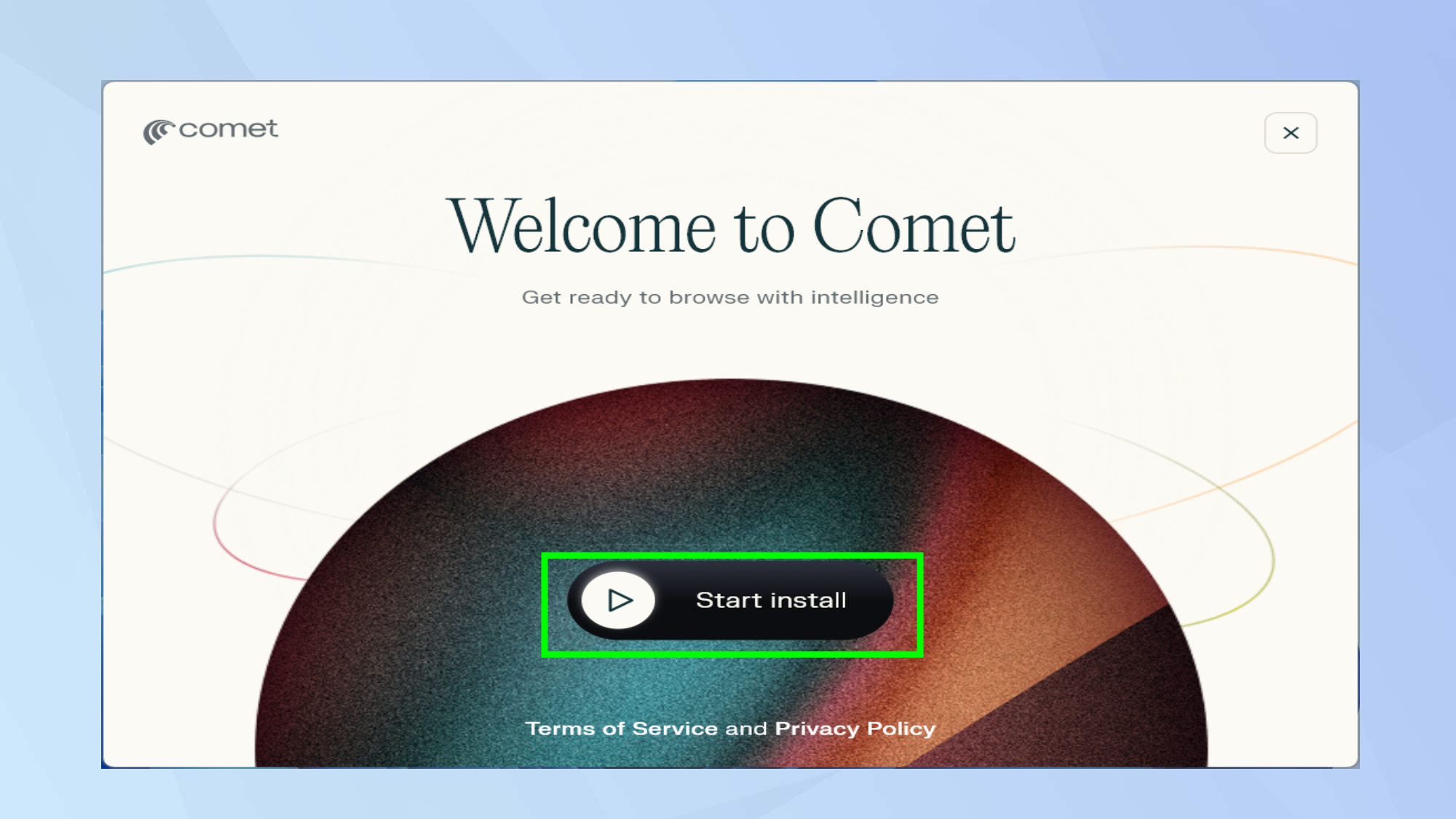
Find the installer you just downloaded and let it run. A window will pop up featuring a button prompting you to start the installation. Click the start button.
3. Let the installer run
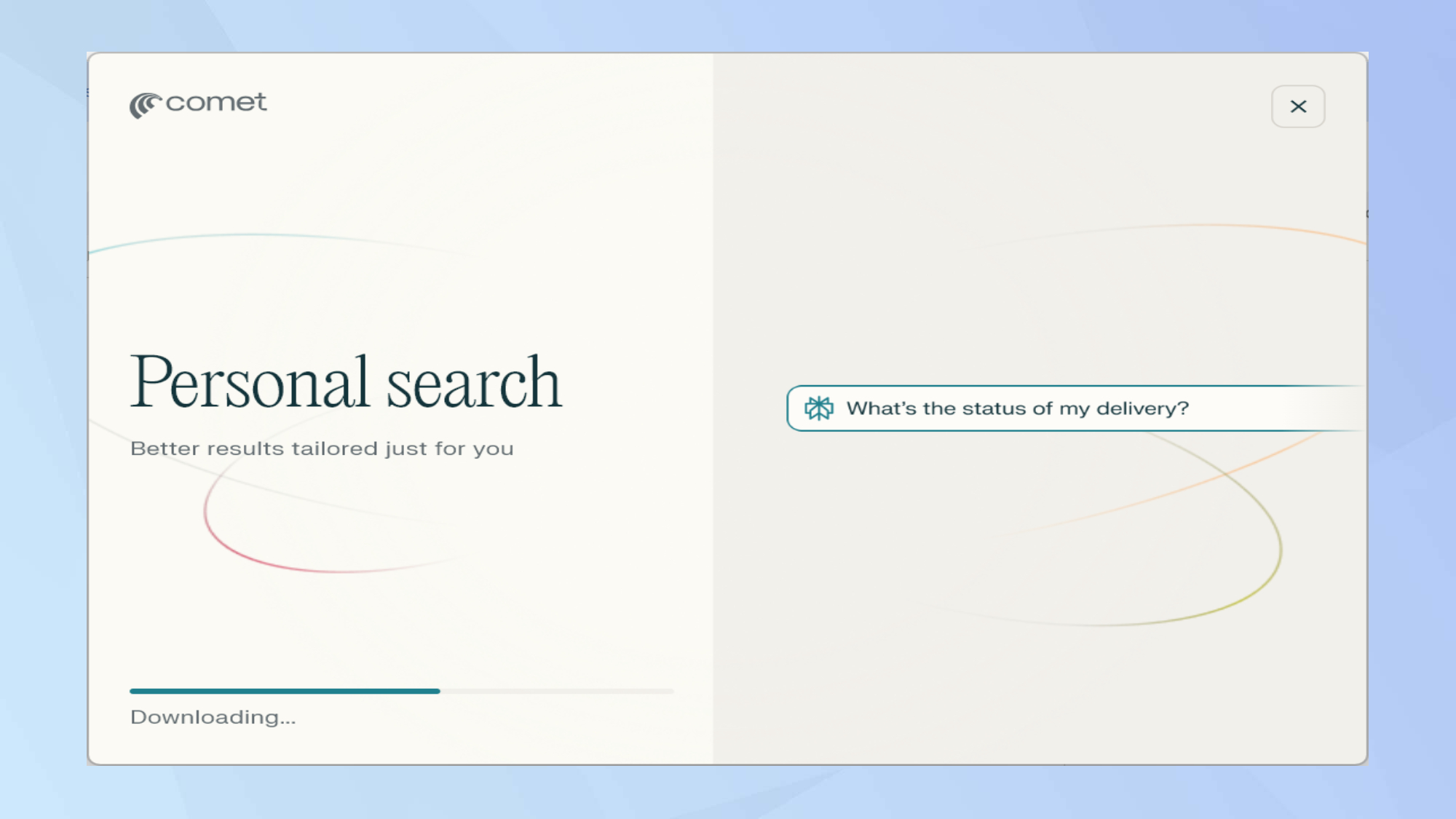
The installation process is automatic and doesn’t require any additional input from your end. Some additional files will be downloaded, meaning the length of the installation will depend on your network connection. Typically, installing Comet should take less than a minute.
4. Launch Comet
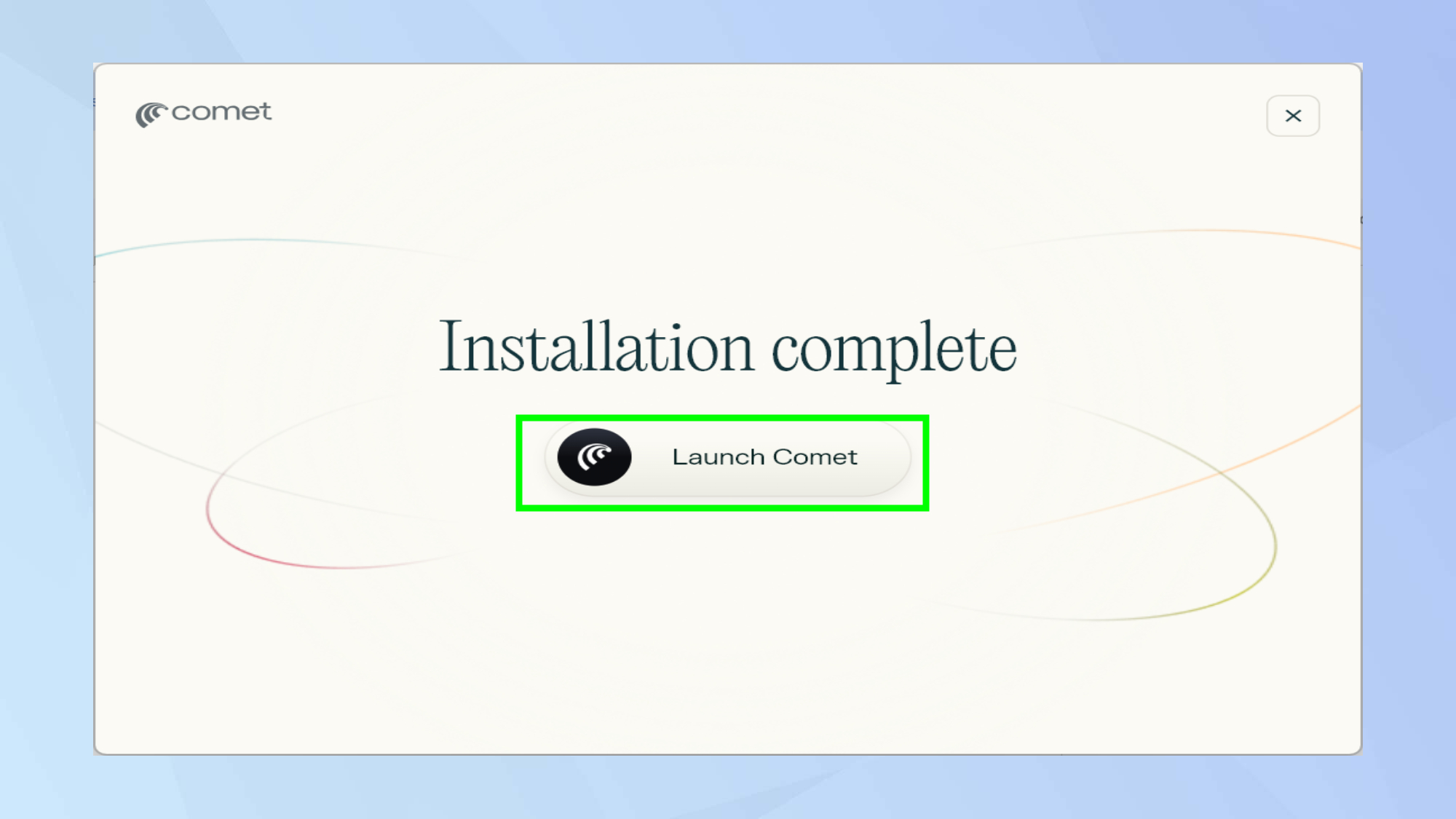
If the installation process worked as it should, you’ll be told the installation has been completed. Click on launch Comet to begin.
5. Get started
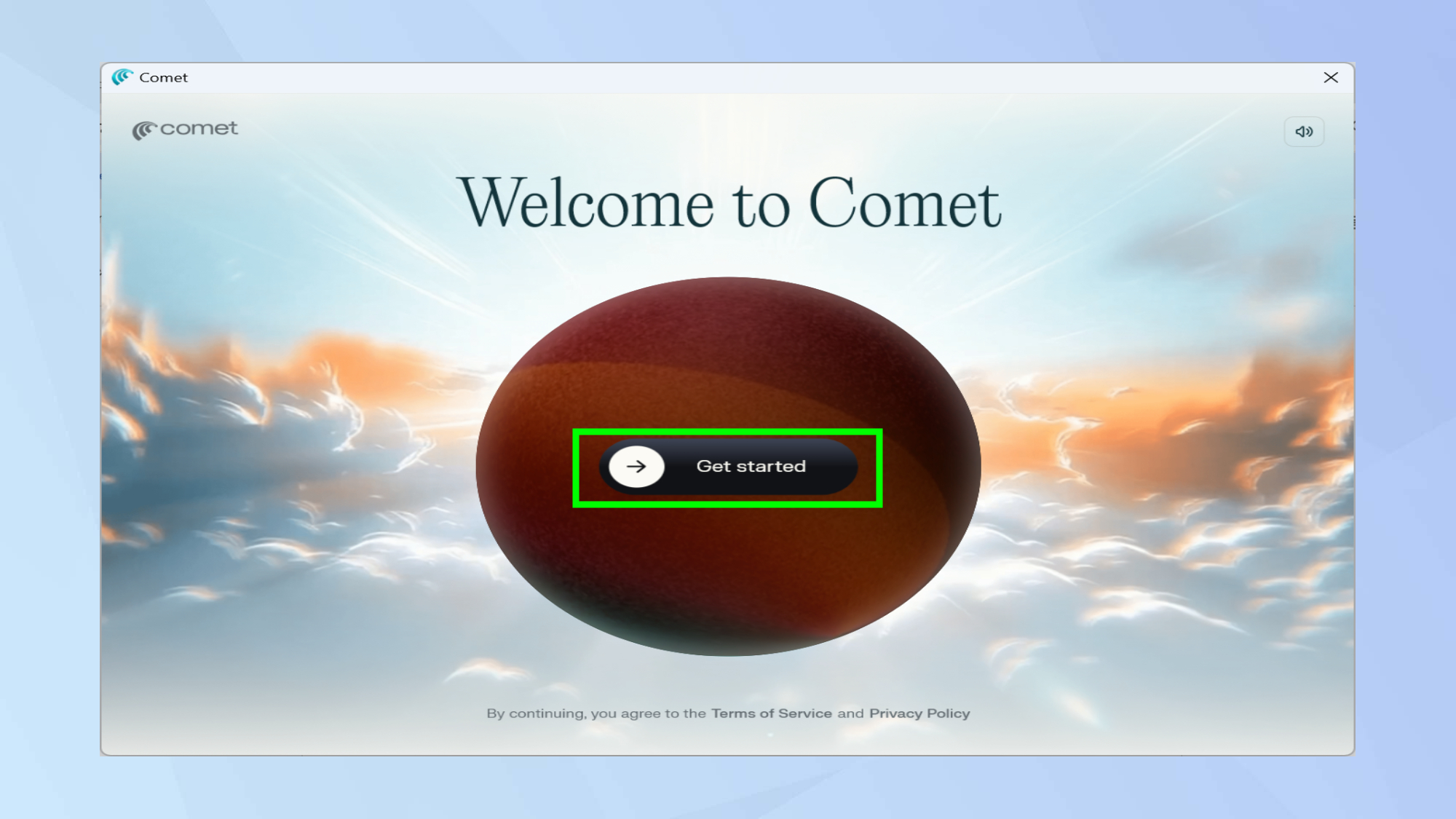
You’re now just moments away from actually using this AI-powered web browser! Just a little more patience. Click on get started, to, you guessed it… get started.
6. Import your data
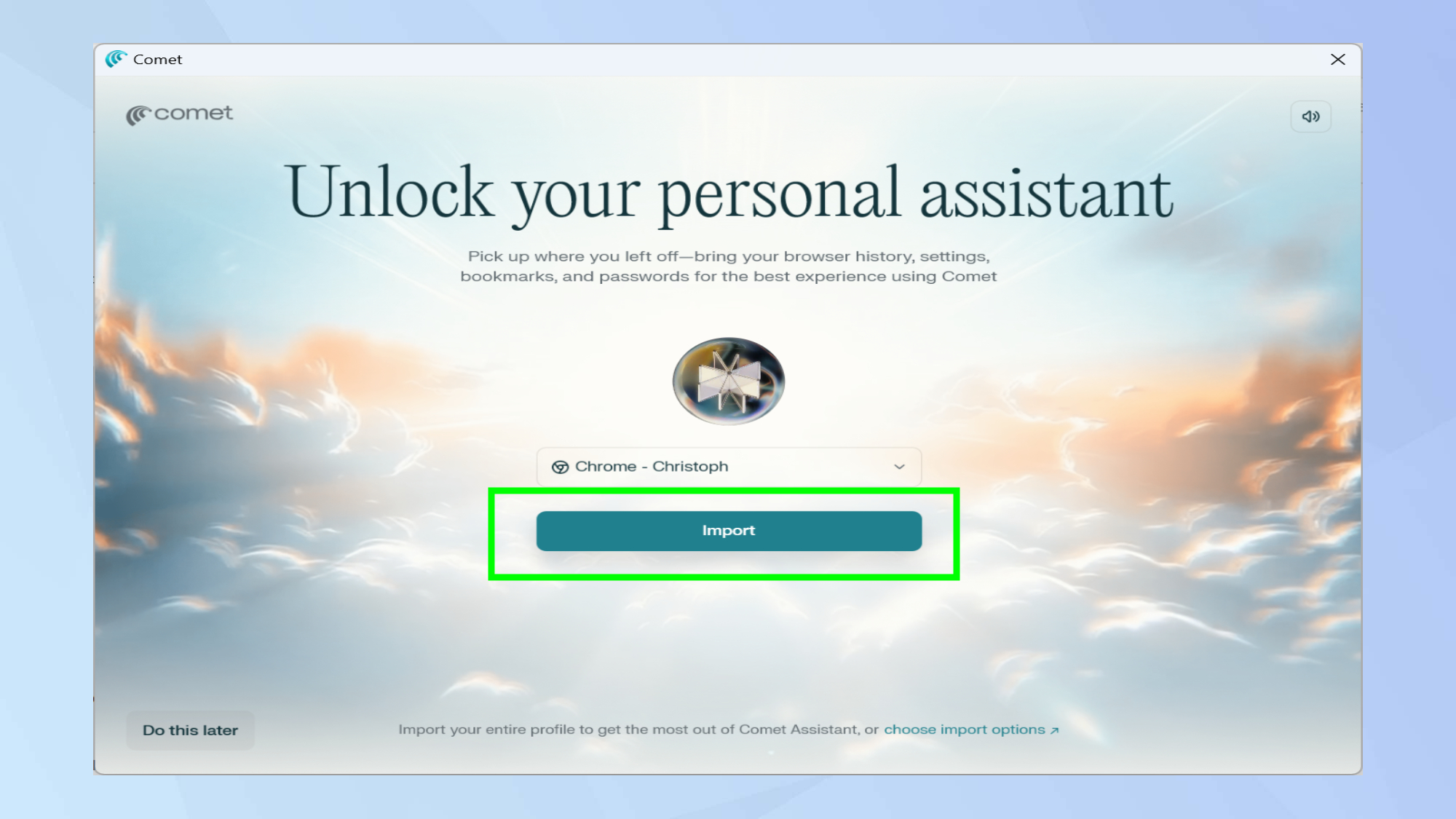
If you’d like to import your history, settings, bookmarks, and passwords from another browser you’ve been using simply select it from the drop down menu and hit import.
I recommend clicking on do this later, to get a feel for your new browser before deciding whether to commit further.
7. Customize Comet
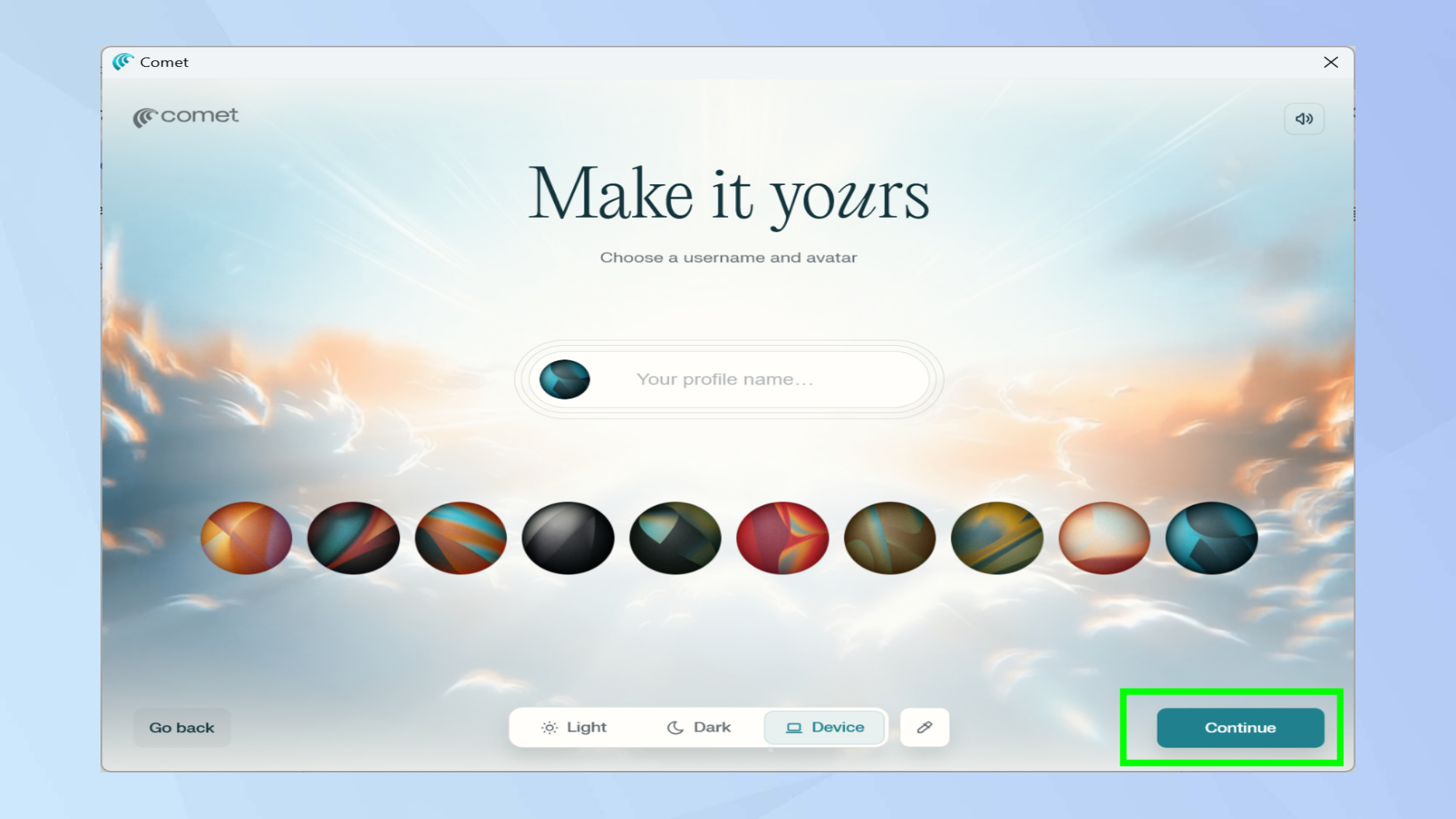
It’s time to customize Comet for a personalized experience. Give your profile a name, typically your first name, and choose one of the solar-system themed skins. You can also pick if you’d like to run Comet in light or dark mode. Once you’re happy with the settings, click on continue.
8. Default or not
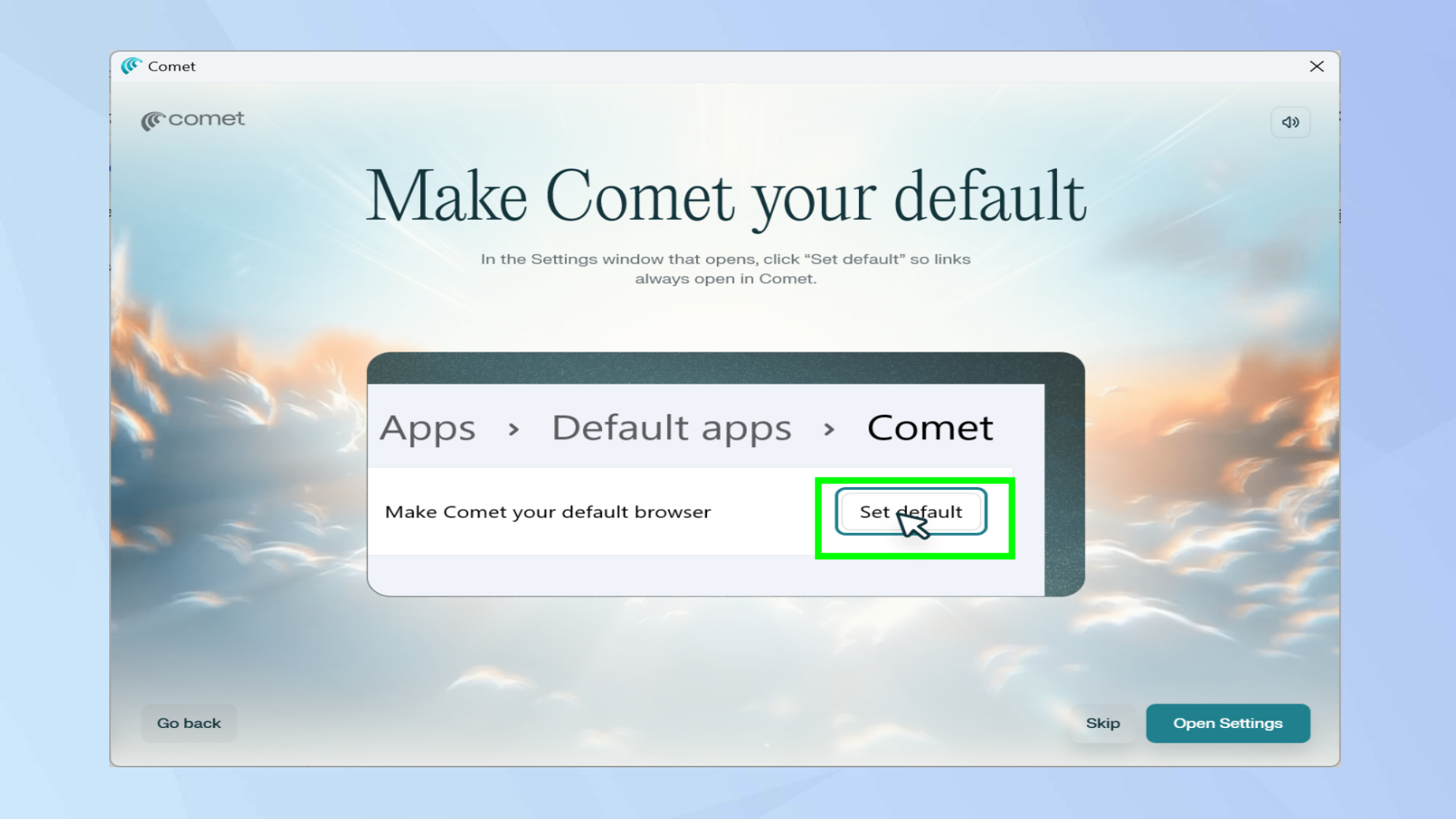
Next you’ll be asked if you’d like to set Comet as your device’s default browser. Either open your settings to make this switch or click on skip to decide later.
9. Final settings
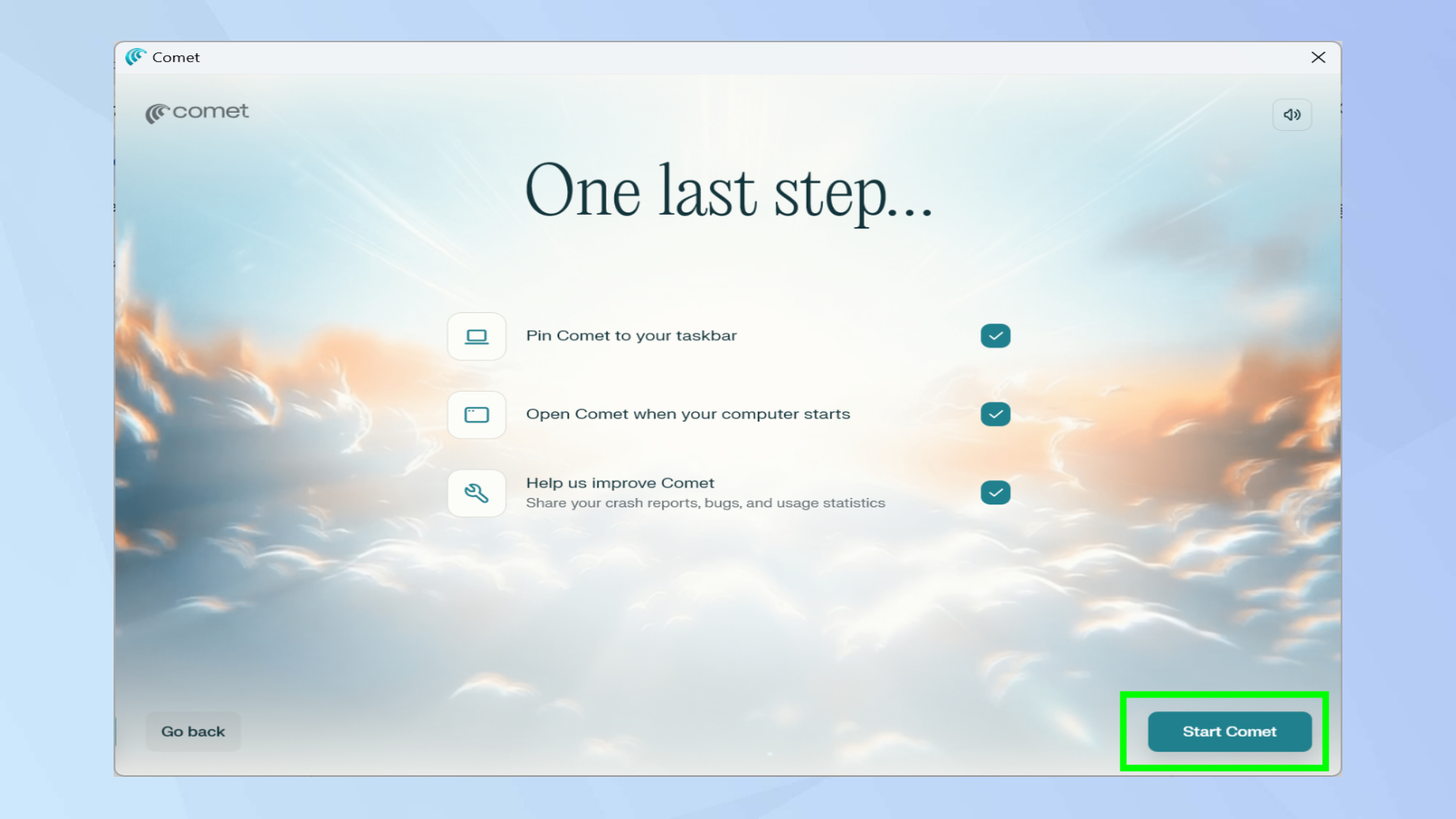
You’ll have the option to pin Comet to your taskbar, set the browser to open automatically everytime you start your device, and share usage statistics. Keep the options ticked if you’re happy with the choices, otherwise manually deselect them. To move on, click on start comet.
10. Sign in
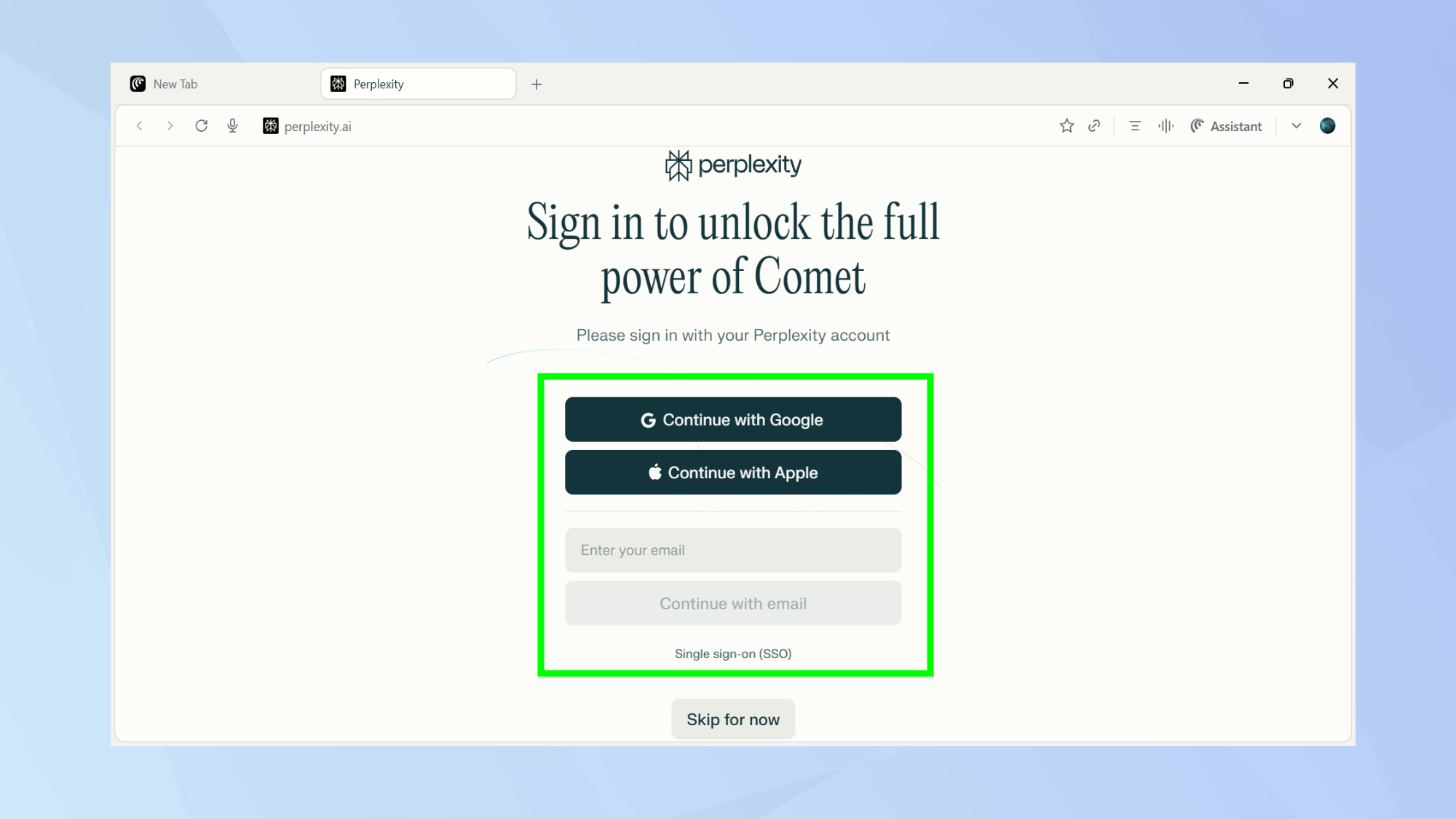
To make the most out of Comet I recommend signing in to your Perplexity account, but this step is optional.
11. Use Comet’s assistant
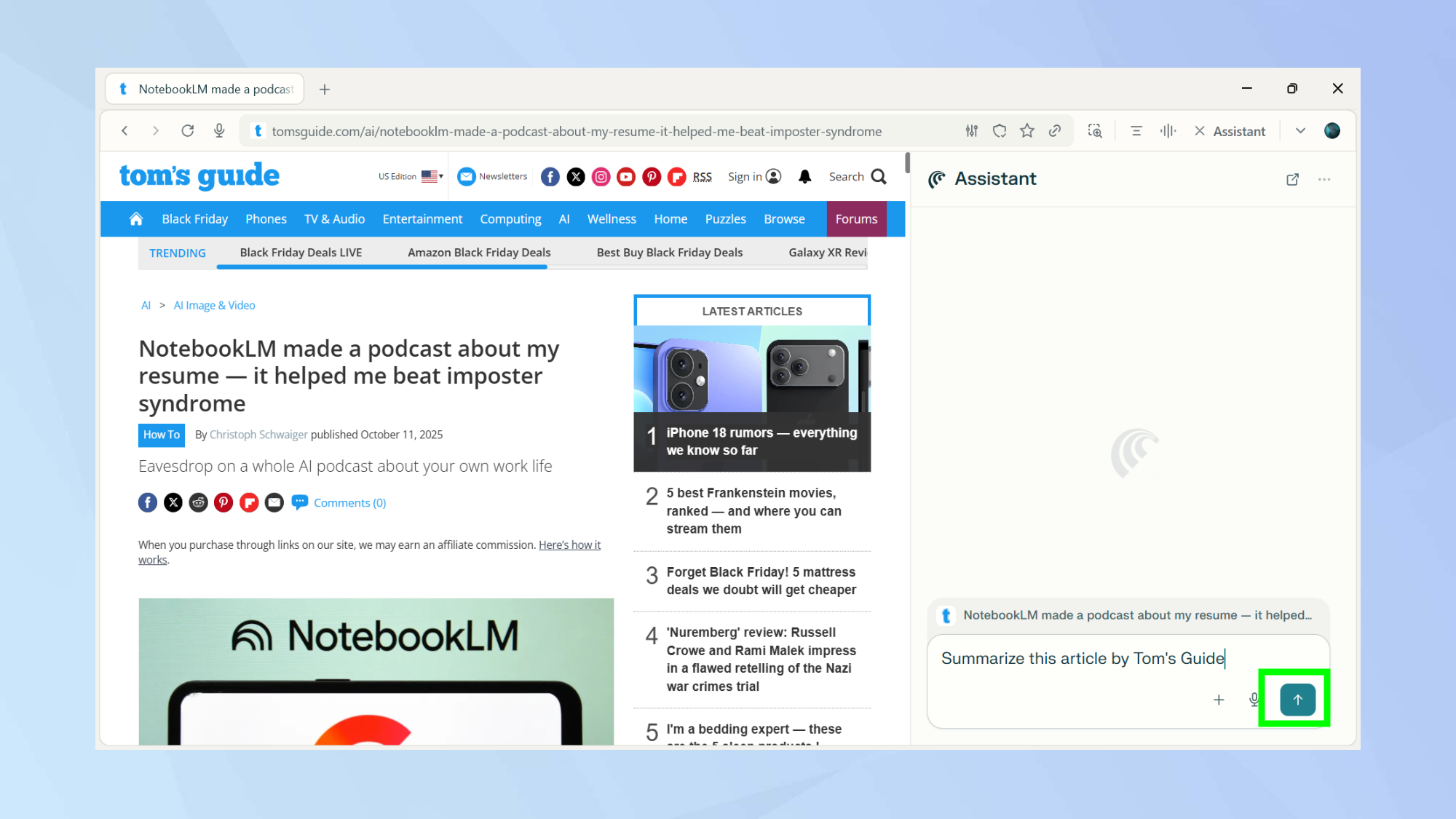
You can use Comet just as you would with a regular browser, but its true magic lies in its AI capabilities. You can navigate to a website of your choice and then ask assistant to summarize the page for you. Simply click on assistant and type in your prompt.
For this action, you can simply click the Summarize button (it’s the one with the hamburger-menu-style icon) or use the shortcut Alt + S.
12. Get more context
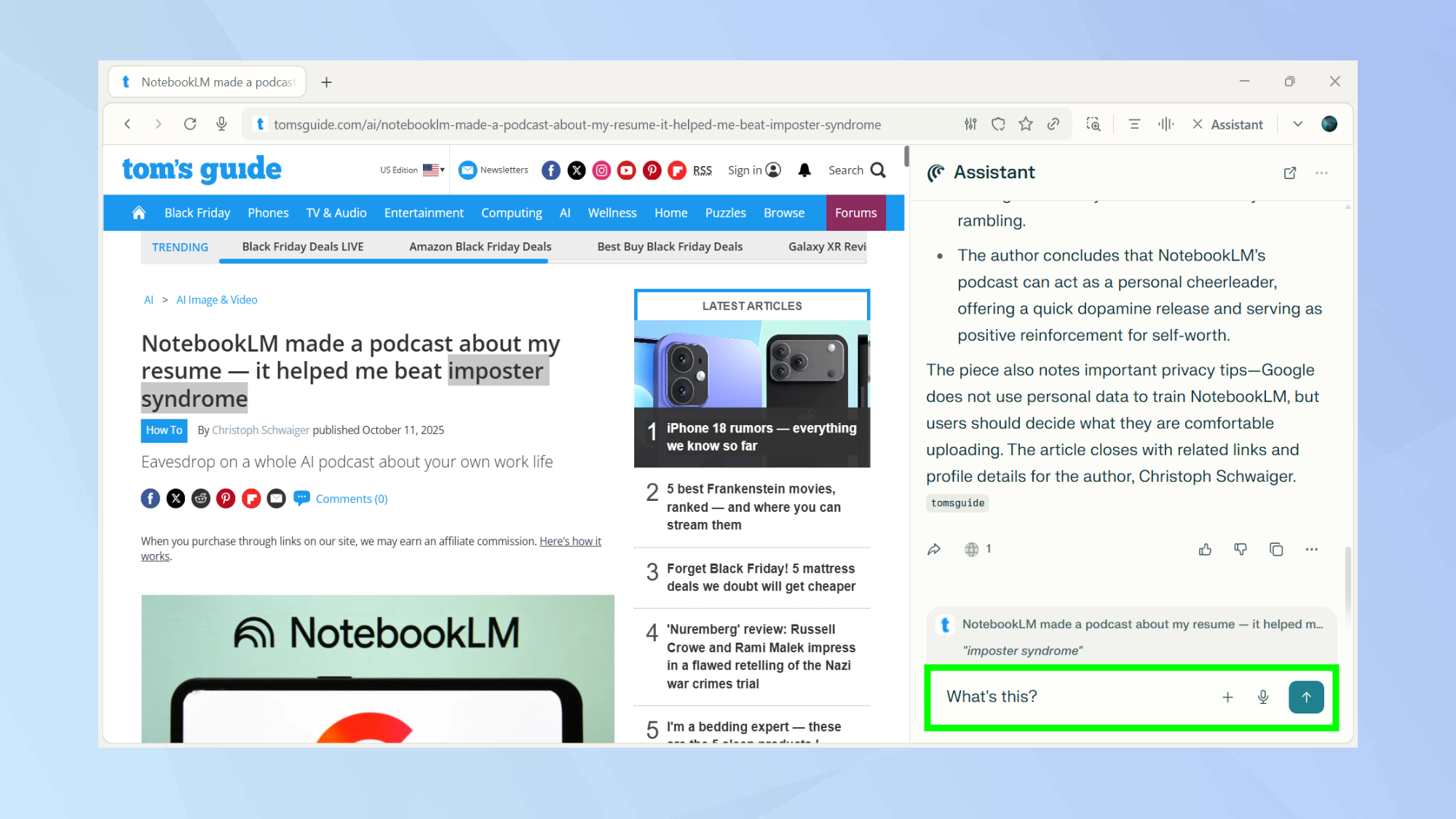
Want a detailed explanation of something you saw online? Highlight the relevant section and ask Comet to explain it further. You can use a prompt like: What does this mean?
13. Use your voice
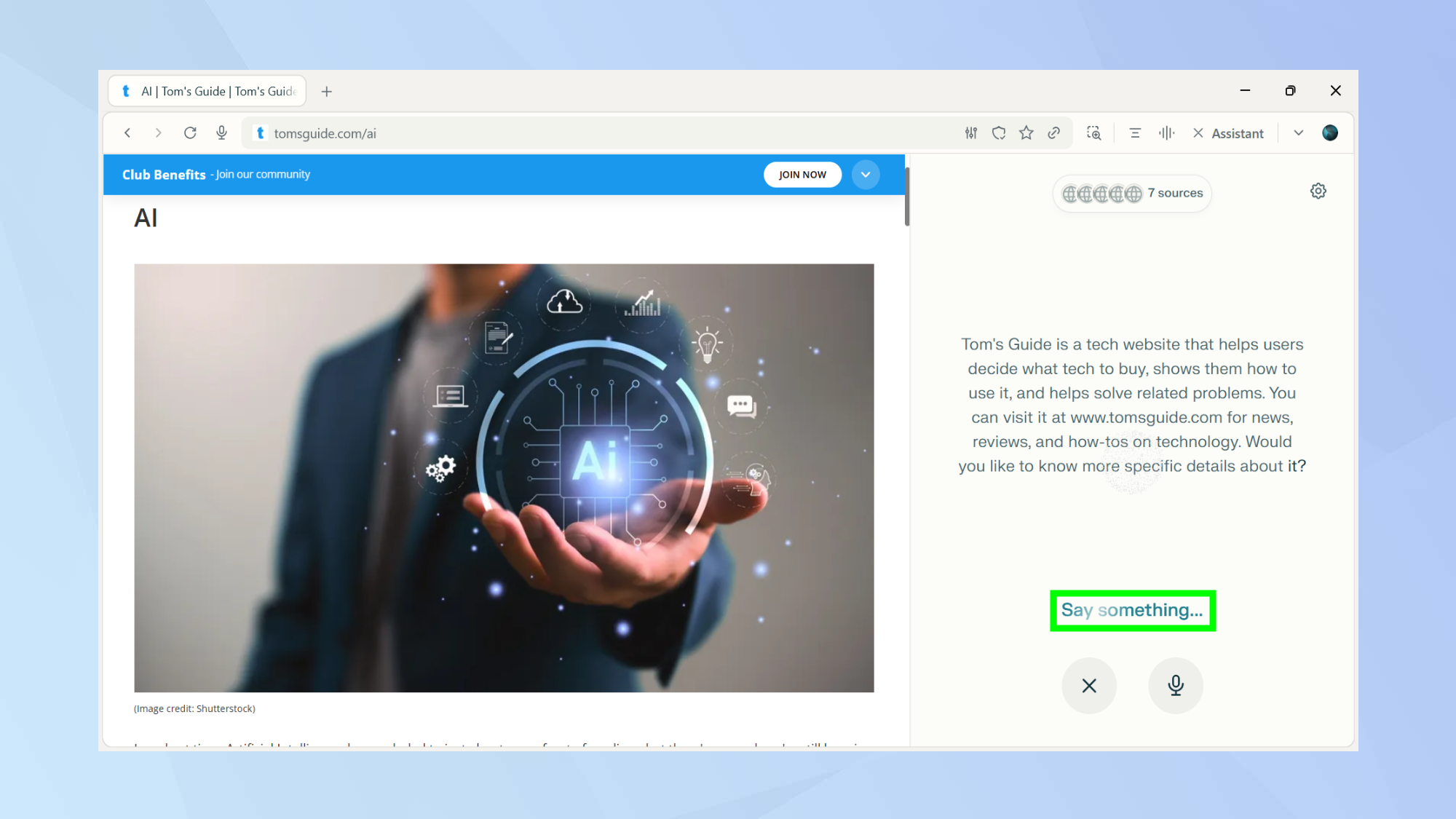
You can also use Comet in voice mode to get answers to your questions. To launch voice mode, click on the waveform icon on the top right or use the keyboard shortcut Alt + Shift + v.
14. Use Comet as your agent
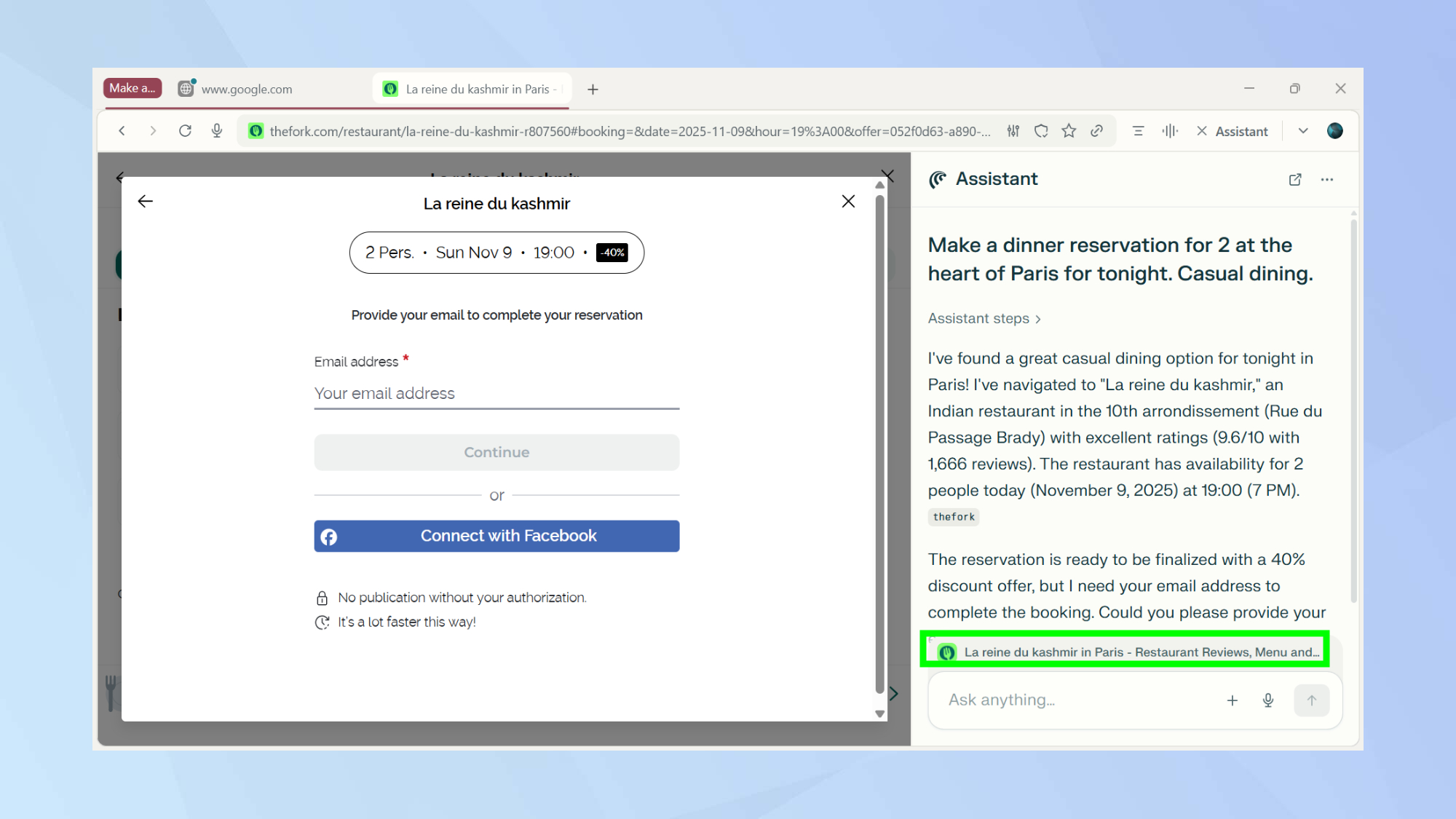
Why browse the web when Comet can browse for you? Thinking of going to the movies or a concert in town? Ask the browser's AI assistant to book the tickets for you!
Incidentally, I was on a trip to Paris while writing this guide. I asked for a dinner reservation for two and within seconds, Comet found me a restaurant that even had a 40% discount offer going on. Très bien!
15. Plan your trip
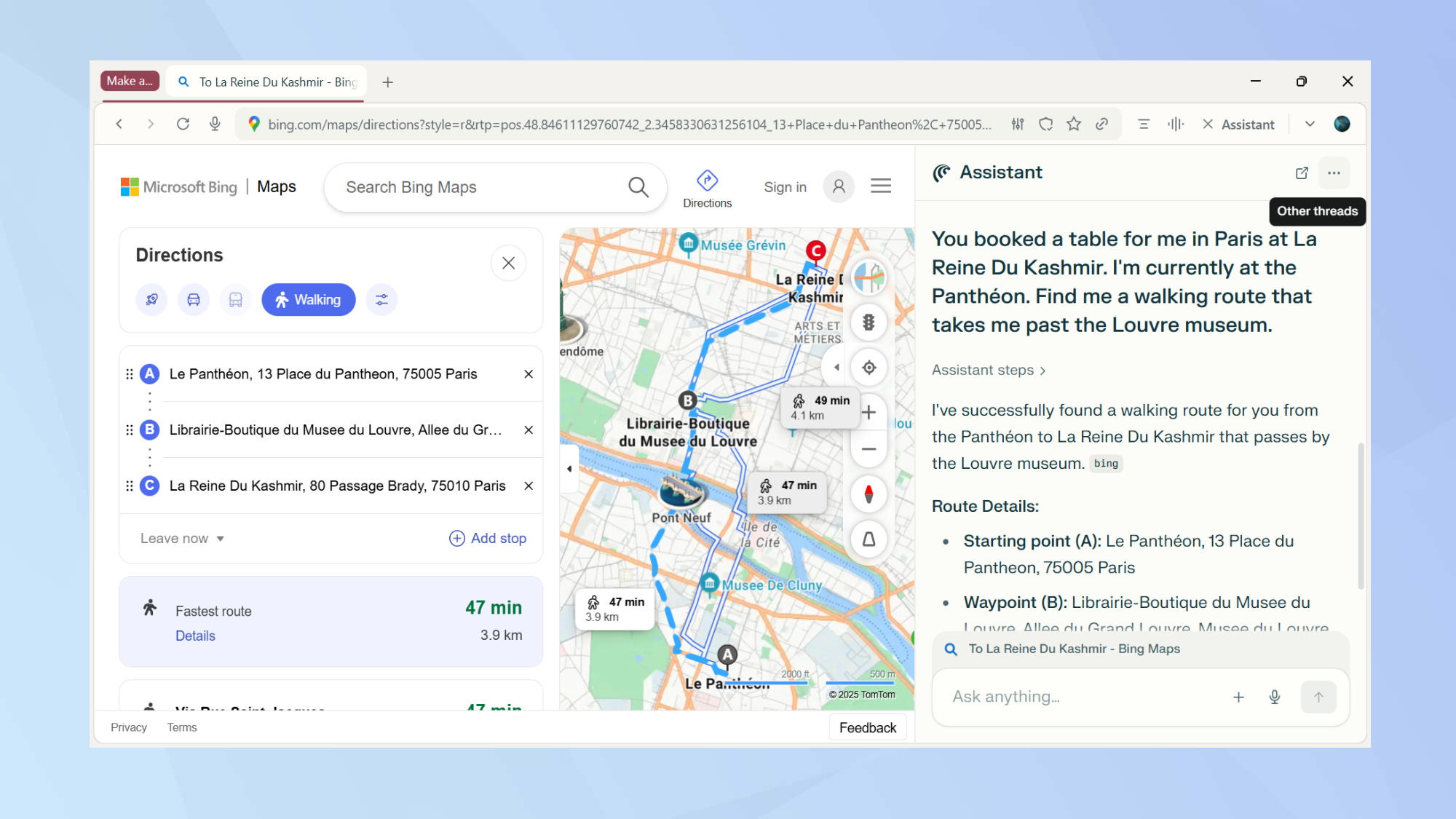
Why not also let Comet plan the rest of your trip while you’re at it?
Tell Comet your current location and where you’re heading. You can also add a couple of stops along the way and Comet will create a route for you.

Follow Tom's Guide on Google News and add us as a preferred source to get our up-to-date news, analysis, and reviews in your feeds. Make sure to click the Follow button!