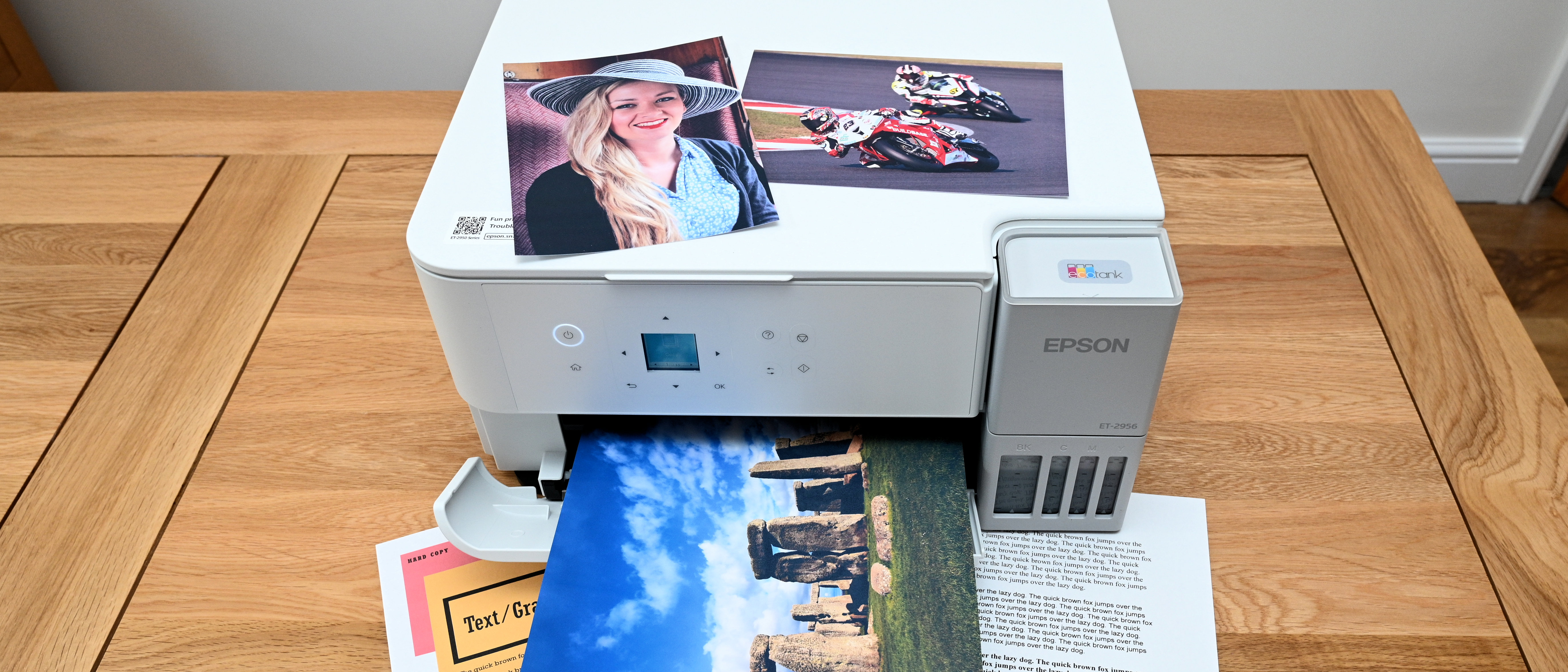
Think desktop inkjet printers and you’re probably thinking Epson and Canon. These two companies are the clear leaders in the field for performance and all-round quality. As with other manufacturers, however, the price of ink cartridges has been all but universally criticized over the years, so Epson EcoTank and Canon MegaTank printers are in the ascendancy. This type of printer is typically more expensive to buy but bottled ink refills work out massively cheaper in the long run.
This Epson EcoTank printer is a cost-effective, bottle-fed, multi-function printer that claims to save you up to 95 per cent in ink costs, with up to three years’ worth of ink supplied in a set of full-sized bottles in the retail pack. The setup procedure consumes a little of this but you should still have enough ink left over for 6,600 mono pages and 5,500 color document pages. That should keep you going for ages and when you do need replacement bottles, they’ll be good for 8,500 mono pages and 6,500 color pages. It’s a whole different world to using cartridges and the Epson aims to be one of the best all-in-one printers for the home office and hybrid working.
Epson EcoTank ET-2950 / ET-2980: Specifications
Inks/type |
1x pigment black, 3x dye |
Max print size |
A4, 8.5x14" |
Max print speed |
15ppm mono 8ppm color |
Max print resolution |
4800x1200dpi |
Input trays |
1x rear tray |
Scanner |
1200x2400dpi, A4 / 8.5x11.7" |
Display screen |
3.7cm / 1.5" color LCD |
Interfaces |
USB, Wi-Fi Direct, Wi-Fi |
Dimensions |
375x347x187mm / 14.8x13.7x7.4" |
Weight |
5.2kg / 11.5lb |
Epson EcoTank ET-2950 / ET-2980: Price
Manufacturers have to make their money somewhere. Historically, cartridge inkjet printers have often been relatively cheap to buy but there’s a sting in the tail, with your first set of replacement cartridges costing more than the printer itself. You might be tempted to just buy a new printer instead, but setup cartridges can have a notoriously short lifespan. Flip the coin and you’re often looking at comparatively expensive initial purchase costs for EcoTank printers, but with much cheaper running costs going forward. Pay your money, take your choice. Either way, the up-front price of the Epson EcoTank ET-2980 / ET-2950 is pretty competitive for a bottle-fed printer, at $330 / £320 / AU$499. That’s a modest outlay for a brand new EcoTank printer, especially as you’re unlikely to need to buy any ink for a long time to come.
Epson EcoTank ET-2950 / ET-2980: Design & Handling
A key design factor is that the Epson has large tanks of ink which are replenished with bottles, rather than using cartridges. The inks themselves feature a pigment-based black and dye-based cyan, magenta and yellow. The mix aims to deliver crisp, durable and smudge-resistant black text on plain paper, along with strong color performance. The dye-based inks should ensure a smooth finish on glossy photo paper, but the absence of an additional black dye cartridge could be a limiting factor for photo quality. I’ll come back to this later in ‘performance’.
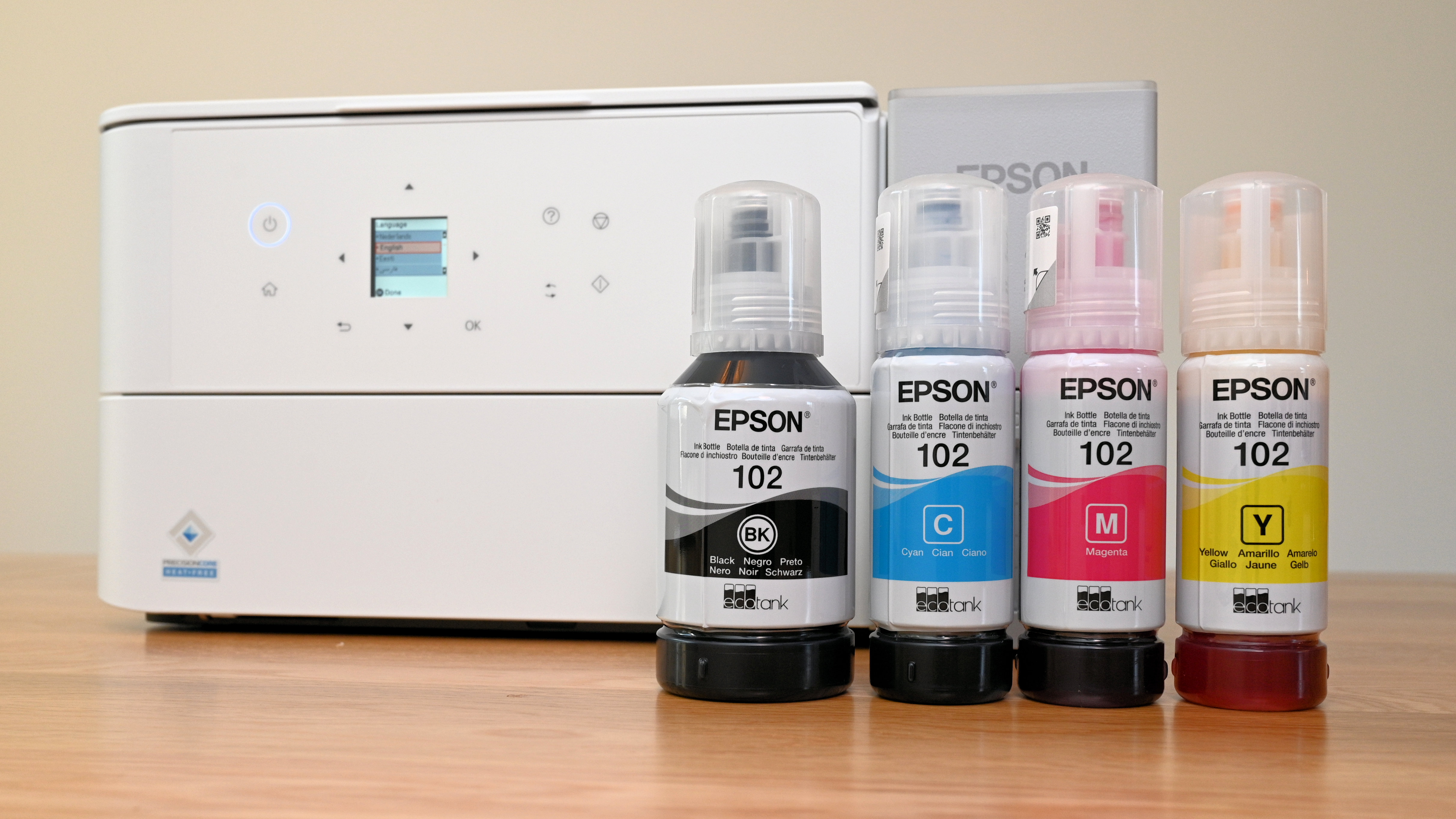
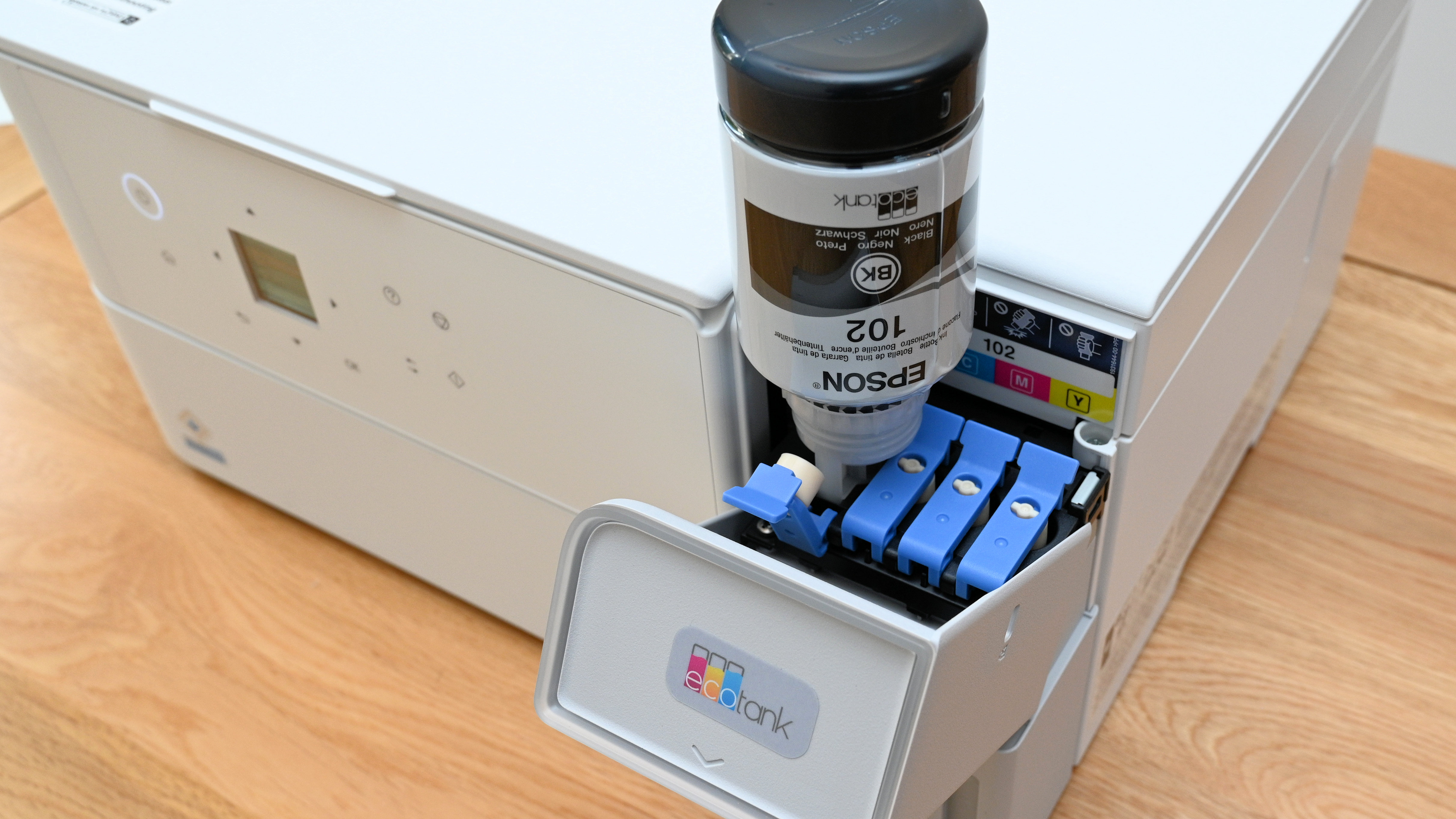
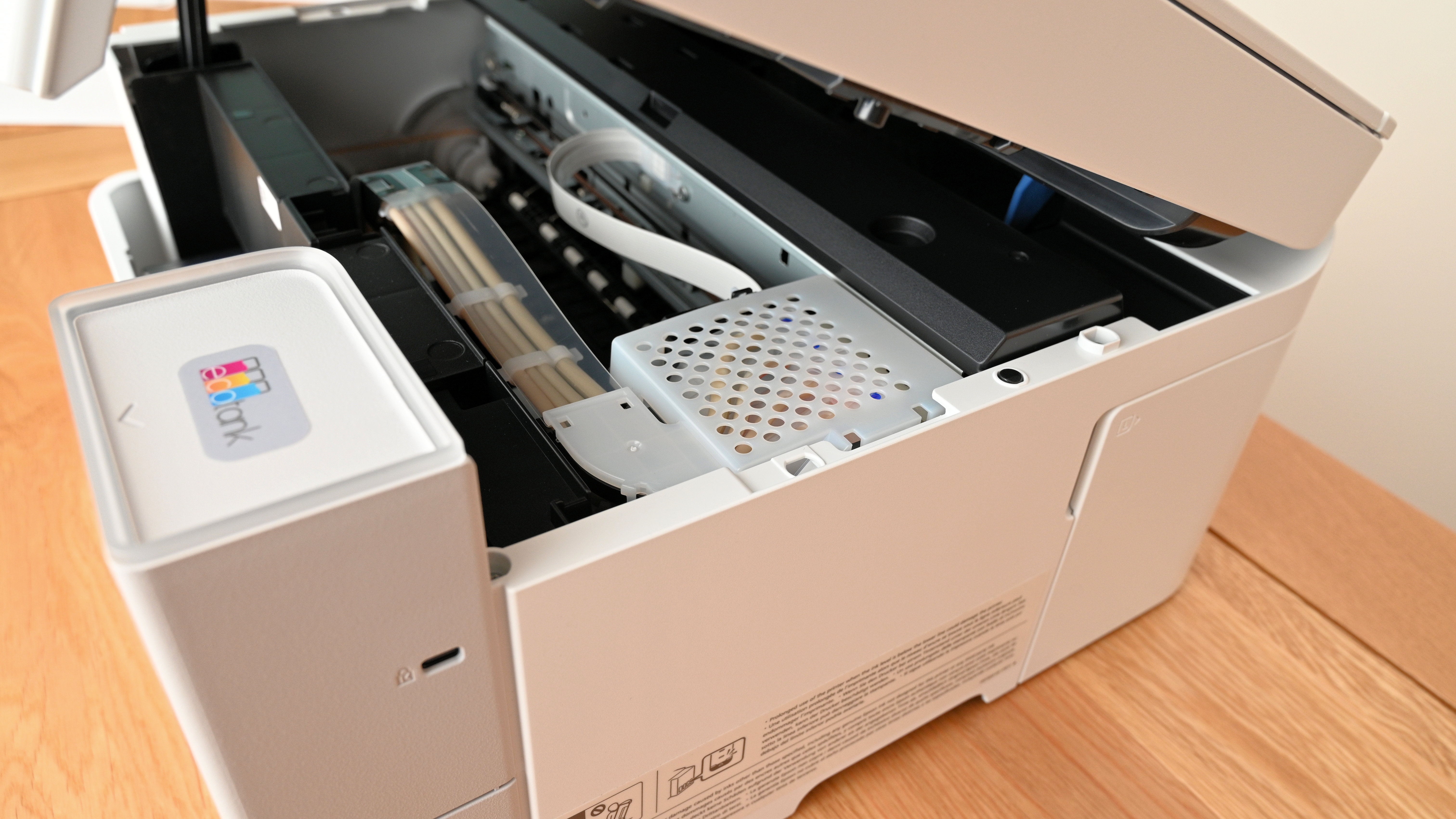
It’s only natural to feel short-changed when the ‘setup cartridges’ supplied with some printers seem to last barely any longer than the actual setup procedure. This EcoTank printer is supplied with a complete set of full-sized bottles, comprising 127ml of ink for black and 70ml for each of the cyan, magenta and yellow inks. That’s a tick in a box as far as I’m concerned. It’s also fairly common to worry that bottled ink is going to be a messy business. However, the bottles are designed to be easy to use with separately keyed tops so you can’t pour ink into the wrong tank. They’re drip-free, gravity fed with no squeezing, and shut off automatically with built-in valves to avoid any danger of over-filling at top-up time. In short, the whole process of initially filling the tanks and topping them up later is quick, easy and entirely painless. That’s a tick in another box.
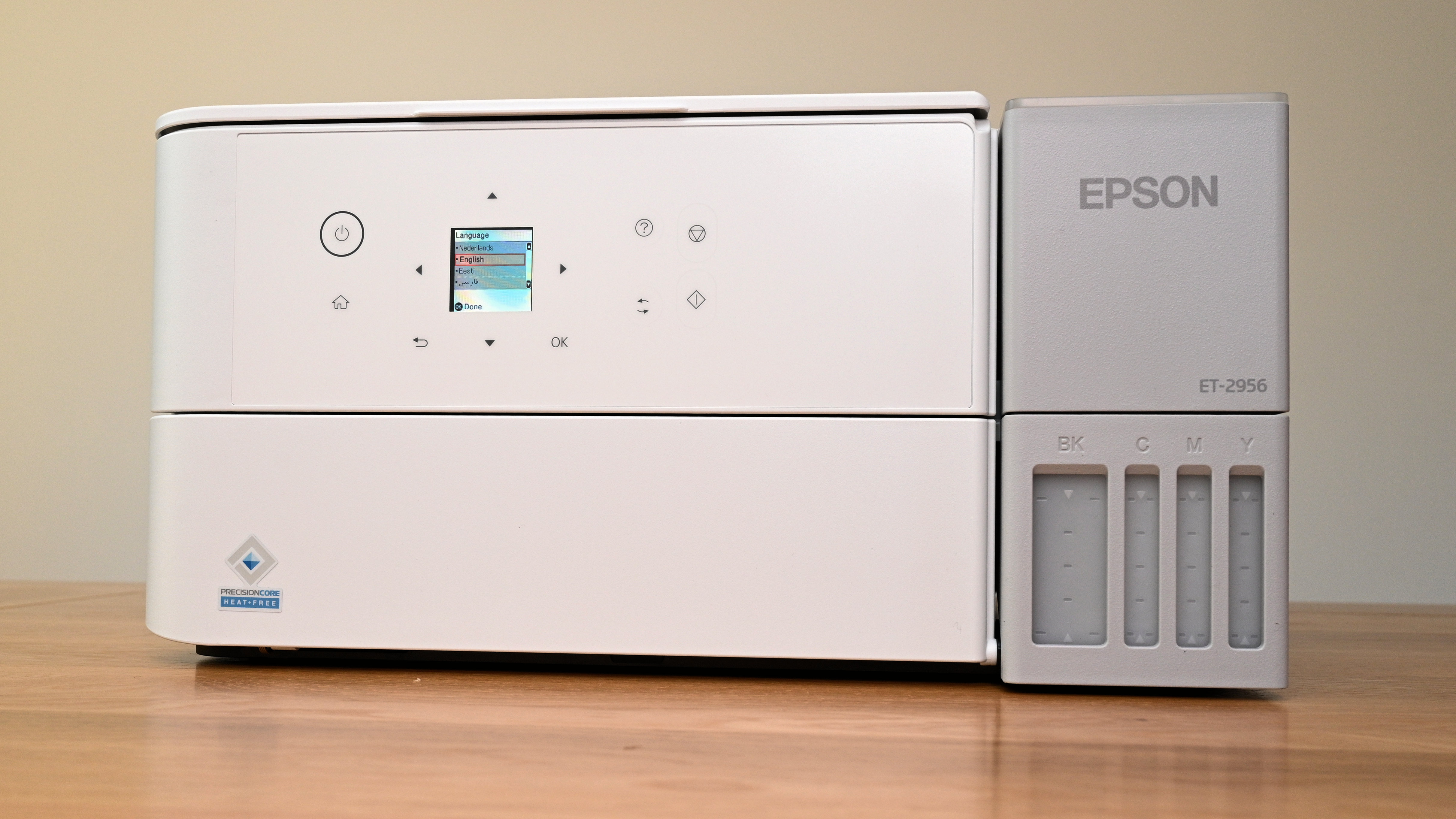
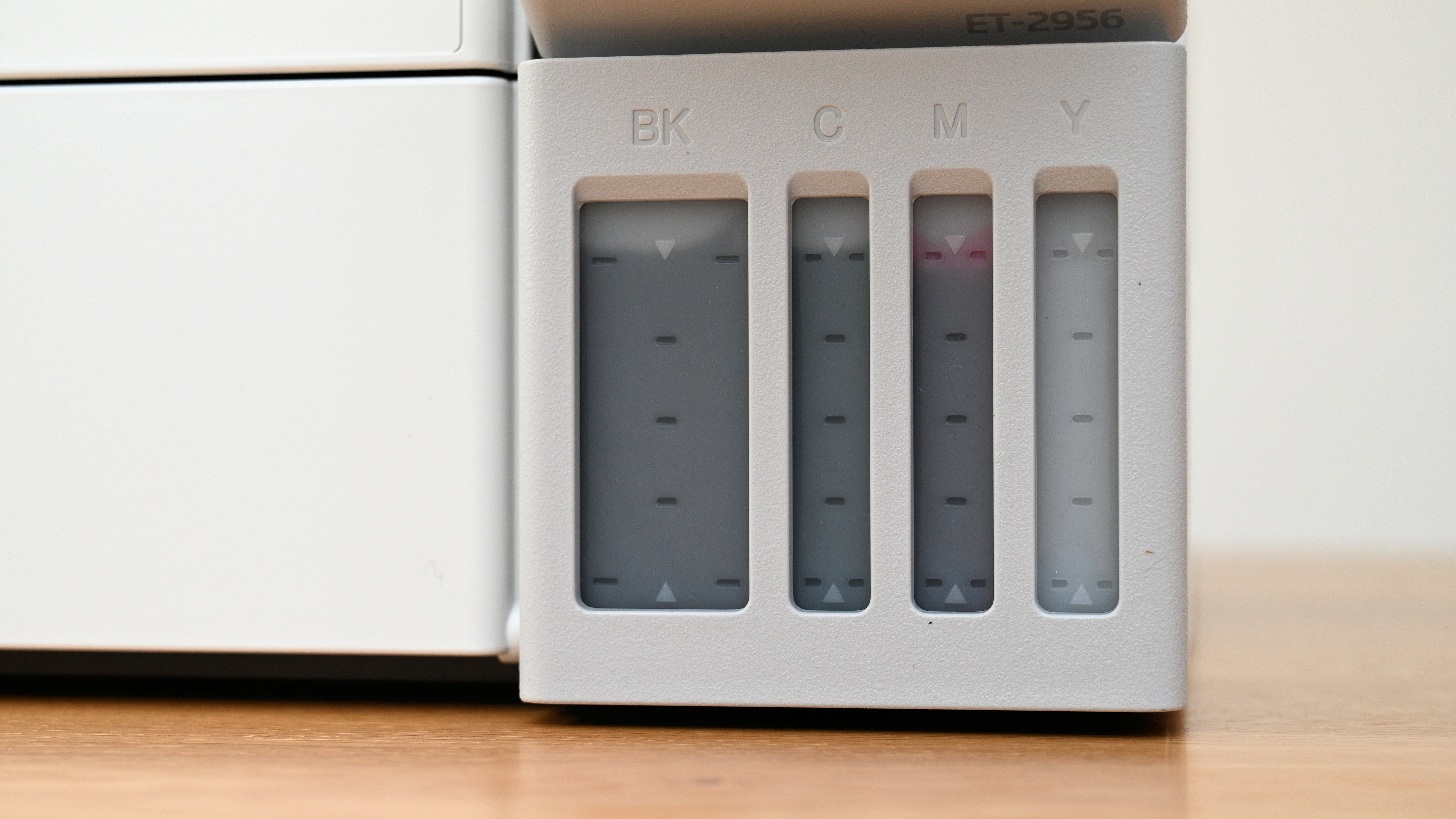
You can get a status report on ink levels via the printer driver but the easiest way to keep tabs on ink is simply to take a glance at the tanks, which have clear inspection windows at the front. Each window has five level markers, from full to empty.
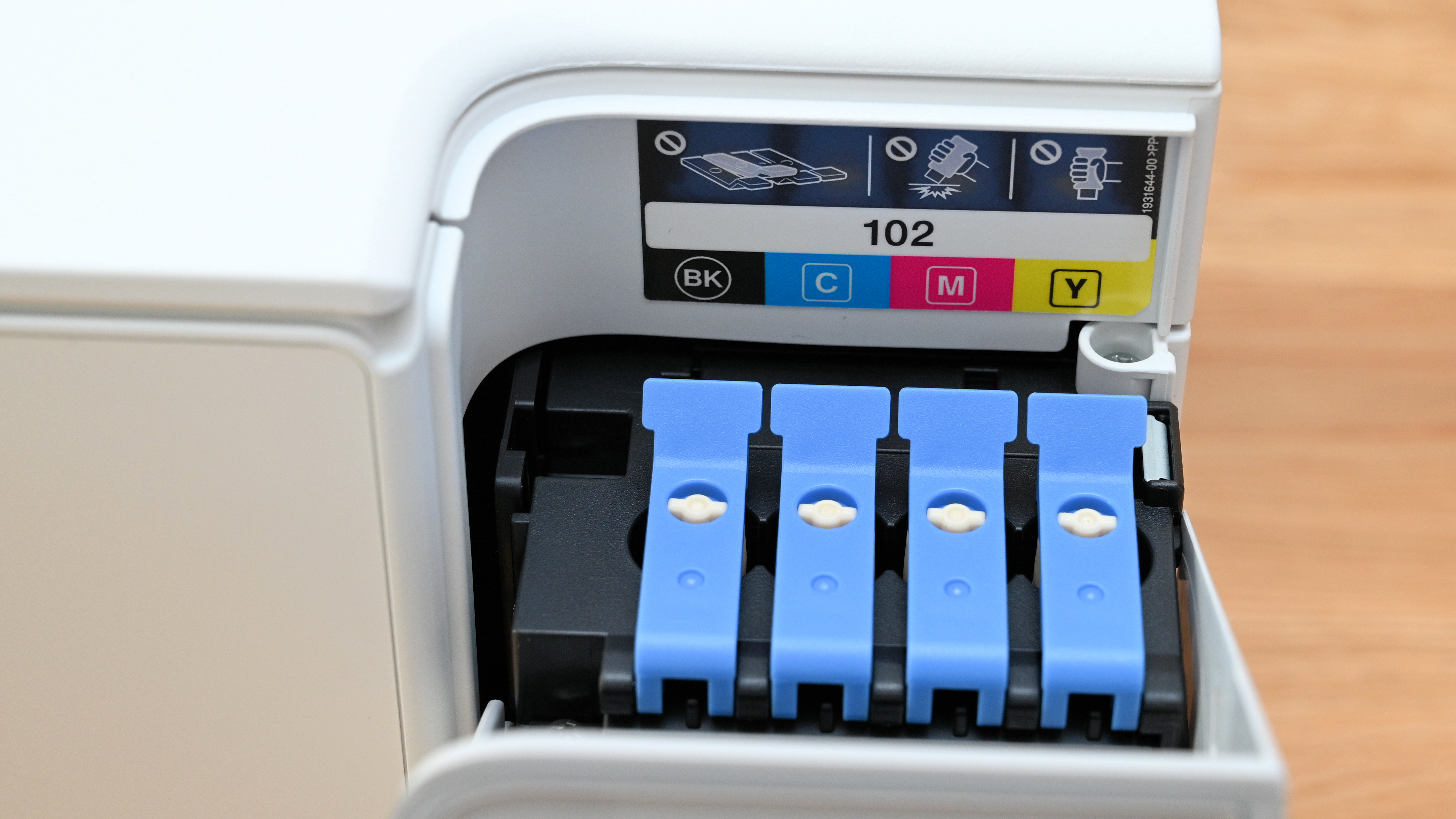
After filling each of the tanks, hinged stoppers fasten securely and are hidden away beneath a cover. It’s all very neat and tidy. The initial setup uses a fair bit of ink to prime the heads, but you should still have enough left over for 6,600 mono pages and 5,500 color document pages. Going forward, replacement bottles should last for 8,500 mono pages and 6,500 color pages, and cost $24.99 / £15.49 / AU$39.98 for a bottle of black ink or $75.95 / £39.49 / AU$99.95 for a full set of all four ink bottles. Suffice it to say that running costs are very inexpensive and massively cheaper than using cartridges.
The final part of the installation process is to print a test/alignment page which you then scan in using the printer’s flatbed scanner. It’s fully automatic so you don’t need to compare a bunch of printed blocks or lines and enter numerical values for each set of test areas, as you do with many printers.
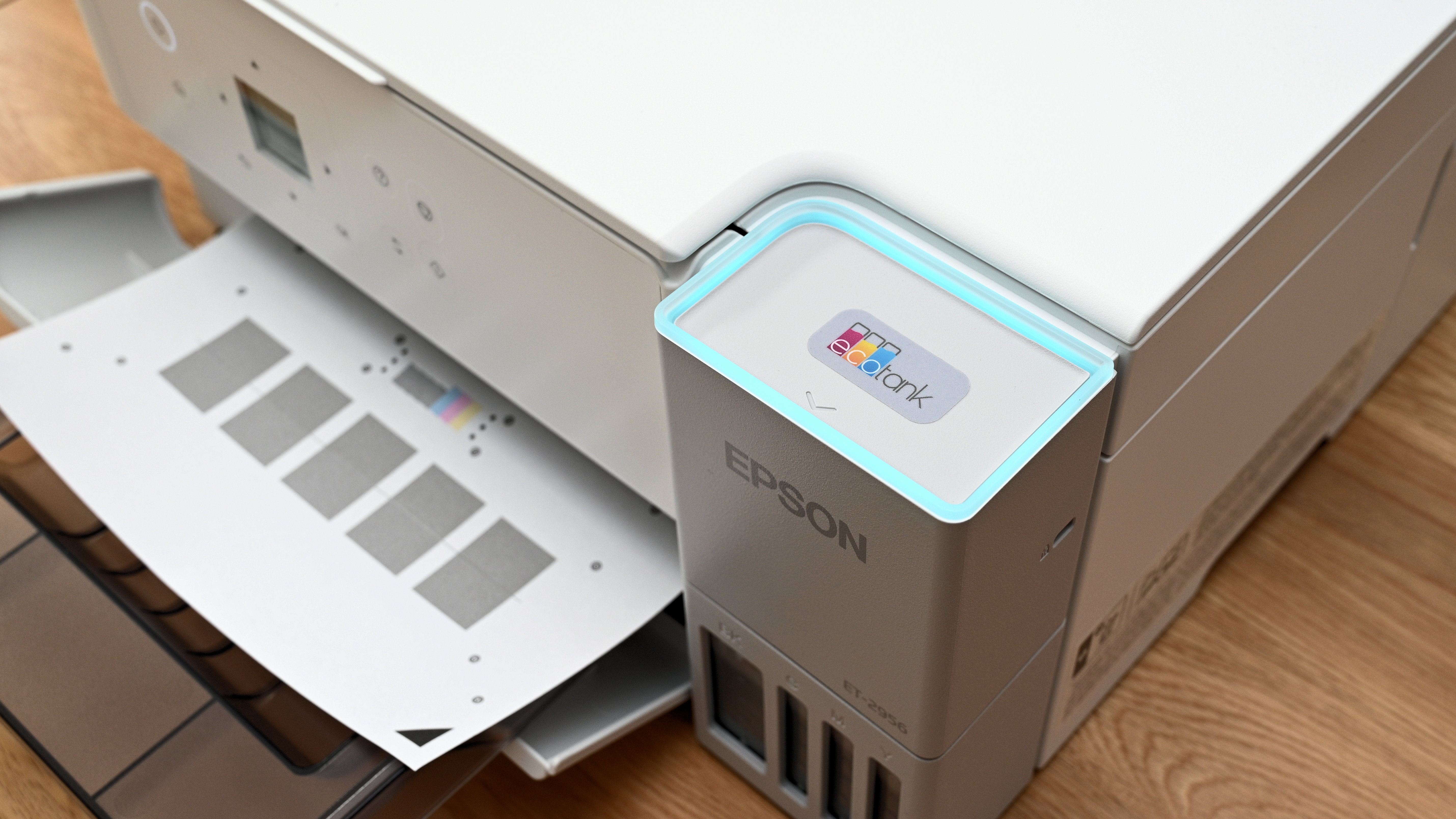
Placing the calibration page into the scanner and completing the process only takes a few moments and ensures that the print heads are optimally aligned for the best and sharpest printing results.

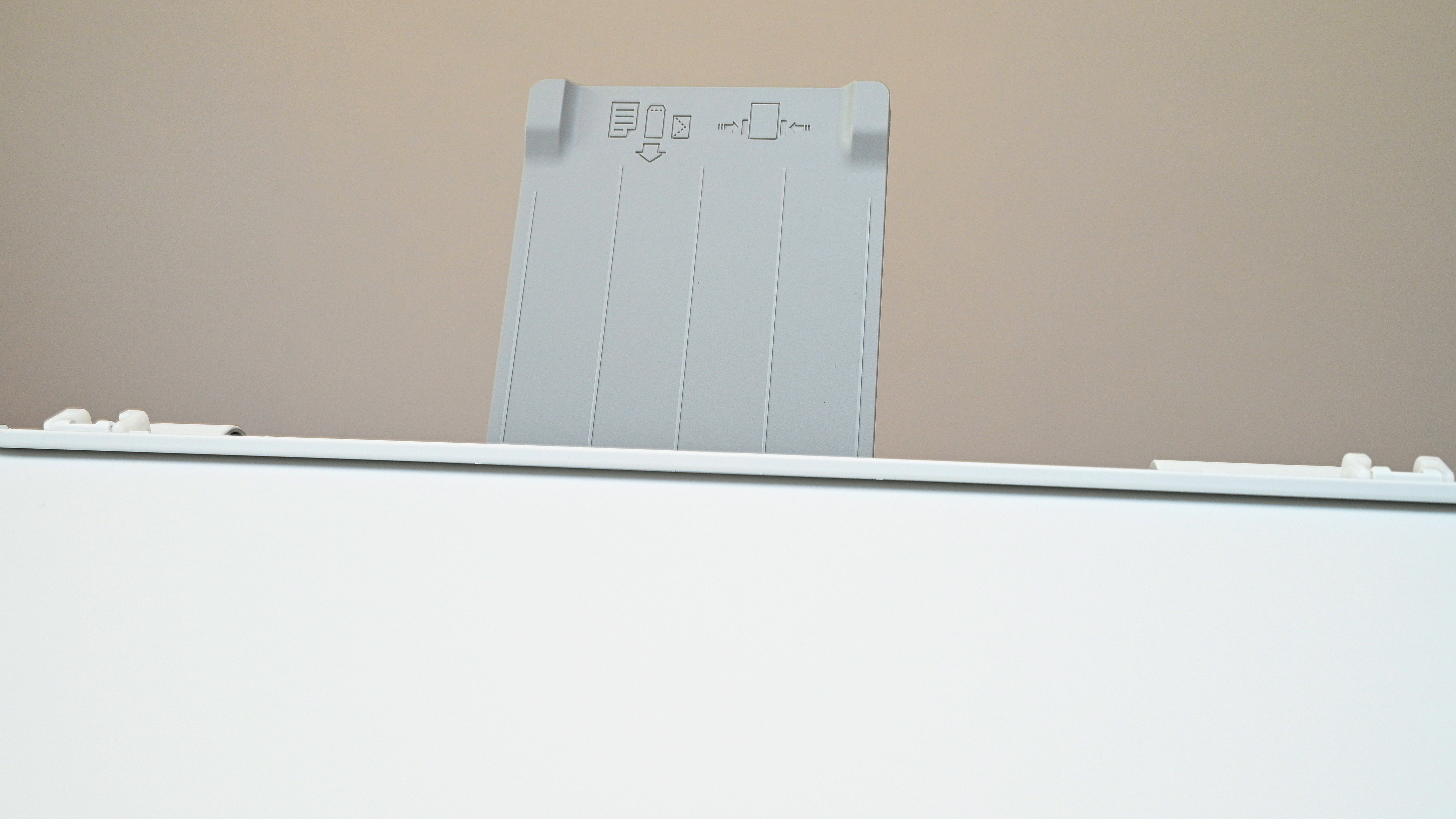
A disappointment as far as I’m concerned is that, while the printer is pleasingly compact and sits fairly low on a table, there’s no internal paper feed cassette. As such, you need to slot paper into the upright feeder at the rear, which comes complete with a pull-up support and adjustable width guides. At least it makes it relatively easy to swap between different sizes and types of paper. Even so, I’d rather be able to fill an internal cassette with plain paper and pop photo paper into a rear feeder as and when required.
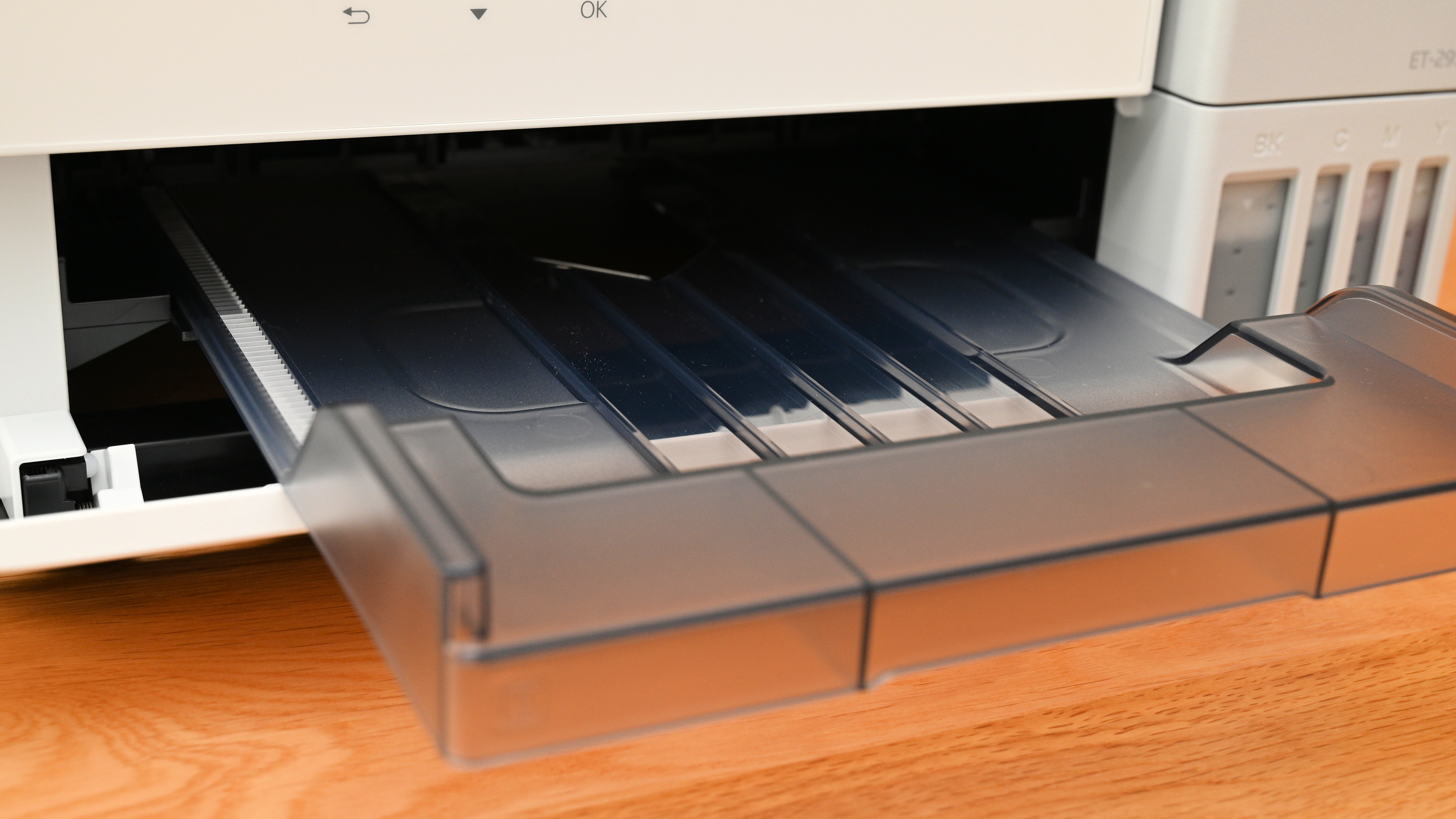
While the paper input system is fairly basic, the output tray is more refined. I’m happy that the output tray is fully motorized, so it extends automatically when you’re printing and there’s an option to fully retract it again when you switch off the printer. It’s a space-saver and again helps to keep everything neat and tidy.
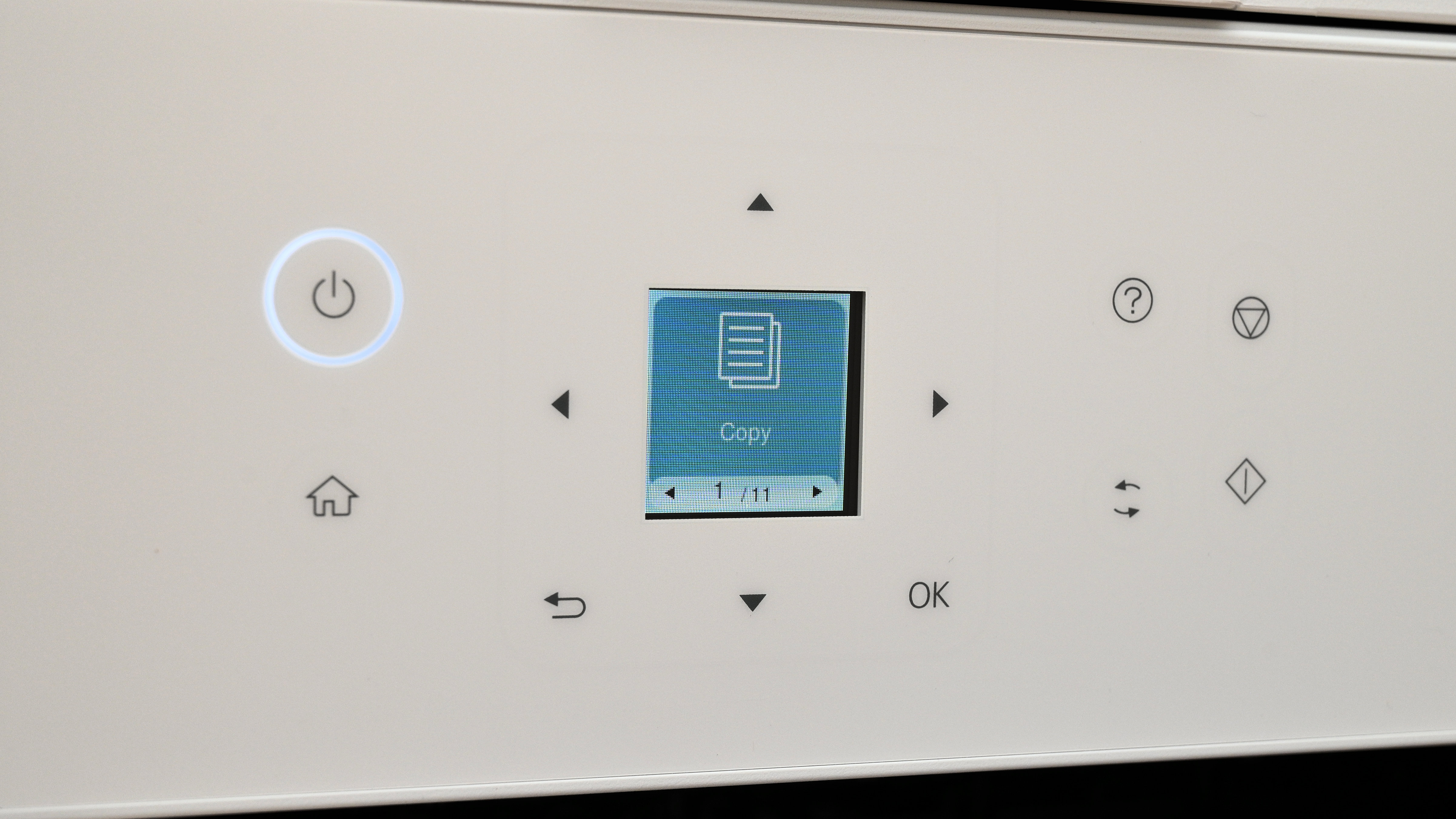
Some people love touchscreens for everything but I see absolutely nothing wrong with having a regular color display screen and a set of dedicated buttons for making adjustments. That’s what’s featured here, and the control panel is both logical and intuitive. To be picky, the 3.7cm / 1.5" color LCD screen is pretty small, but I found it clear enough to read comfortably.
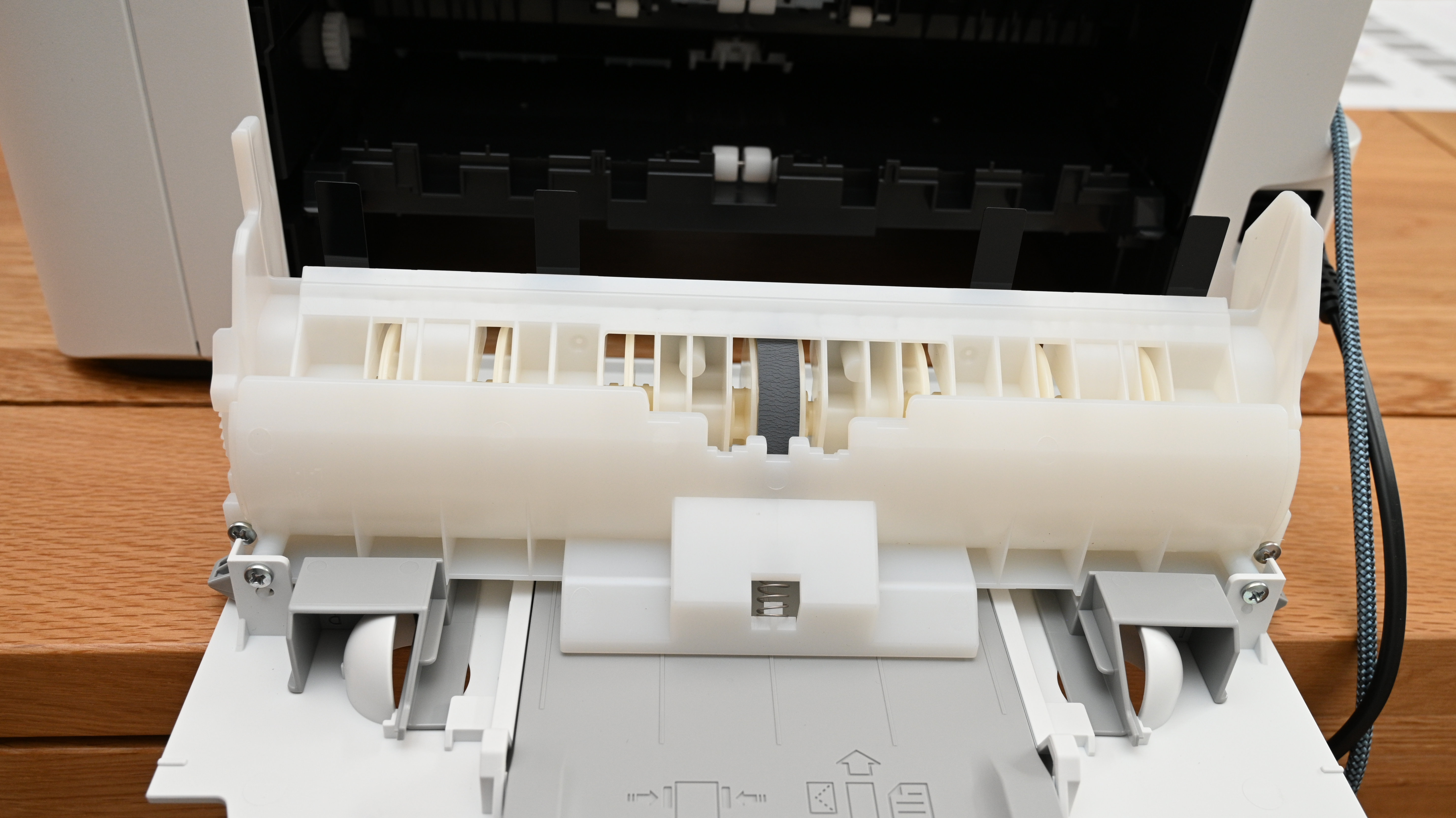
Around the back, there’s an auto duplex unit, so double-sided printing is on the menu without the need to flip paper over manually feed it back into the printer. And if you’re unlucky enough to suffer a paper jam during the automatic process, the duplex unit easily detaches for inspection and paper removal, with just a couple of pinch-action clips.
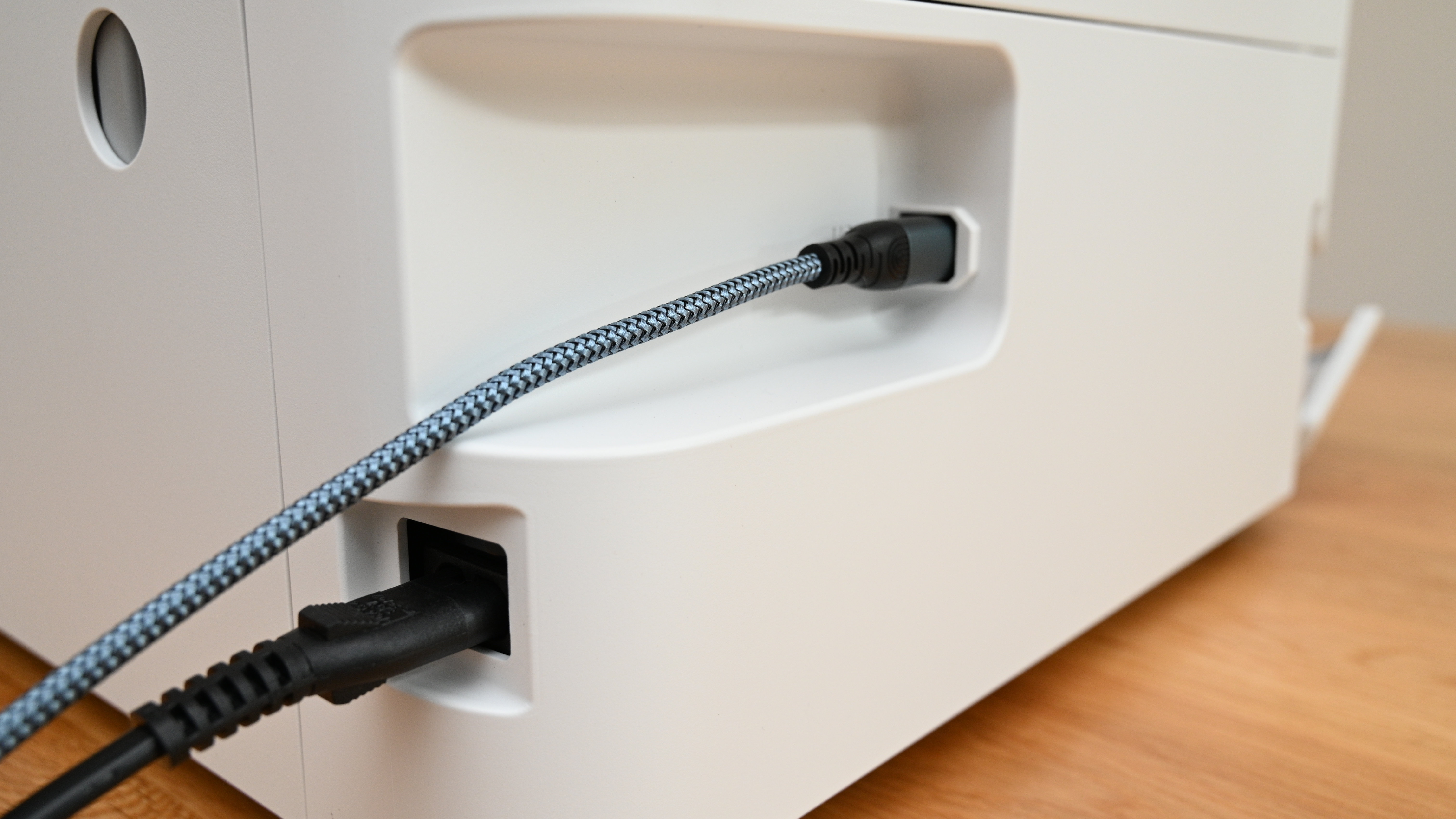
The rear of the printer also features a socket for the mains cable and a time-honored printer-type USB socket. As I’d expect in this day and age, the printer also supports Wi-Fi and Wi-Fi direct. This enables you not only to print wirelessly from computers around the home, but also to print and scan from smart devices, taking advantage of the Epson Smart Panel app. There’s support for Apple AirPrint, Mopria Print Service and Mopria Scan. I’d have also liked to see a USB socket on the front panel, for scanning to and printing from a memory stick, but that’s not featured.
Epson EcoTank ET-2950 / ET-2980: Performance
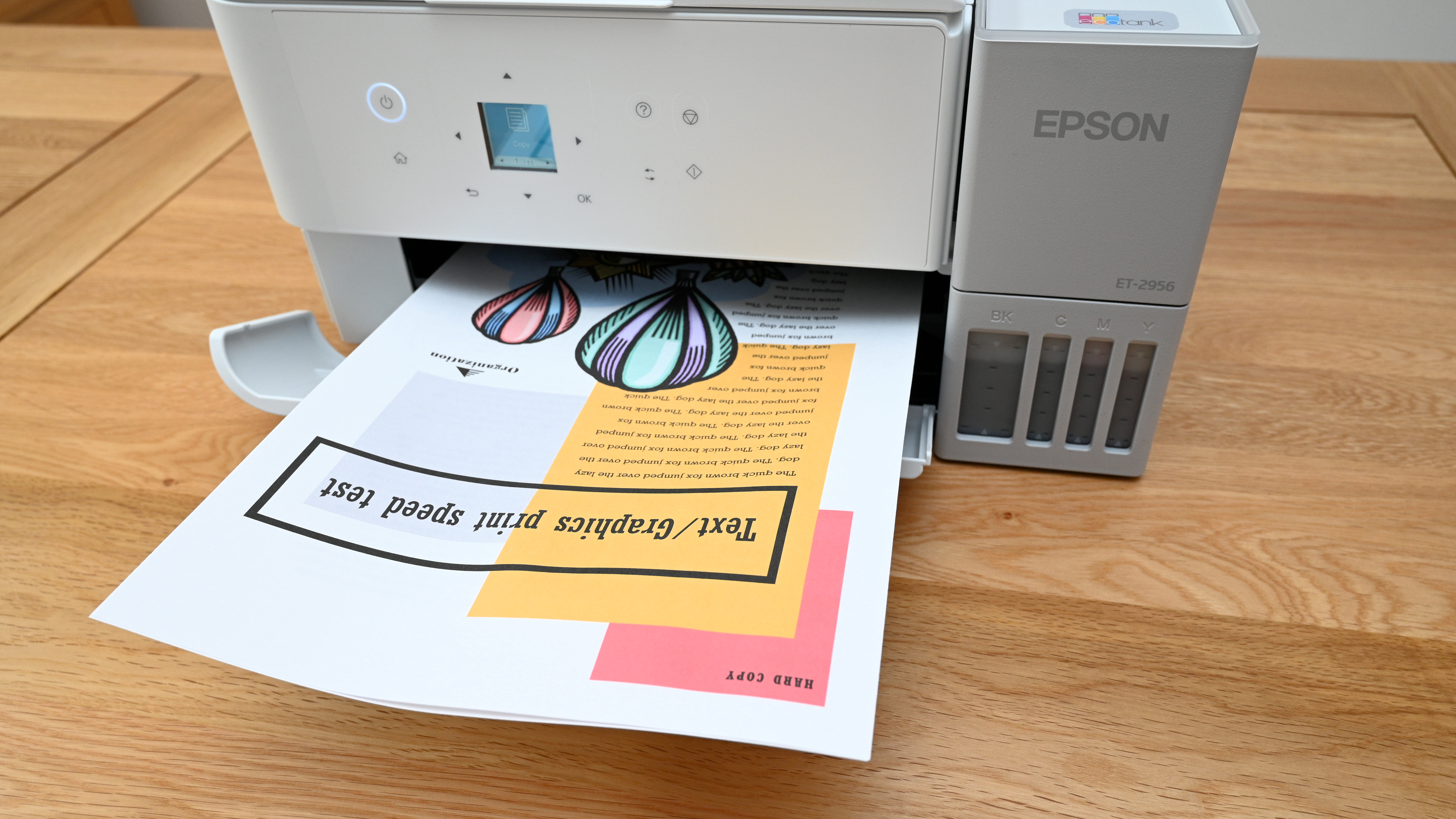
I’ve used ink tank printers that were rather slower than cartridge-based models, but this Epson is no slouch. It can output mono text pages at 15ppm and color pages at 8ppm in standard quality mode, rising to 33ppm for mono and 20ppm for color at the top speed setting. In my tests, printing single mono text and color text and graphics pages, the printer took 7 seconds for mono and 14 seconds for color in standard quality mode, and I can certainly live with that.
True to my expectations, black text on plain paper is crisp, dark and robust with good attention to fine detail. Color graphics are also reproduced very well, with good vibrancy and boldness. Arguably more of a handling plus point than a performance factor, I like the way that the front panel hinges upwards, so you can more clearly see the small LCD screen and use the pushbutton control panel to make any required changes.
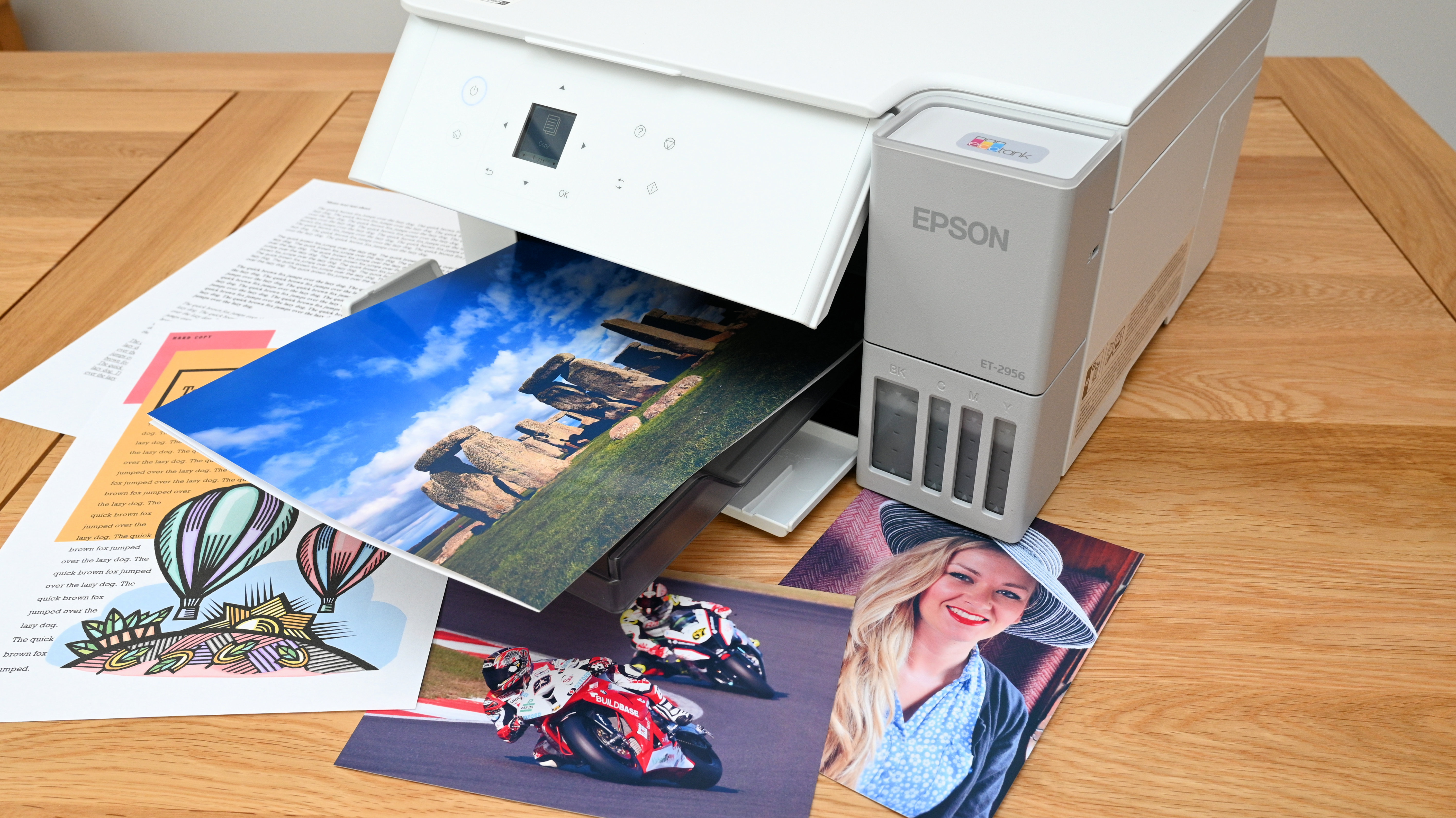
This printer is clearly designed and advertised as a document printer, and I’ve only seen print speeds and page counts for ink usage quoted by Epson for documents, not for photos. Even so, the dye-based cyan, magenta and yellow inks work well for creating photo prints on glossy paper, up to a point. Being dye-based rather than pigment-based inks they’re fully absorbed beneath the outer glossy layer of photo paper, resulting in a smooth and uniform finish with no ‘bronzing’ or areas of uneven reflectivity.
However, the absence of a secondary dye-based black ink means that really dark areas of photos are reproduced with ‘composite black’ from all three colors. The result is that photos can be a bit lacking in contrast and depth. Photo printing is also relatively slow. I found that the printer took 1m 30s or 2m 55s to output a borderless 7x5-inch photo print in standard and high quality settings respectively. And for borderless A4 photos in standard or high quality mode, it was 2m 45s or 5m 15s. In terms of photographic fidelity, I found no benefit in switching from standard to high quality print mode.
Back on the plus side, the Epson printer driver is typically intuitive and easy to use. That really can be a performance boost, as it’s quick and simple to make any necessary changes to printer settings, and the same goes for running maintenance routines like nozzle checks and cleaning cycles. The gallery below shows the three main screens for the Windows printer driver.
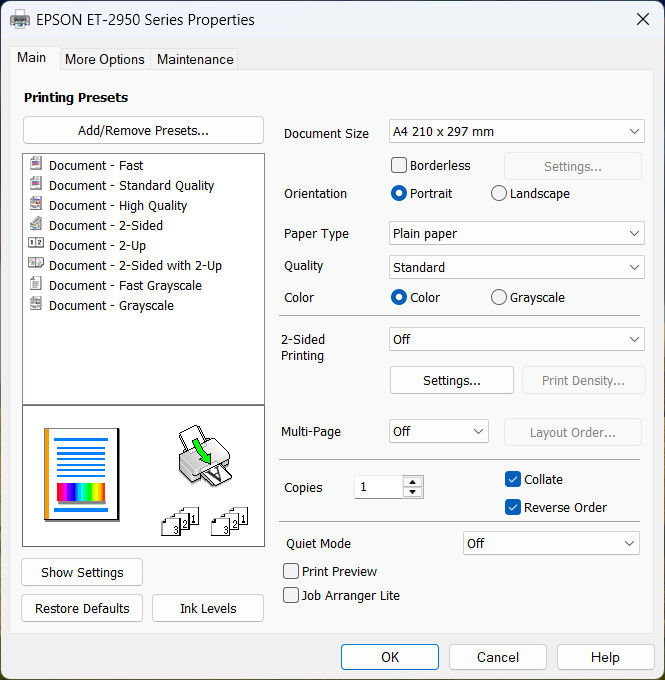
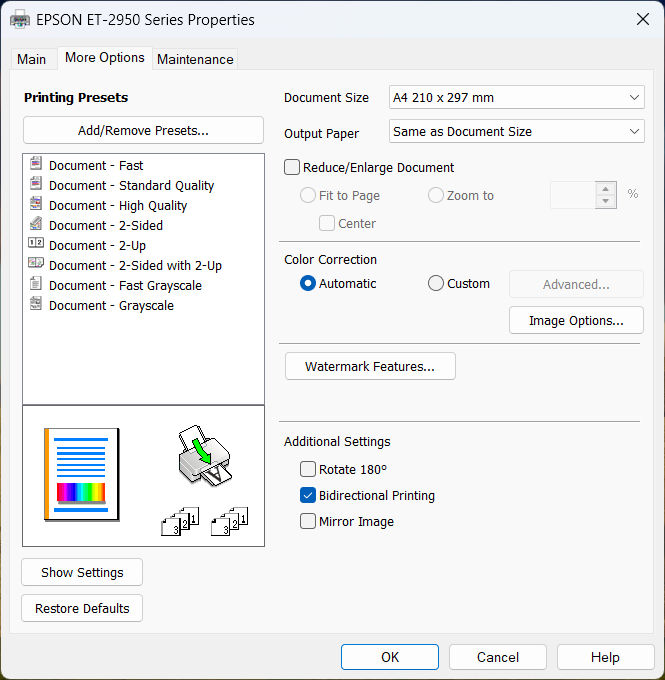
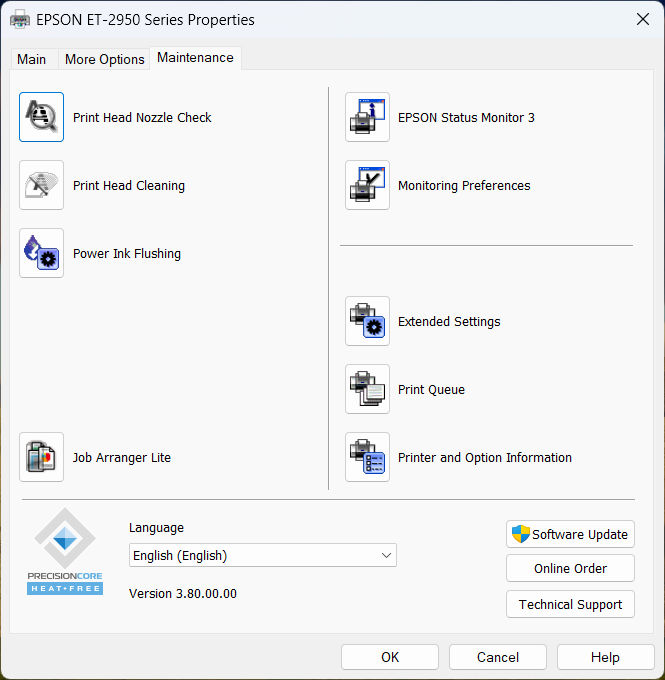
Another performance facet is that you don’t want downtime when you’re counting on your printer. It’s generally not so much of an issue nowadays but historically, many inkjet printers needed to be sent away for servicing if the ‘maintenance cartridge’ became full of excess ink. Like most of its modern competitors, this Epson has a user-replaceable maintenance cartridge, and if you should come to need one, it’s cheap to buy at $10.99 / £10.49 / AU$15.99 for the genuine Epson article.
Epson EcoTank ET-2950 / ET-2980: Verdict
One of my pet hates with cartridge-based printers is the seemingly continual need to buy and replace ink cartridges. And it can be a very pricey business. I like that by comparison, this Epson printer is very cheap to run, and that bottles of ink last for absolutely ages. Despite this, the up-front purchase price of the printer is very reasonable, which I can’t say for many bottle-fed printers. All in all, the Epson is great value for money, easy to use and delivers very good quality mono and color documents with a quick turnaround. It’s less ideal for glossy photo printing, which is relatively slow and not of the best quality, but it can certainly turn its hand to the task when needed. I think it’s also a shame that the printer doesn’t have dual paper feed trays, with an internal cassette and separate rear feeder. All things considered though, it’s a very good choice as a multi-function printer for the home office and for family life.
|
Features ★★★★☆ |
It has all the required features for printing, scanning and copying but dual paper inputs would have been nice, instead of just an upright rear feeder. |
|
Design ★★★★☆ |
I like the overall design of the printer but some might find the color screen rather small, and would prefer a touchscreen. |
|
Performance ★★★★☆ |
Print speed and quality are pretty impressive for mono and color documents on plain paper, less so for glossy photo output. |
|
Value ★★★★☆ |
You get the relatively cheap running costs of a bottle-fed printer without a massive up-front purchase cost. |