
Forgetting your phone password can cause stress and disrupt your daily routine. Many people immediately visit repair shops and spend money unnecessarily. Fortunately, you can safely unlock or reset your phone at home using simple and reliable methods. Android and iPhone devices offer official procedures, such as using the Google account, Smart Lock, or factory reset options. These methods are secure and protect your data when followed correctly. By understanding and applying these techniques, you can regain access to your device quickly and confidently. Home solutions save time, money, and ensure your phone remains under your control.
Use Forgot Password Feature
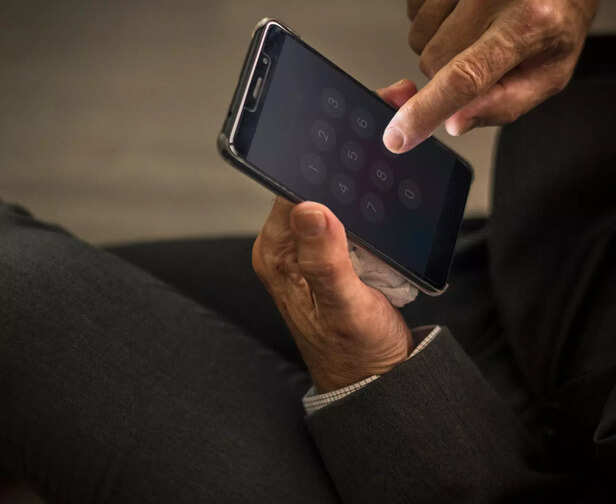
For Android phones with version 4.4 or below, you can unlock your device easily if you forget the password. Enter the wrong password or pattern five to six times, and a 'Forgot Pattern' or 'Forgot Password' option will appear on the screen. Tap this option and provide your Google account credentials linked to the phone. Once verified, you can reset the password and regain access to your device. This method is safe, reliable, and does not require any additional tools or devices. It is a trusted way to unlock older Android phones at home without visiting a shop.
Unlock via Google Account

If your Android phone is linked to a Google account, you can unlock it safely at home using Google’s Find My Device service. Visit findmydevice.google.com from another device such as a laptop or another phone. Log in using the same Google account that is connected to your locked phone. Once logged in, select your device from the list, and choose the option to set a new password. After setting the new password, use it to unlock your phone. This method is secure, protects your personal data, and allows you to regain access without visiting a store or repair shop.
Factory Reset the Phone

If other methods do not work, performing a factory reset can unlock your phone safely. First, turn off the device and enter recovery mode by pressing the power and volume down buttons together. Use the volume buttons to navigate and the power button to select the 'Wipe Data/Factory Reset' option. This process will completely remove the phone password but will erase all data on the device. For iPhone users, connect the phone to iTunes or Finder, enter recovery mode, and select 'Restore iPhone.' This method is reliable, secure, and ensures full access to your device while following official procedures.
Use Smart Lock Feature
Android phones include a feature called Smart Lock, designed to make unlocking easier and prevent lockouts. This feature must be set up in advance and allows you to designate trusted locations, devices, or use face recognition. When these conditions are met, your phone unlocks automatically without entering a password, pattern, or PIN. Smart Lock enhances convenience while maintaining security, especially in familiar or safe environments. By using this feature, you can avoid the frustration of forgetting passwords and reduce repeated manual unlock attempts. Regular use of Smart Lock improves daily phone accessibility and ensures a smoother user experience.
Prevent Future Lockouts
Always keep your phone password easy to remember yet secure to prevent being locked out. Consider writing it in a safe place, using a reliable password manager, or enabling features like Smart Lock to simplify access. Regularly back up your data to ensure it is safe in case a factory reset is required. These small steps reduce stress, save time, and help maintain uninterrupted access to your device without relying on repair shops. Consistent password management and preventive measures strengthen security, protect personal information, and ensure you can quickly regain access whenever needed.
Unlock insightful tips and inspiration on personal growth, productivity, and well-being. Stay motivated and updated with the latest at My Life XP
Frequently Asked Questions (FAQs)
1. How can I prevent forgetting my phone password?Always choose a password that is memorable but secure. Use password managers, write it in a safe place, or enable Smart Lock for easier access.
2. What should I do if I forget my phone password?
You can use the “Forgot Password” option, Google account methods for Android, Smart Lock, or as a last resort, perform a factory reset.
3. Will a factory reset delete my data?
Yes. A factory reset removes all data from your phone. Always back up your files before performing this step.
4. Can Smart Lock help if I forget my password?
Yes. Smart Lock allows your phone to unlock automatically at trusted locations, devices, or via face recognition, preventing lockouts.
5. How often should I back up my phone?
Regular backups are recommended to ensure you do not lose important data in case of a factory reset or device malfunction.
6. Is it safe to use Google account methods to unlock a phone?
Yes. Using official Google account tools like Find My Device is secure and does not harm your device or data.