In Battlefield 6, every setting counts to have maximum performance and control in a multiplayer match. When the game automatically detects optimal settings for your PC or console, some essential tweaks can improve performance and give you an edge in a gunfight.
Here are the best settings in Battlefield 6 for maximum performance and visibility.
Best gameplay settings in Battlefield 6
Infantry
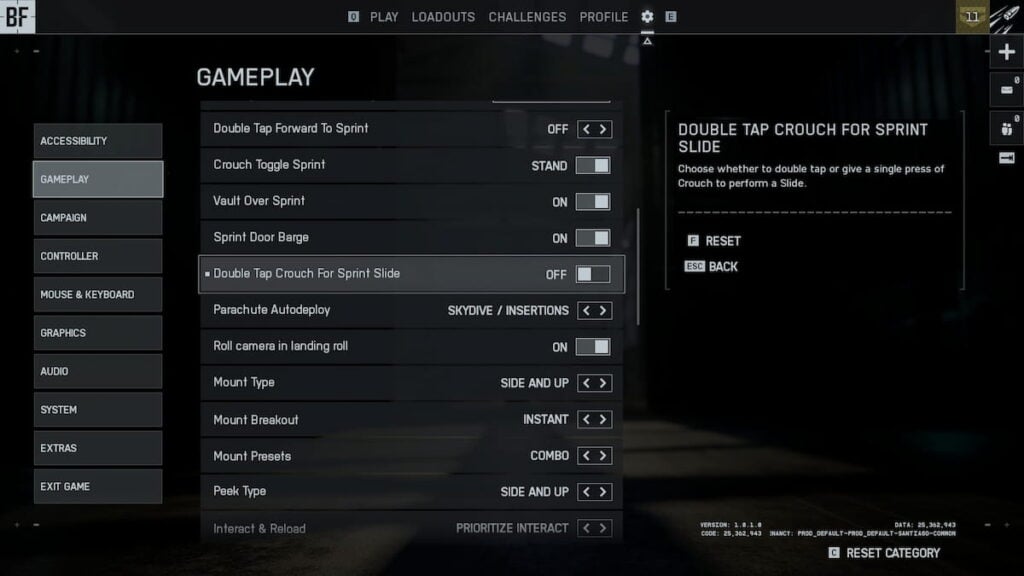
Most of the gameplay settings are personal preference, but one thing you should change is to turn off Double Tap Crouch for Sprint Slide. This way, you can slide by just tapping the crouch button once, which is way more intuitive. Alternatively, you can set up a separate keybind for the slide.
| Setting | Value |
|---|---|
| Double Tap Crouch for Sprint Slide | Off |
Best graphics settings in Battlefield 6
Graphics
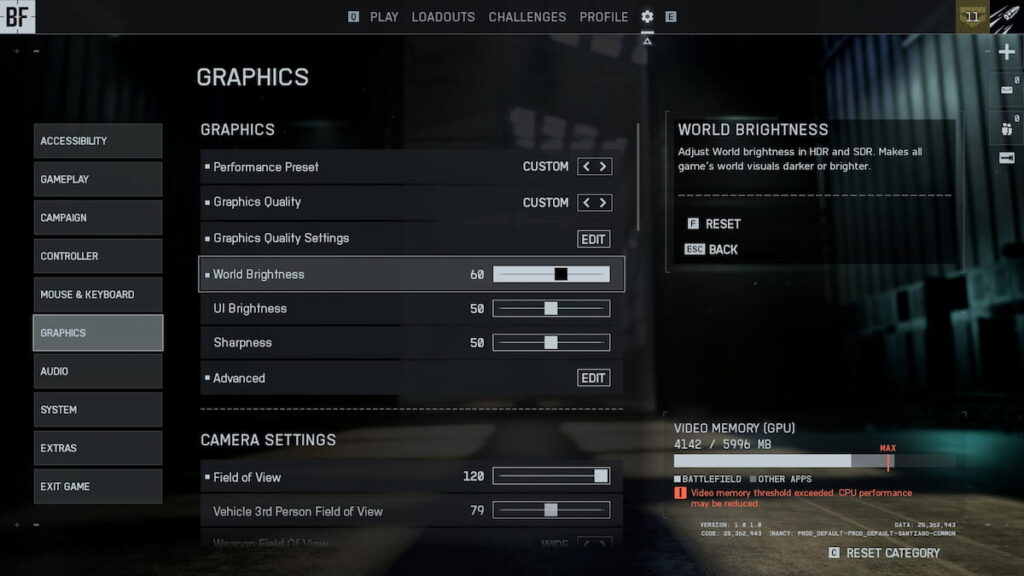
The best graphics settings highly depend on your setup. The game is well-optimised, so even PCs on the lower end of the system requirements can run the game in 1080p at 60fps and more. Before jumping into detailed graphics settings, adjust the World Brightness to improve visibility.
| Setting | Value |
|---|---|
| Performance Preset | Auto (Performance) |
| Graphics Quality | Auto |
| World Brightness | 60 |
| UI Brightness | 50 |
| Sharpness | 50 |
Graphics Quality Settings
Once again, the settings depend on the hardware. Keeping everything low maximizes fps and visibility, but you won’t be able to enjoy the graphics to their fullest. As a baseline, you can set most options to Low-Medium, and then look for the perfect balance between quality and performance.
| Graphics settings | Value |
|---|---|
| Texture Quality | High |
| Texture Filtering | High |
| Mesh Quality | Low |
| Terrain Quality | Low |
| Undergrowth Quality | Low |
| Effects Quality | Low |
| Volumetric Quality | Low |
| Lighting Quality | Medium |
| Local Light & Shadow Quality | Low |
| Sun Shadow Quality | Low |
| Shadow Filtering | PCF |
| Reflection Quality | Low |
| Screen Space Reflections | Low |
| Post Process Quality | Low |
| Screen Space AO & GI | Off |
| High Fidelity Objects Amount | Low |
Advanced
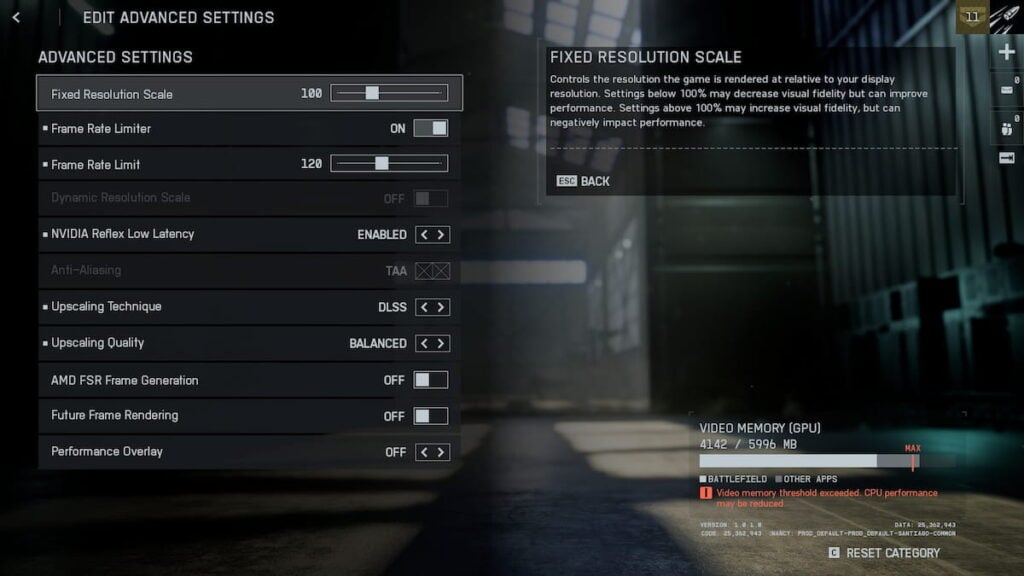
The Advanced section has settings for fps limiting, upscaling, and more to squeeze as many frames as possible. The only setting you should worry about on high-end PCs is NVIDIA Reflex Low Latency. It decreases input lag and latency, making the game feel more responsive.
For maximum performance, set the Upscaling Technique to DLSS on Balanced preset (Performance occasionally makes the game jittery). Don’t use frame generation settings, as they increase input lag by creating fake frames.
You can also set the frame rate limit to your monitor’s refresh rate for more consistent fps, but that’s optional, and, most of the time, unnecessary.
| Setting | Value |
|---|---|
| Fixed Resolution Scale | 100 |
| Frame Rate Limit | Off (if enabled, set the frame limit to match the monitor’s refresh rate) |
| NVIDIA Reflex Low Latency | Enabled |
| Upscaling Technique | DLSS |
| Upscaling Quality | Balanced |
| AMD FSR Frame Generation | Off |
| Future Frame Rendering | Off |
| Performance Overlay | Off |
Camera Settings
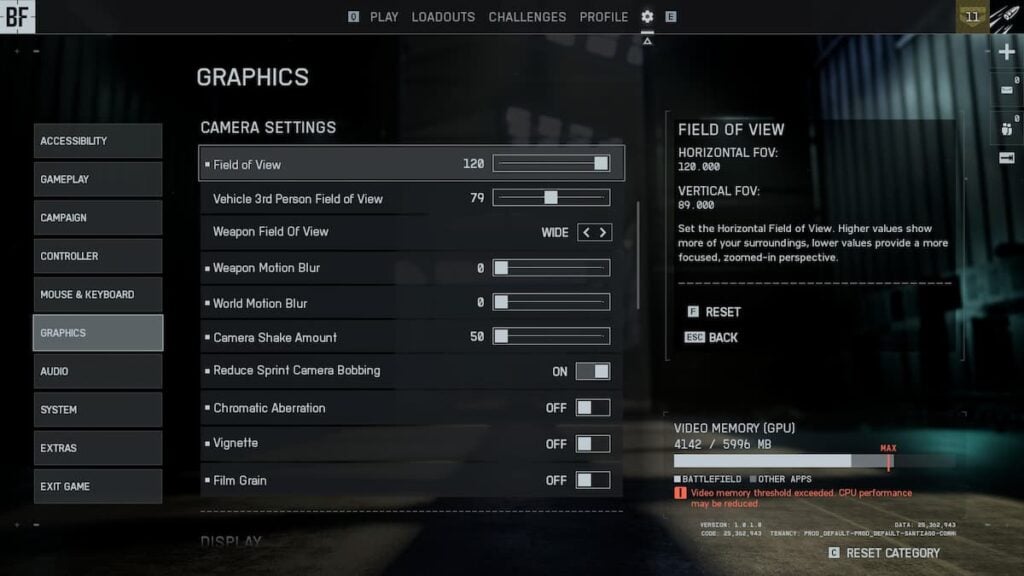
By default, Battlefield 6 has a lot of blur enabled. While it may look pretty and cinematic when playing the campaign, in multiplayer, it clutters the screen and makes you less competitive. Apart from camera settings, you can also adjust Color Profiles in Accessibility to make markers more vibrant.
| Setting | Value |
|---|---|
| Field of View | 110-120 |
| Vehicle 3rd Person Field of View | 79 |
| Weapon Field of View | Wide |
| World Motion Blur | 0 |
| Weapon Motion Blur | 0 |
| Camera Shake Amount | 50 |
| Reduce Sprint Camera Bobbing | On |
| Chromatic Aberration | Off |
| Vignette | Off |
| Film Grain | Off |
Display
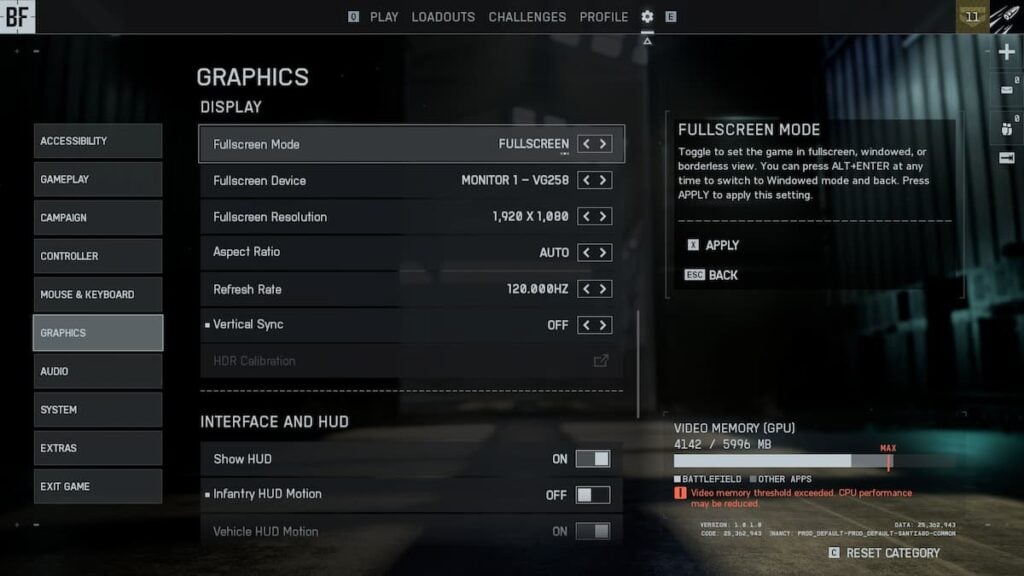
In Display, set everything up to match your primary monitor. Play in Fullscreen for maximum performance and smoothness, and disable Vertical Sync to avoid additional input lag.
| Setting | Value |
|---|---|
| Fullscreen Mode | Fullscreen |
| Fullscreen Device | Your primary monitor |
| Fullscreen Resolution | Your primary monitor’s native resolution |
| Aspect Ratio | Auto |
| Refresh Rate | Your primary monitor’s refresh rate |
| Vertical Sync | Off |
Interface and HUD
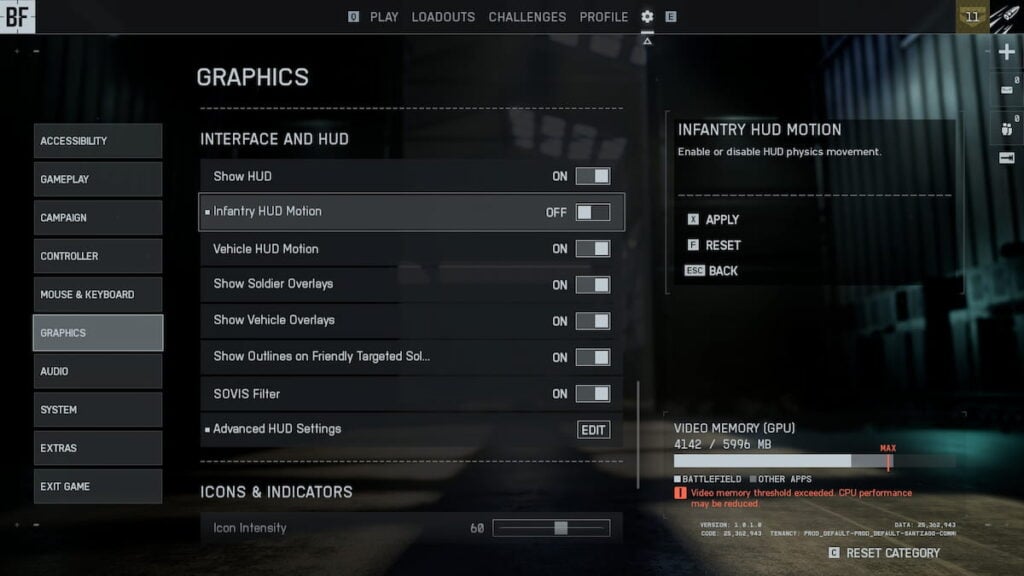
There are only two settings in the Interface and HUD section worth mentioning. Infantry HUD Motion to reduce unnecessary movement on the screen and minimap size.
| Setting | Value |
|---|---|
| Infantry HUD Motion | Off |
| Minimap Size (in Advanced HUD Settings) | Large |
Icons and Indicators
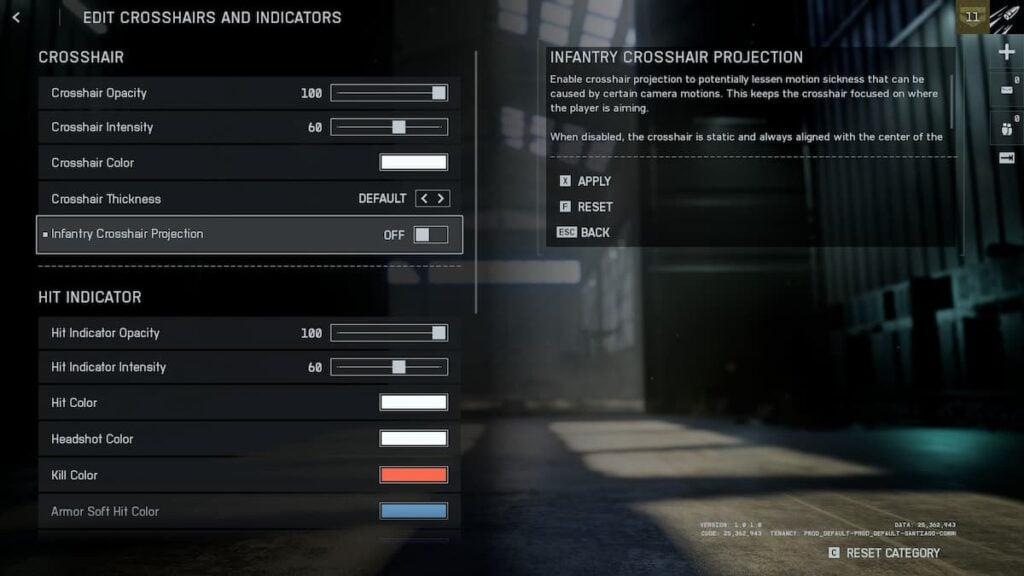
It’s generally a good idea to adjust indicators to distinct colors for a better information flow. For example, setting the Headshot Color to bright green ensures you always know when you land a headshot. Outside of adjusting colors, you should also turn off the Infantry Crosshair Projection to keep the crosshair in the center of the screen at all times.
| Setting | Value |
|---|---|
| Infantry Crosshair Projection | Off |
How to choose the best BF6 settings for your device
The optimal Battlefield 6 settings depend on the CPU, RAM, and GPU (VRAM) of your device. When choosing settings, stick to one rule: Higher visual quality means fewer frames, and fewer frames mean more shots missed. Since you’re here, we’ll assume you already own a machine that can run the game (here are the minimum requirements anyway).
Thankfully, Battlefield 6 makes it easy to know which settings take which resources. Hover over a graphics setting name (available under the Modify section only) and you should see its usage stats on the right. We’ve also included a table below for your reference.
For maximum fps, we recommend lowering graphics settings that are intensive on the CPU. Focus on visuals that use GPU and VRAM, within the defined limits.
| Graphics settings | Dependent on? |
|---|---|
| Texture Quality | VRAM |
| Texture Filtering | GPU |
| Mesh Quality | CPU, GPU, VRAM |
| Terrain Quality | CPU, GPU |
| Undergrowth Quality | CPU (medium), GPU |
| Effects Quality | CPU, GPU, VRAM (medium) |
| Volumetric Quality | GPU |
| Lighting Quality | VRAM |
| Local Light & Shadow Quality | CPU, GPU, VRAM (medium) |
| Sun Shadow Quality | CPU, GPU |
| Shadow Filtering | GPU |
| Reflection Quality | GPU (medium) |
| Screen Space Reflections | GPU |
| Post Process Quality | GPU (medium) |
| Screen Space AO & GI | GPU |
| High Fidelity Objects Amount | CPU |