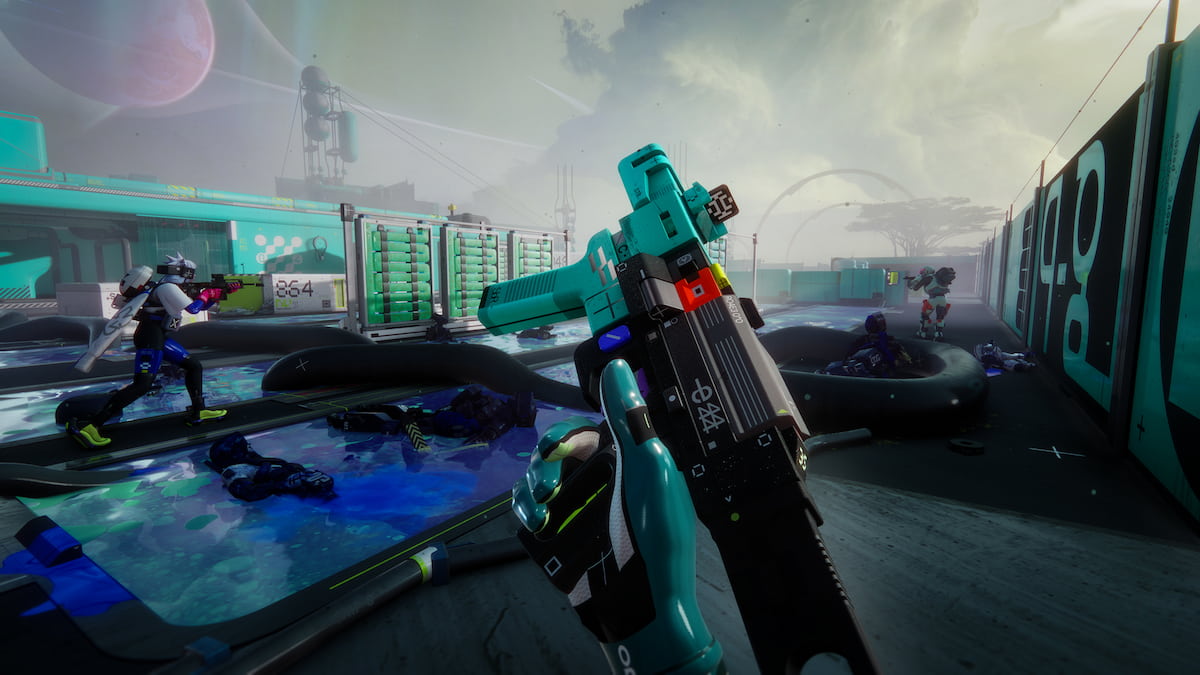
Marathon, at its core, is a competitive PvP extraction shooter, which means you need to use every tool at your disposal to win engagements. This includes graphics settings to make sure nobody is hiding in the bushes, and keyboard settings for you not to waste your utility on accident.
Here are the best PC graphics and keybinds settings in Marathon.
Table of contents
Best PC graphics settings in Marathon
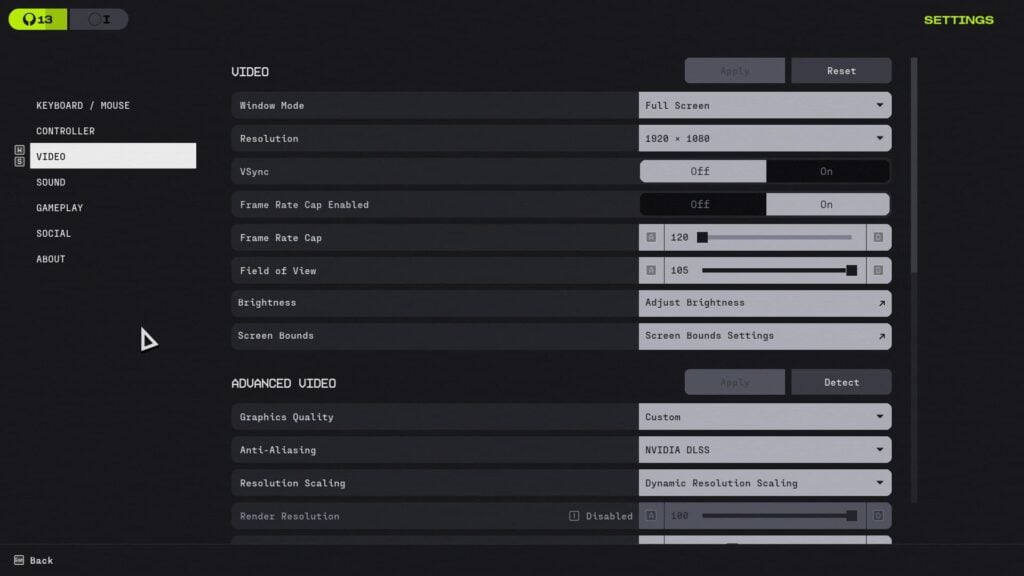
These graphics settings are targeted to give you a competitive edge during your runs, with maximum visibility and performance. The game loses a lot of graphical quality with these settings, but that’s what you need to come out on top in every run.
Video
In the Video tab, you must disable VSync to reduce input lag and maximize the Field of View to see as much as possible. You should also increase the brightness to improve visibility in the darker areas of the maps.
The Frame Rate Cap is optional and depends on the stability of your frame rate. If you’re experiencing stutters or occasional drops, set the frame rate cap to your monitor’s refresh rate or lower, depending on severity.
| Setting | Value |
|---|---|
| Window Mode | Full Screen |
| Resolution | Your display’s native resolution |
| VSync | Off |
| Frame Rate Cap Enabled | Off |
| Frame Rate Cap | N/A |
| Field of View | 105 |
| Brightness | 4 |
| Screen Bounds | Fitting the screen |
Advanced Video
To get the best performance out of Marathon (or in any competitive shooter), most of the settings in the Advanced Video tab are set to Low or Medium. In our testing, there’s no reason to set them to Lowest because it doesn’t improve performance.
The exceptions are Antisotropic Filtering to increase clarity and Character Detail Distance to increase target visibility. Keep those settings high, even if you lower everything else down. At the same time, if you decide to increase the graphical quality, you should keep the Foliage Detail Distance at Lowest to maintain visibility.
Depending on your hardware, you can also experiment with Anti-Aliasing to increase performance. NVIDIA DLSS is the best option if you have an NVIDIA GPU. Otherwise, AMD FSR is a solid alternative. There’s also a Dynamic Resolution Setting that automatically adjusts the resolution to reach your target fps.
| Setting | Value |
|---|---|
| Graphics Quality | Custom |
| Anti-Aliasing | NVIDIA DLSS |
| Resolution Scaling | Balanced / Performance |
| Render Resolution | N/A |
| Target Frame Rate | N/A |
| Screen Space Ambient Occlusion | Off |
| Antisotropic Filtering | 8x |
| Texture Quality | Low / Medium |
| Shadow Quality | Low / Medium |
| Environment Detail Distance | Low |
| Character Detail Distance | High |
| Foliage Detail Distance | Lowest |
| Light Shafts | Medium |
| Motion Blur | Off |
Additional Video
If you have an NVIDIA graphics card, set the NVIDIA Reflex to On or On + Boost, depending on your GPU. This reduces latency, but On + Boost does require additional GPU resources. You might also want to disable Chromatic Aberration for better visibility.
| Setting | Value |
|---|---|
| HDR | N/A (Optional) |
| Chromatic Aberration | Off |
| NVIDIA Reflext | On or On + Boost |
| UI Refresh Rate | Low |
Best PC keybinds settings in Marathon
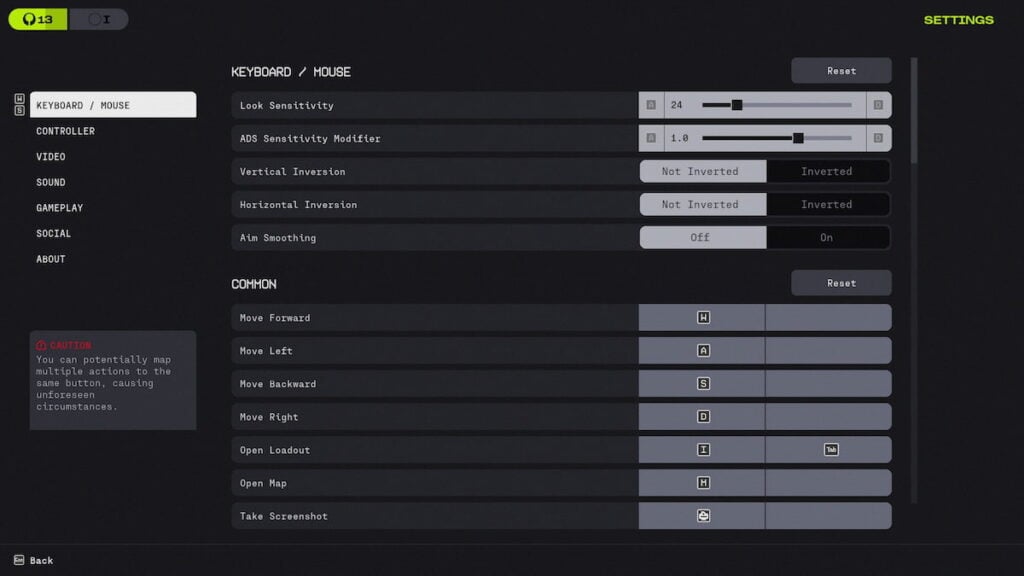
The control settings in Marathon are personal preference. For Destiny 2 players, many settings are quite familiar, including the keybinds for Runner Shell abilities. However, if there’s a keybind you’re used to from playing other games, feel free to change it.
Here are some of the settings you may consider changing:
- Look Sensitivity
- Open Map
- Quick Melee
- Trait Ability
- Tactical Ability
- Prime Ability
- Push-to-Talk
- Proximity Voice Broadcast