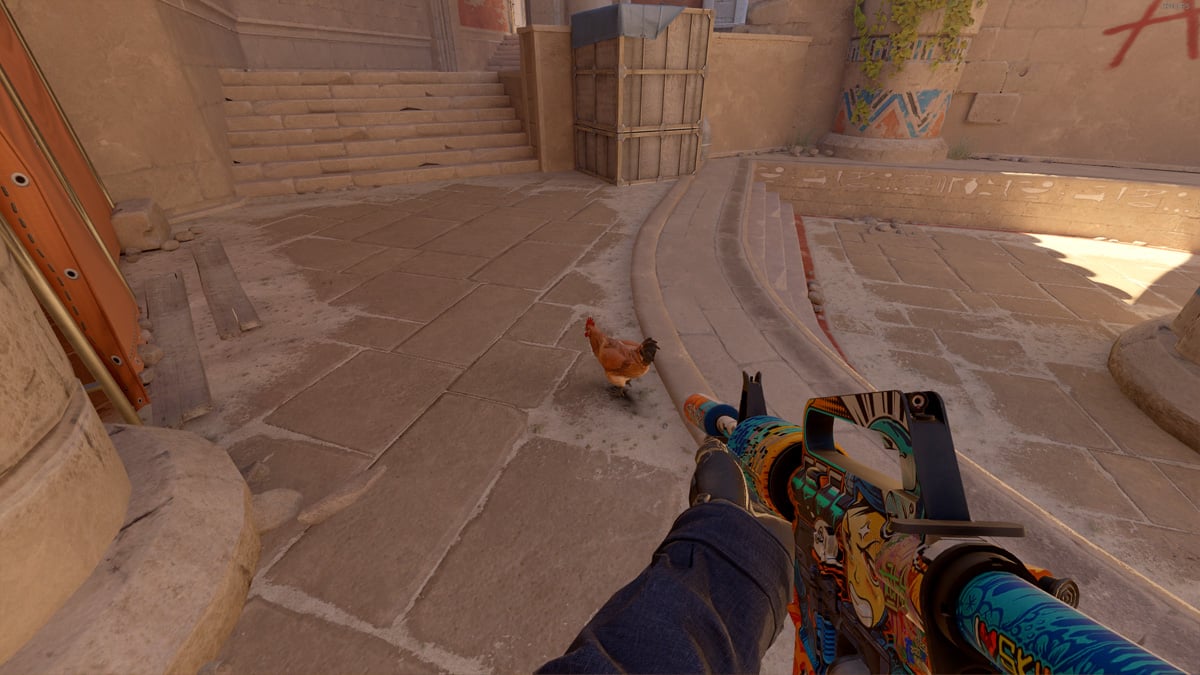
Finding the best CS2 viewmodel settings is one of the easiest ways to improve visibility and free up screen space during matches.
Adjusting your viewmodel changes how your weapon and hands appear on screen, helping reduce clutter and making enemy targets easier to track. While viewmodel settings are highly personal, these commands are a strong starting point used by many competitive players.
Best CS2 viewmodel settings
These are the best CS2 viewmodel settings, which grant a combination of clear line-of-sight on the target and reduce excessive clutter from the player model. You can enter these commands individually into the console.
- viewmodel_fov 68
- viewmodel_offset_x 2.5
- viewmodel_offset_y 1
- viewmodel_offset_z -1.5
| Setting | Best value | What it changes |
|---|---|---|
| viewmodel_fov | 68 | Increases visibility |
| viewmodel_offset_x | 2.5 | Moves weapon sideways |
| viewmodel_offset_y | 1 | Pushes weapon outward |
| viewmodel_offset_z | -1.5 | Lowers weapon position |
If you’re looking to make individual adjustments:
- “Offset X” will move the weapon in and out of the center of your screen.
- “Offset Y” will change how far out you hold your weapon.
- “Offset Z” determines how high it is on your screen.
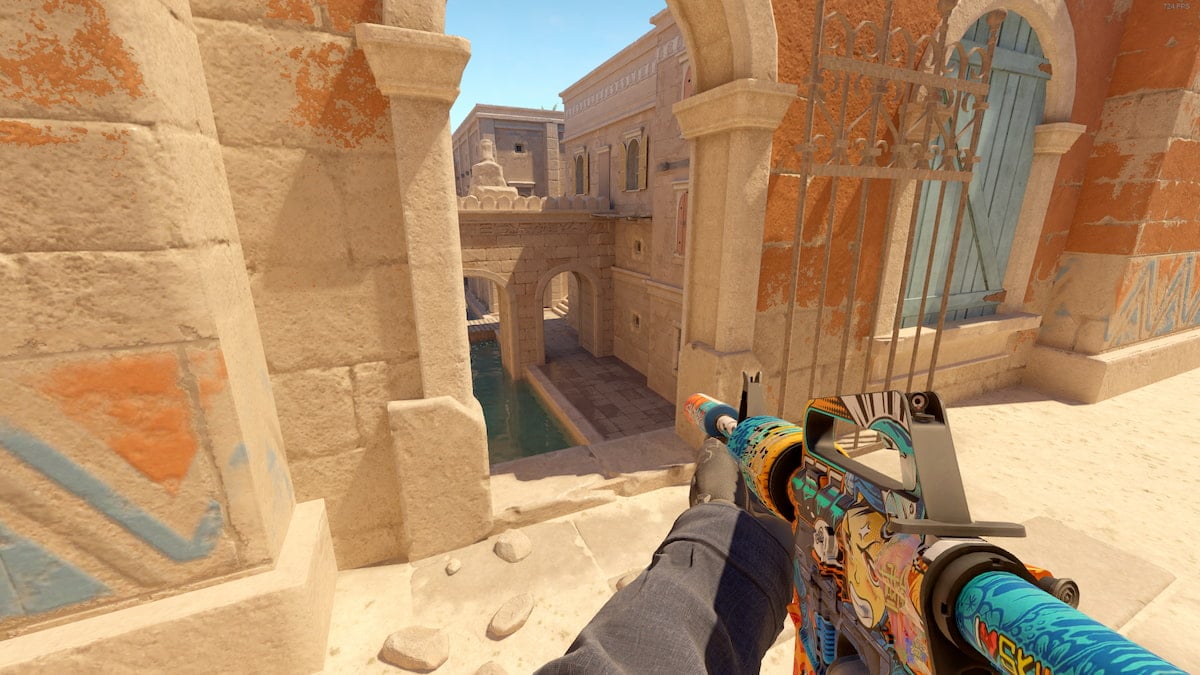
What is a viewmodel in CS2?
A viewmodel in CS2 controls how your weapon and hands appear on your screen. Adjusting your viewmodel settings changes your weapon’s position, FOV, and screen space visibility, helping reduce clutter and improve visibility during fights.
How to change your field of view and viewmodels in CS2
You can change your CS2 viewmodel settings through the in-game settings menu or by using console commands. Most players prefer console commands because they allow more precise FOV and weapon position adjustments.
Best FOV settings in CS2
Most competitive CS2 players use viewmodel_fov 68, which is the maximum FOV value available in the game. A higher FOV pushes the weapon further away from the center of the screen, improving visibility during fights.
| FOV | Best for |
|---|---|
| 54–60 | Larger weapon model |
| 60–65 | Balanced visibility |
| 68 | Maximum screen space |
How to change your FOV in CS2
To change your FOV in CS2, press tilde (~) to open up your console. Once you’ve got your console open, you’ll be able to use commands to move your FOV into the perfect position. Type in viewmodel_fov 68, then adjust accordingly to find your perfect FOV.
If you can’t open your console, go to Settings and click the magnifying glass to open the search bar. Then type “Console” to be taken to the specific setting, then set Enable developer console to Yes.
How to change your viewmodel in CS2
Go to Settings by clicking the cog icon in the top left corner of the screen and head into the Game tab. Inside the Item tab, sort through which available viewmodel suits you.
You can also delve deeper into console commands to find the perfect spot for your gun. Open up your console again and type viewmodel_offset, and you’ll see X, Y, and Z to choose from. These will determine how high, low, or centered your weapon will sit.
All default viewmodels in CS2
CS2 includes three default viewmodel presets, each offering different levels of visibility and weapon positioning.
| Viewmodel | Visibility | Weapon Position | Best for |
|---|---|---|---|
| Classic | Highest | Lower and further to the side | Competitive players who want maximum screen space |
| Couch | Lowest | More centered and higher | Players who prefer seeing more of the weapon model |
| Desktop | Balanced | Corner position slightly higher than Classic | Default CS2 players looking for a middle ground |
Classic
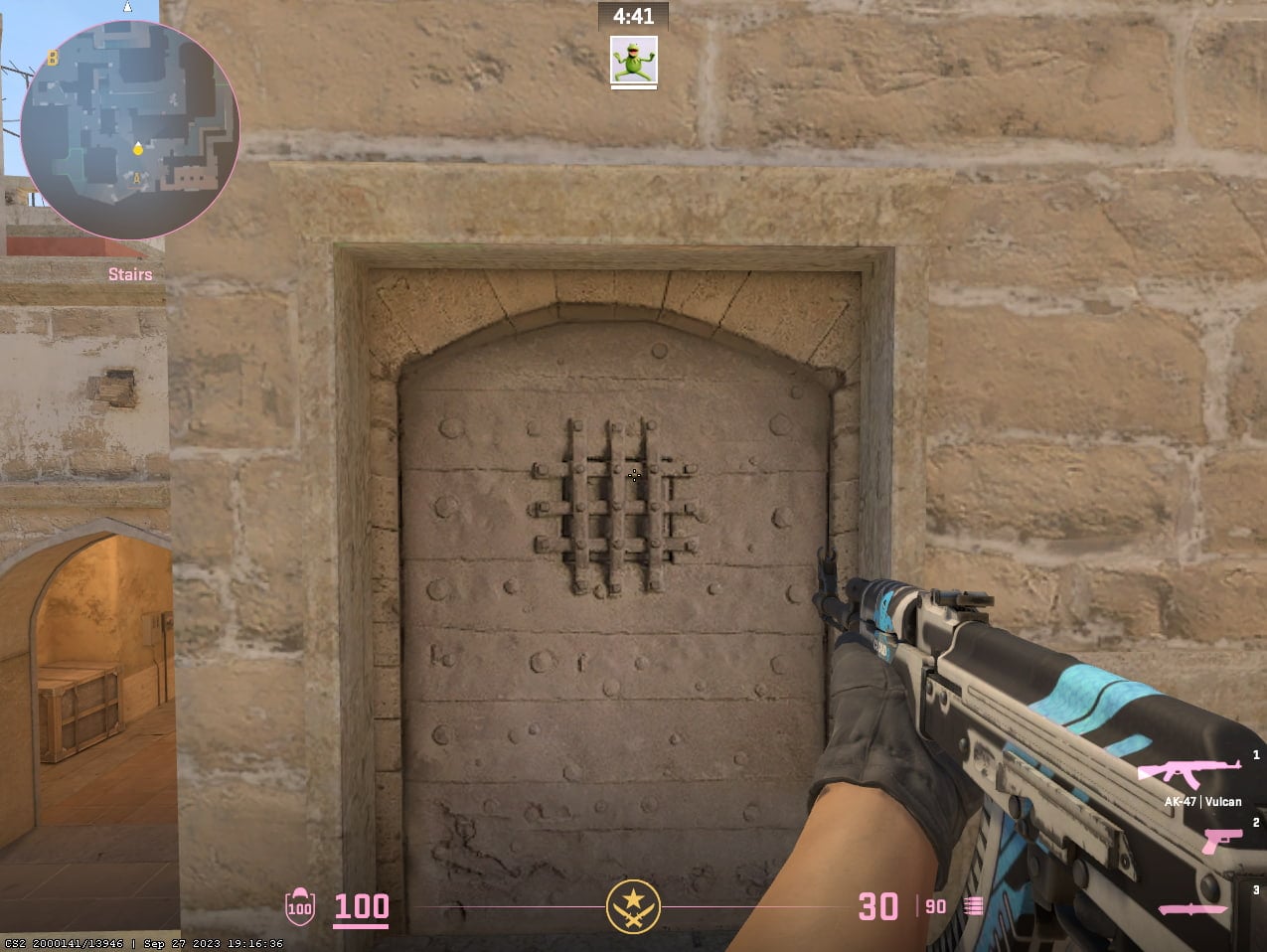
This default Classic viewmodel is reminiscent of prior Counter-Strike titles. This means the middle of your screen is more open, and it’ll be less likely for a player model to be completely covered by your AK on the right-hand side.
Couch
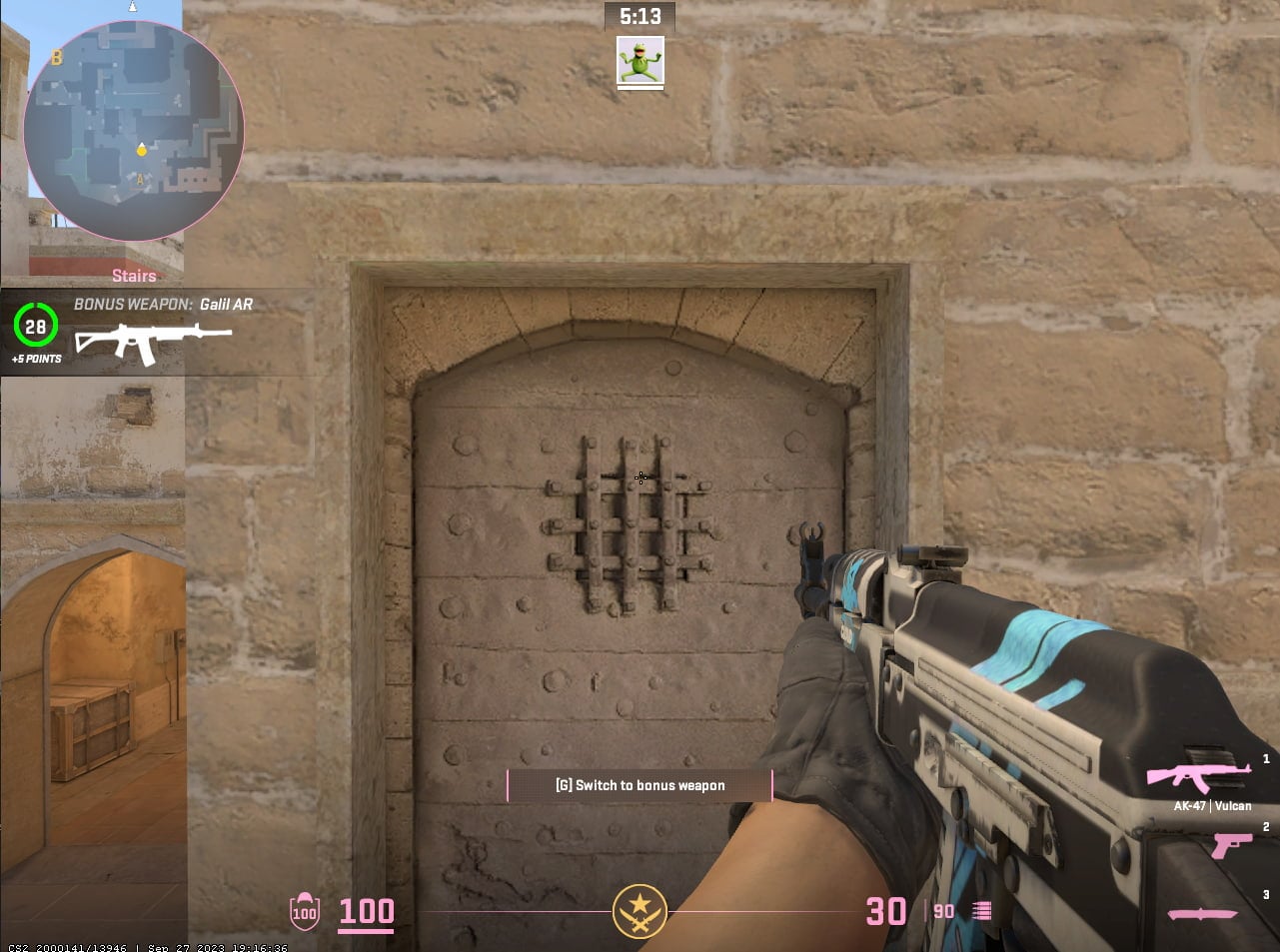
The Couch viewmodel moves the weapon slightly closer to the center of the screen and higher upward, giving a fuller weapon view but reducing visibility slightly.
Desktop
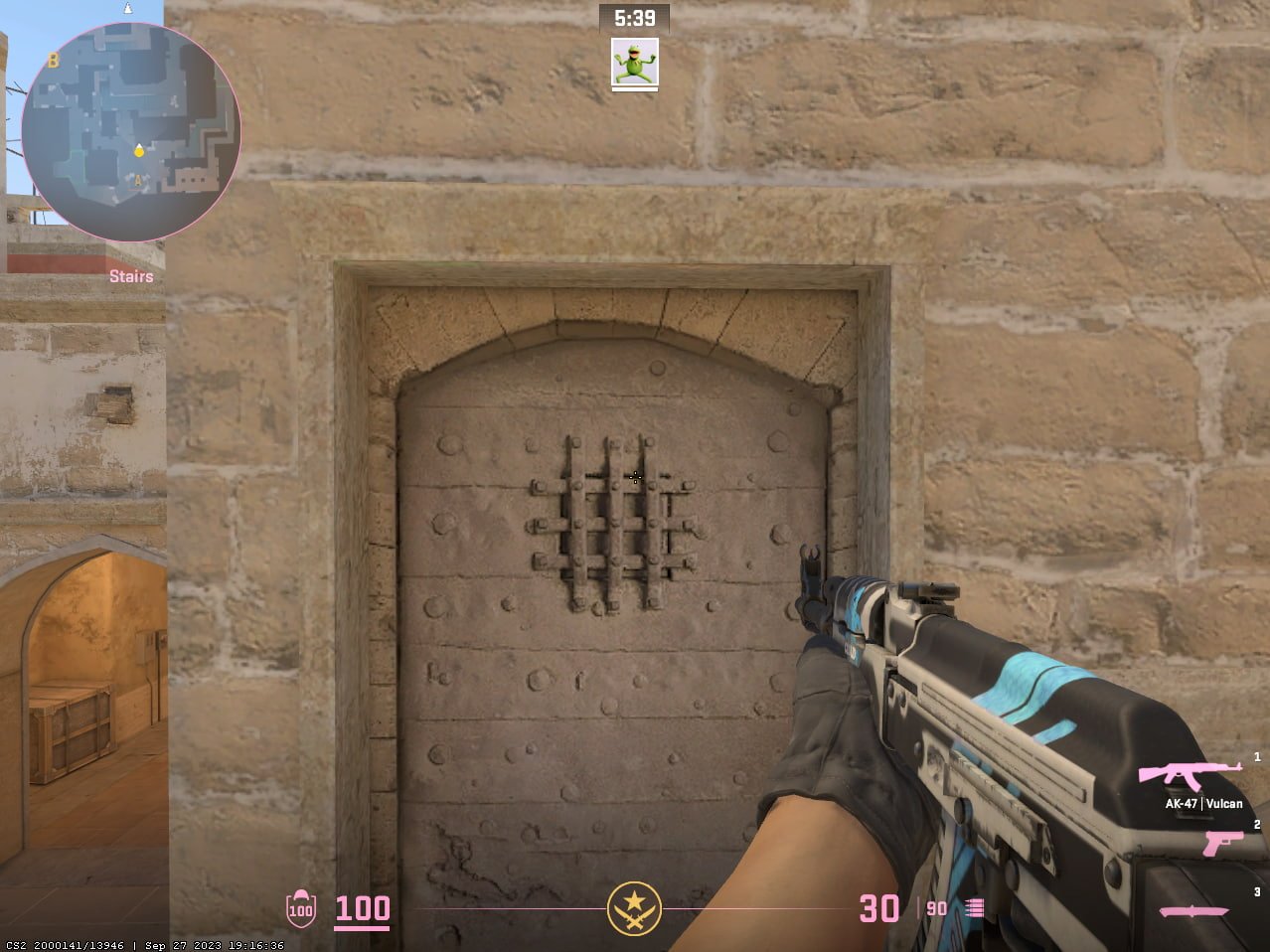
Desktop is the default CS2 preset, placing the weapon in the corner while sitting slightly higher than Classic.
Once you’ve got your viewmodel set just how you want it, you can always hop into a practice match against bots to see how your new settings feel without having to worry about real players gunning you down.
crashz’ Viewmodel Generator workshop map for CS2
If you don’t want to use the console every time you tweak your gun position, the easiest way to test CS2 viewmodel settings is with a dedicated workshop map.
A popular choice is crashz’ Viewmodel Generator for CS2. This map gives you on screen sliders and buttons for FOV, X/Y/Z offsets, weapon bob, and more.
- Open CS2 → Play → Workshop Maps and search for crashz Viewmodel Generator.
- Subscribe to the map on Steam, then launch it from your Workshop tab.
- Use the in‑map panels to move your gun around in real time and then copy the generated CS2 viewmodel commands into your config or console.
Using a workshop map saves time and lets you instantly see how each change affects visibility. It also makes it much easier to find the best viewmodel settings for CS2 on your setup.
Frequently Asked Questions (FAQs)
Do CS2 viewmodel settings affect recoil or accuracy?
No. Viewmodel settings only change how your weapon looks on your screen; they don’t alter recoil patterns, spread, or bullet accuracy in any game mode.
What are the best CS2 viewmodel settings for visibility?
A popular, visibility‑focused starting point is viewmodel_fov 68; viewmodel_offset_x 2.5; viewmodel_offset_y 1; viewmodel_offset_z -1.5. From there, tweak each value slightly until your gun feels unobtrusive but still readable.
What is the maximum FOV in CS2?
The maximum viewmodel FOV in CS2 is 68. Most competitive players use 68 because it improves visibility and keeps the weapon further away from the center of the screen.
Why do so many pros use a centred or semi-centred viewmodel?
Centered setups keep your crosshair and weapon aligned, which can make tracking and spray control feel more consistent, and they reduce the chances of your gun blocking enemy models near the edges of your screen.