Hi, I'm Kaycee. Welcome to Hidden iPhone Tips, a weekly column where I dig into the best iOS features Apple quietly adds but never really tells you about.
Most iPhone users will never need the level of security that Lockdown Mode provides. The feature gained attention when a journalist's iPhone with Lockdown Mode enabled prevented law enforcement from accessing it during a device seizure. The FBI's forensic team couldn't break into the phone specifically because Lockdown Mode was active.
Lockdown Mode severely restricts how your iPhone functions to eliminate potential attack routes that hackers exploit. Here's what it does and how you can enable it if you ever need it.
What stops working during Lockdown Mode?
Lockdown Mode significantly limits how your iPhone interacts with apps, websites and other devices. In Messages, most attachment types are blocked, along with all links and link previews.
FaceTime calls are limited to people you’ve contacted in the past 30 days, and features like SharePlay and Live Photos are disabled. Shared photo albums disappear from the Photos app, and any images you send automatically have their location data removed.
Your iPhone also won’t connect to non-secure Wi-Fi networks, blocks older 2G and 3G cellular connections, and must be unlocked before it can communicate with a computer.
Regular calls, plain text messages and Emergency SOS still work — but day-to-day convenience definitely takes a hit. Lockdown Mode is designed for extreme threat scenarios, not everyday use.
How to turn on Lockdown Mode
1. Open Settings
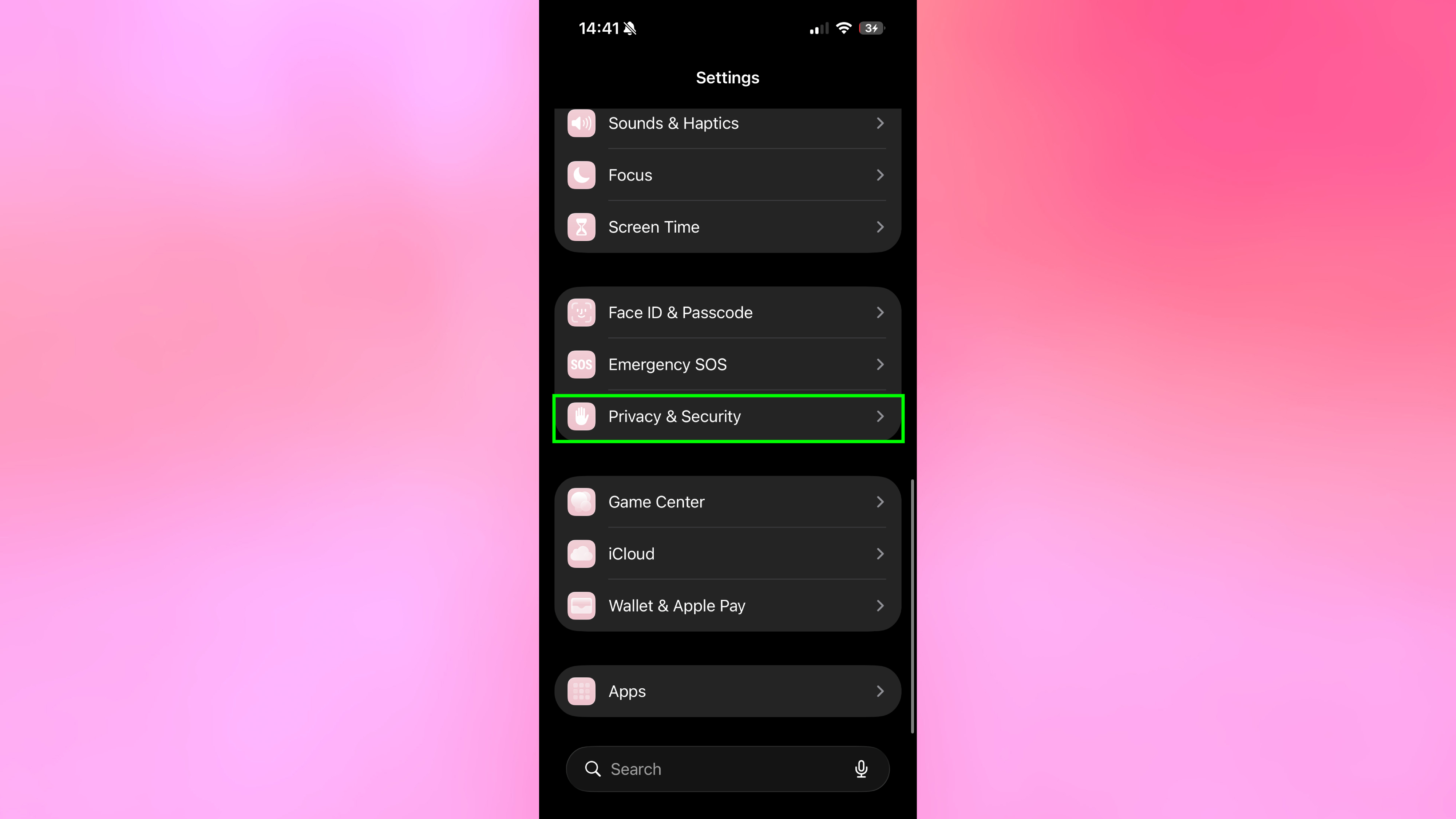
Open the Settings app on your iPhone. Scroll down and tap Privacy & Security. At the bottom of this menu, you'll see Lockdown Mode.
2. Select Turn On Lockdown Mode
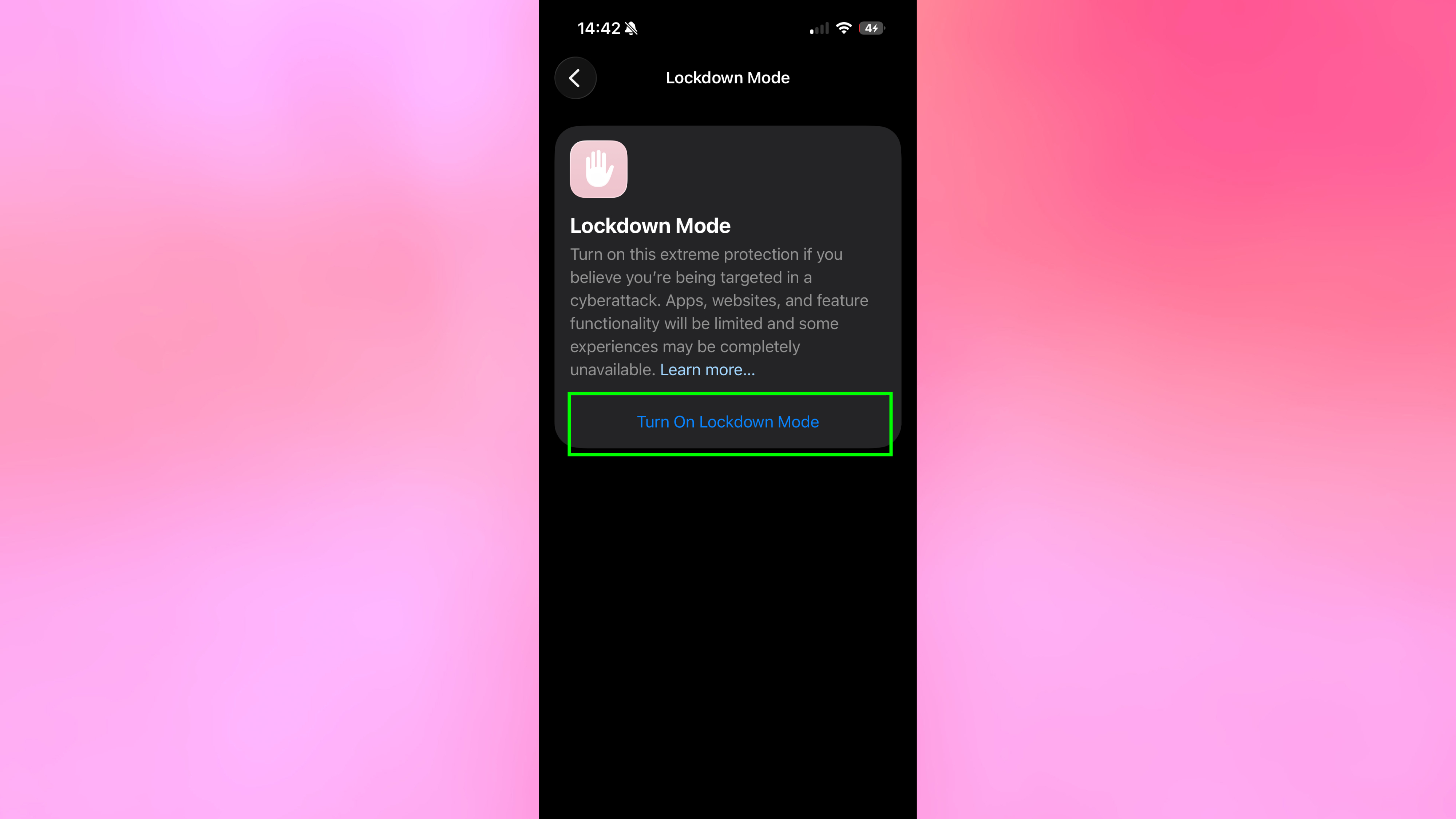
Scroll down until you find Lockdown Mode and tap it. Then tap Turn On Lockdown Mode. A screen appears explaining what Lockdown Mode does and what features it restricts. Read through this carefully to understand what you're enabling.
3. Confirm and restart your iPhone
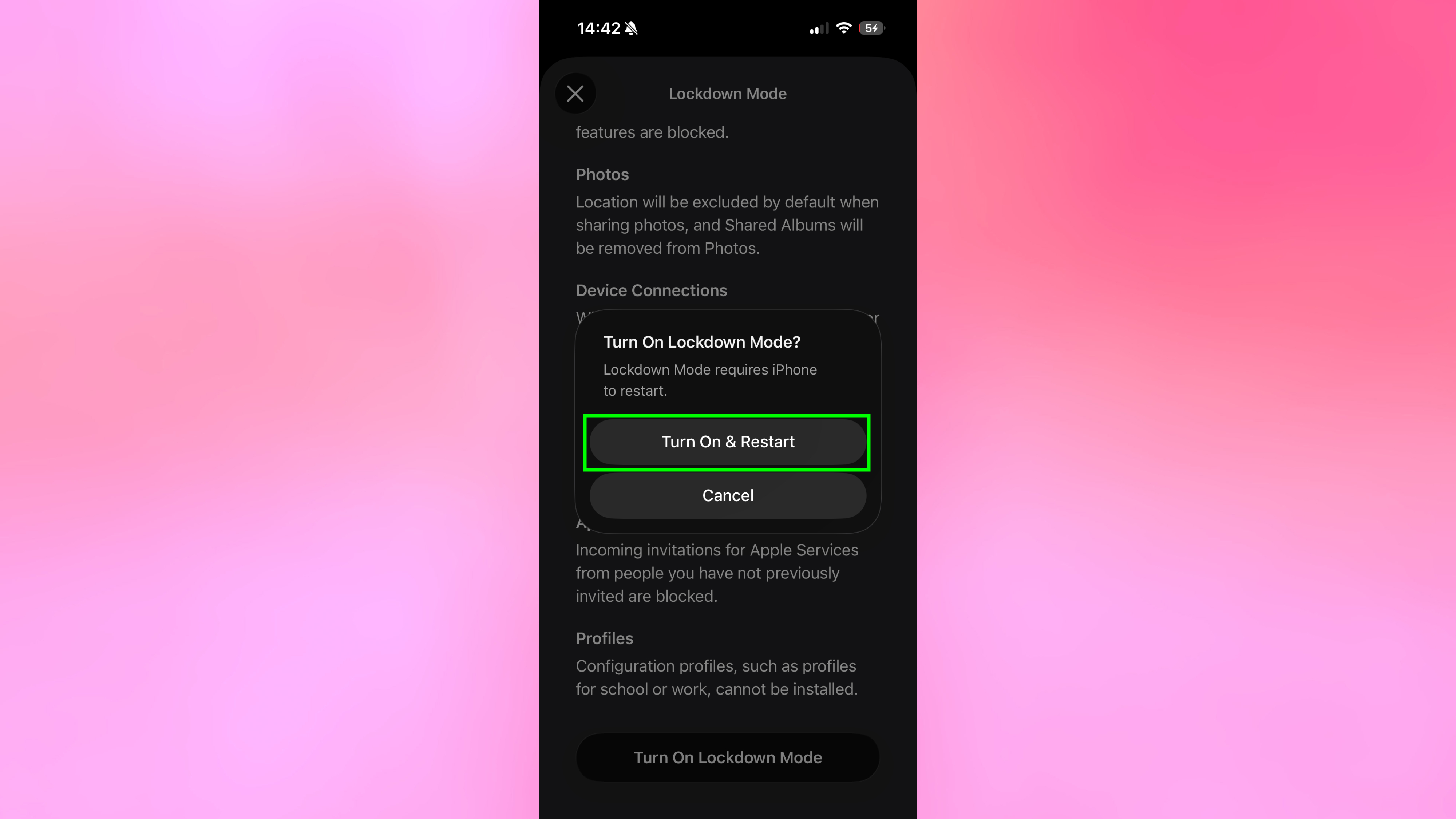
After reviewing the restrictions, tap Turn On Lockdown Mode again to confirm. Your iPhone will prompt you to restart. Tap Turn On & Restart, then enter your passcode when prompted. Your iPhone restarts with Lockdown Mode enabled.
Once enabled, Lockdown Mode applies immediately. You'll notice restricted functionality in Messages, Safari, FaceTime, and other apps.
You can disable Lockdown Mode at any time by returning to Settings, Privacy & Security, Lockdown Mode and toggling it off.
Why Lockdown Mode is so powerful
Lockdown Mode is designed to defend against highly targeted attacks, including sophisticated spyware used by governments and private surveillance firms. Instead of trying to detect threats after they appear, it reduces your iPhone’s “attack surface” — limiting the features hackers typically exploit to gain access.
That makes it especially valuable for journalists, activists, executives, or anyone handling sensitive information who may be at higher risk of being targeted. By shutting down non-essential entry points, Lockdown Mode can prevent advanced intrusion techniques that would bypass normal security protections.
For most people, it’s overkill. But if you believe you could be a deliberate target, it offers one of the strongest built-in protections Apple provides.

Follow Tom's Guide on Google News and add us as a preferred source to get our up-to-date news, analysis, and reviews in your feeds. Make sure to click the Follow button!