
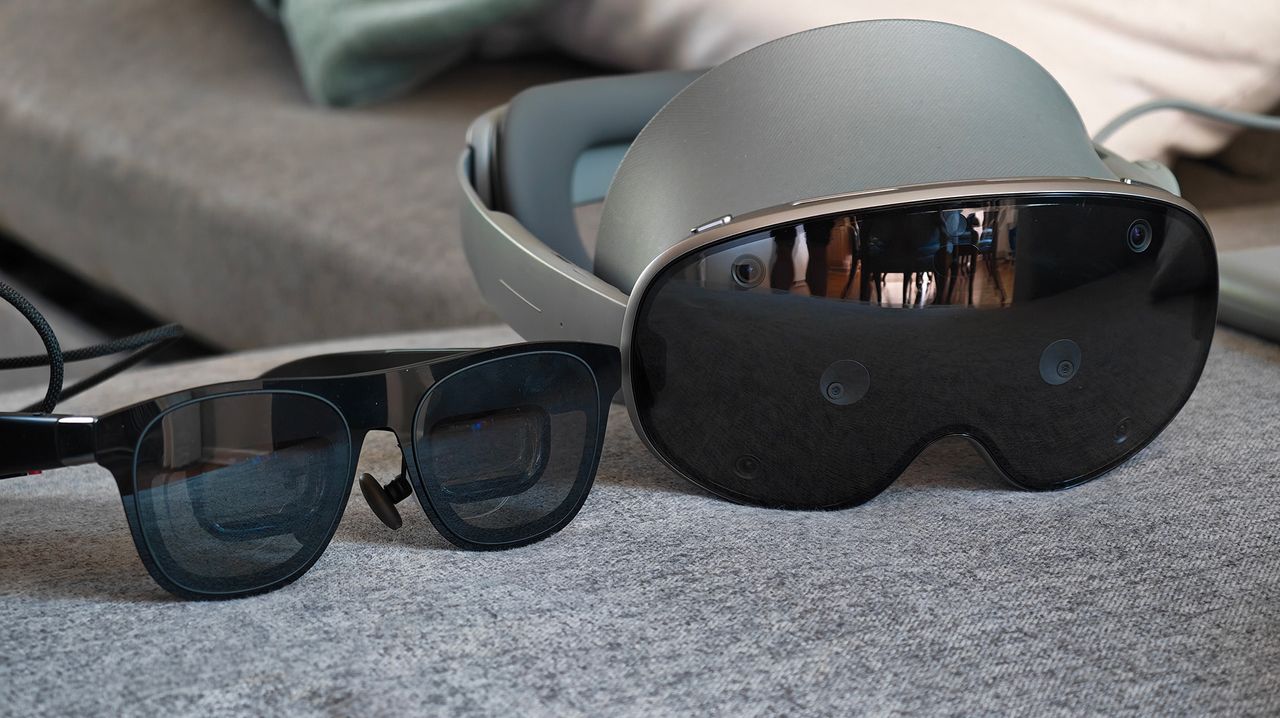

In his weekly column, Android Central Senior Content Producer Nick Sutrich delves into all things VR, from new hardware to new games, upcoming technologies, and so much more.
Samsung's Galaxy XR hasn't seen too many notable updates since the XR headset launched at the end of 2025, but that all changed last week when Google and Samsung brought the headset up to a recent security patch and added some nifty new features.
Leading the pack for consumers is a handful of quality-of-life features that make the headset more pleasant to use in many different ways. You can easily pin virtual app windows to walls, for instance, remote desktop sessions restore window sizes and shapes, and you can even tell Android XR to convert all 2D content to 3D.
It's that last feature that really caught my eye, as it sounds a lot like what Xreal and Viture have done on their latest smart glasses. The key difference here is that Android XR would be doing this at the system level, potentially allowing for greater quality and compatibility than the "simpler" solutions from Xreal and Viture. That turns out to be true when it works, and that last part is the worst part of the experience so far.
Auto Spatilization feels like magic
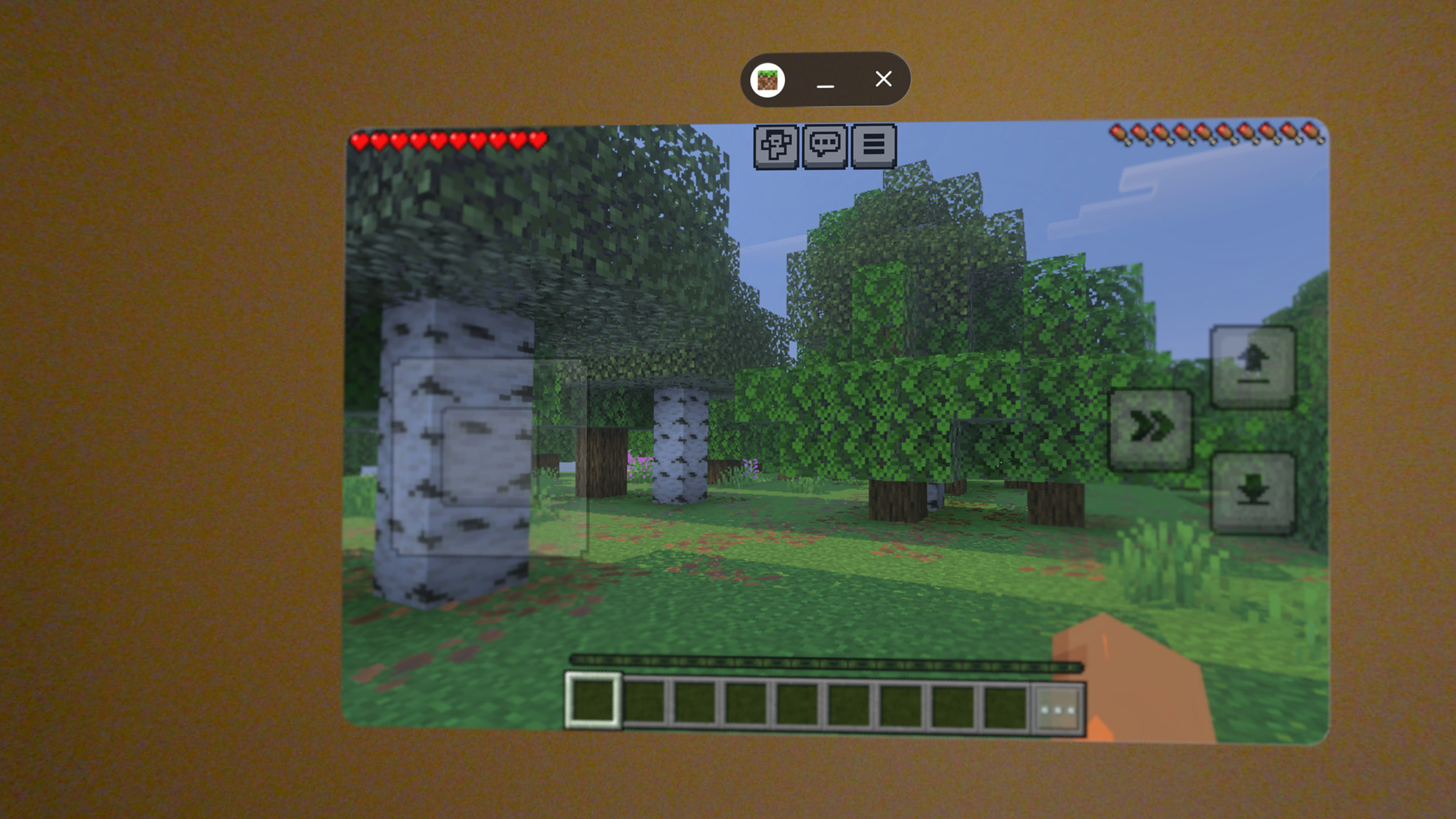
Take a look at the image above and tell me what you see. Since I can't hear you, I imagine you're saying Minecraft, which would be correct. That is, indeed, Minecraft running in a virtual window, pinned to my wall, via the Galaxy XR headset.
But further than that, the game is being auto-spatialized by the underlying Android XR operating system that runs the Galaxy XR. In short, that means the birch tree in the front looks physically closer to me than the oak trees further back. You might say, "Well, duh, Nick," but that's because you're not fully understanding what I mean.
With Auto Spatialization, Android XR takes the depth information it perceives in any app on the system and cleverly places pixels "forward" or "backward" in space to make me see depth. The OS uses a clever AI agent that understands objects and other similar things, which then translates a 2D image into something fully 3D. Since you're just looking at a 2D image above, there's no way to properly see (and therefore perceive) what's actually happening. Even a video won't do the trick.
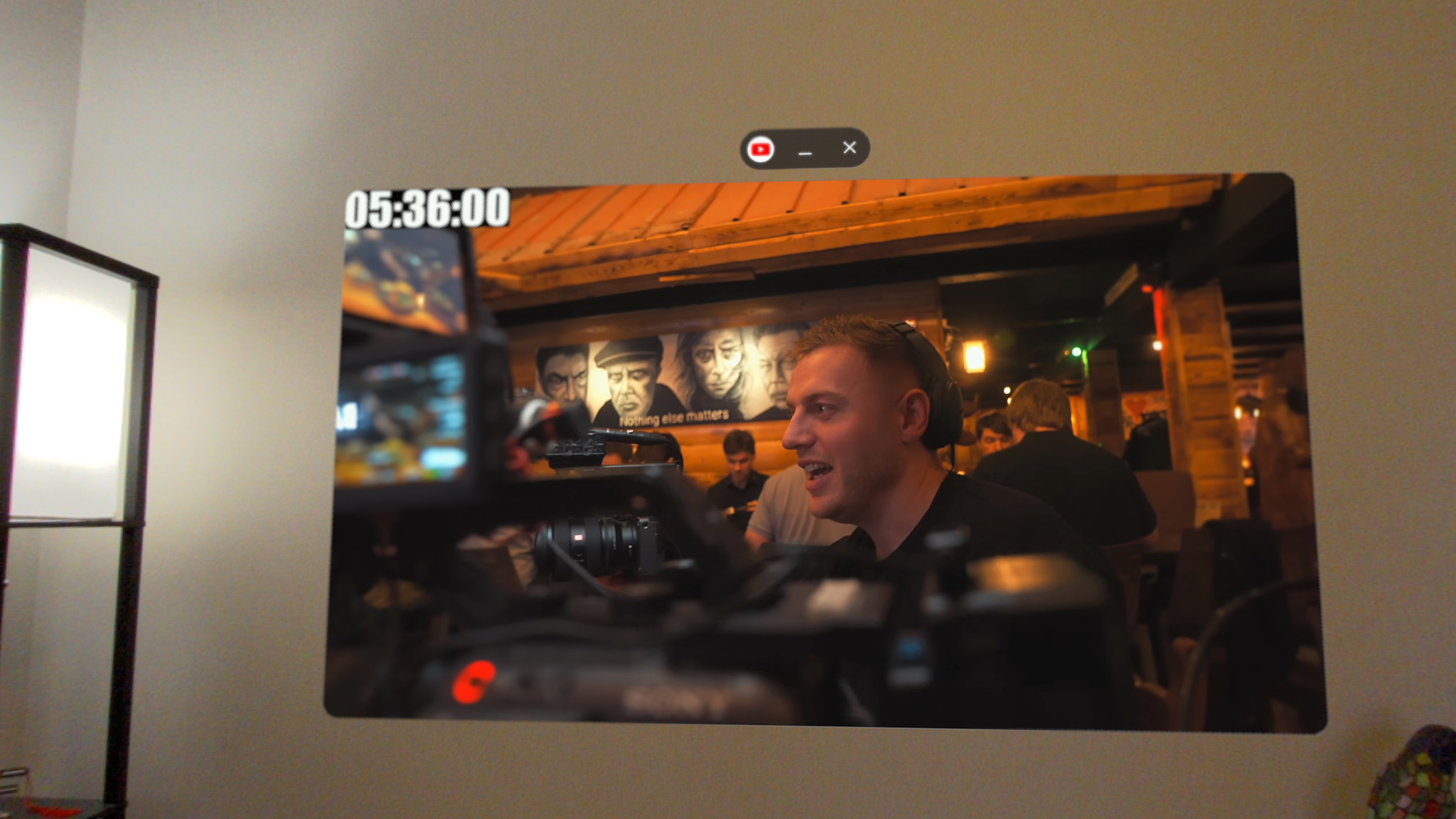
Likewise, this YouTube video looks as if it were filmed with a proper 3D camera thanks to the same feature. It's an effect that works better for some apps than others, but it's implemented at the system level, and that's a true game-changer for this fledgling feature. Viture debuted the technology on its smart glasses last summer, and this is just the next evolution.
Being at an app level means everything can get the 2D-to-3D treatment, but it's clear this is still a "Labs" feature, as it doesn't always work. While I was playing Minecraft above, for instance, I would notice the window sometimes snapping between 2D and 3D versions of the game, and it was incredibly obvious the moment it happened.
The YouTube app was also very inconsistent with which videos it wanted to make 3D and which it would leave as 2D. I couldn't figure out why, and this is where the real frustration lies. Google will undoubtedly improve this feature over time, so, for now, it's mainly something Galaxy XR users can toy around with but shouldn't rely on.
How to enable Auto Spatialization on a Galaxy XR
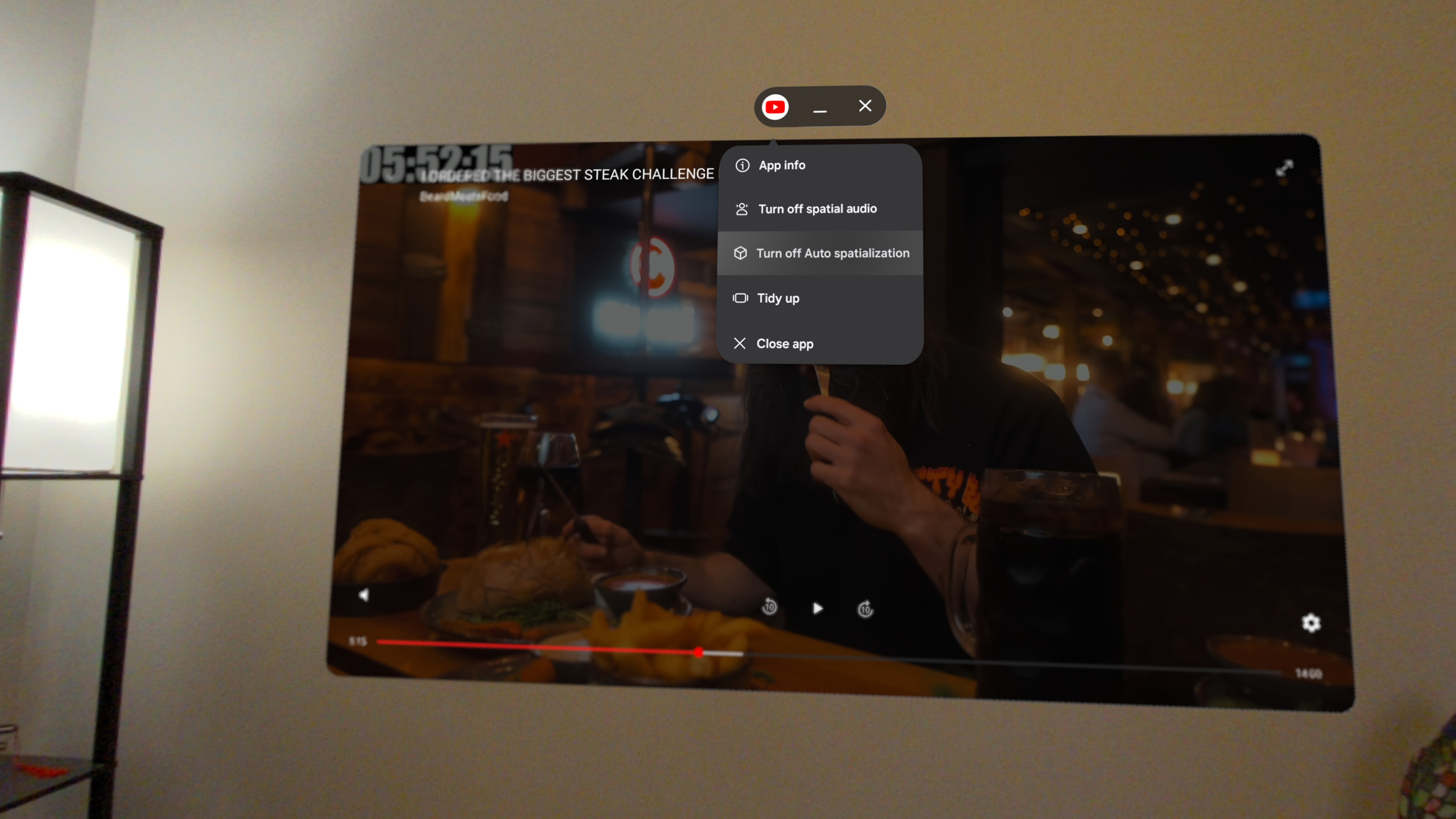
As of this writing, Auto Spatialization is a Labs feature on the Galaxy XR. That means it's still technically in testing, and the inconsistent results I saw are fully expected. But if you still want to give it a try (and why not?), it takes just a few clicks to get the job done:
1. Make a pinch gesture with your thumb and index finger to open the home menu, then click Settings.
2. Scroll down to Advanced features on the left-side menu and tap it.
3. Select Labs from the right side.
4. Turn on Auto spatialization.
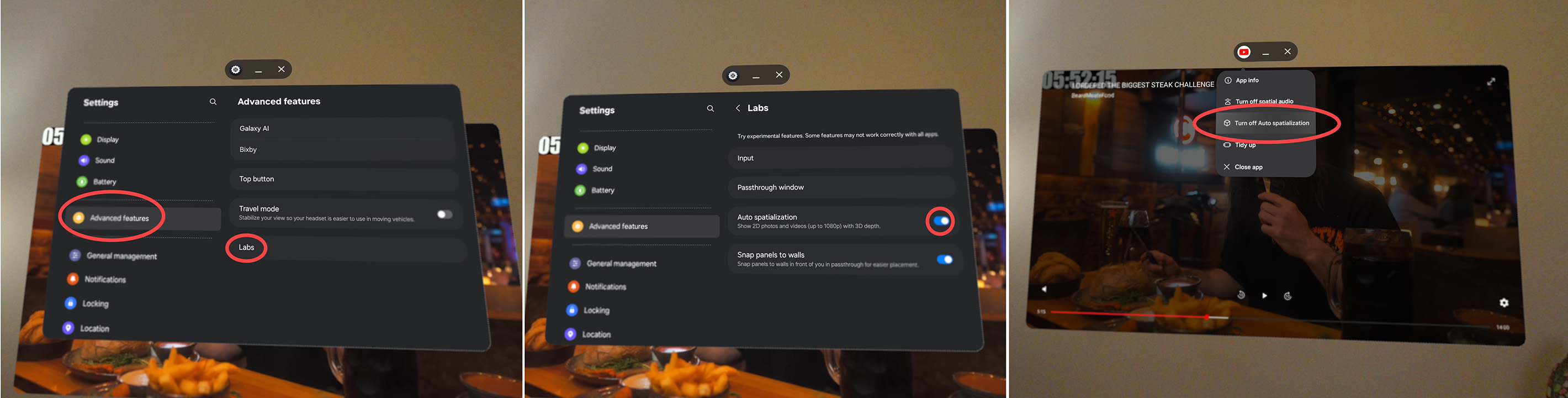
Once you enable the feature, it should be enabled in all apps. Just to make sure it's enabled, though, open any app you want to try the feature on (YouTube is a good start), then click the app icon in the control center above the app window. If the feature is enabled, you should see "Turn off Auto spatialization" in the menu.
Why Xreal is still better...for now
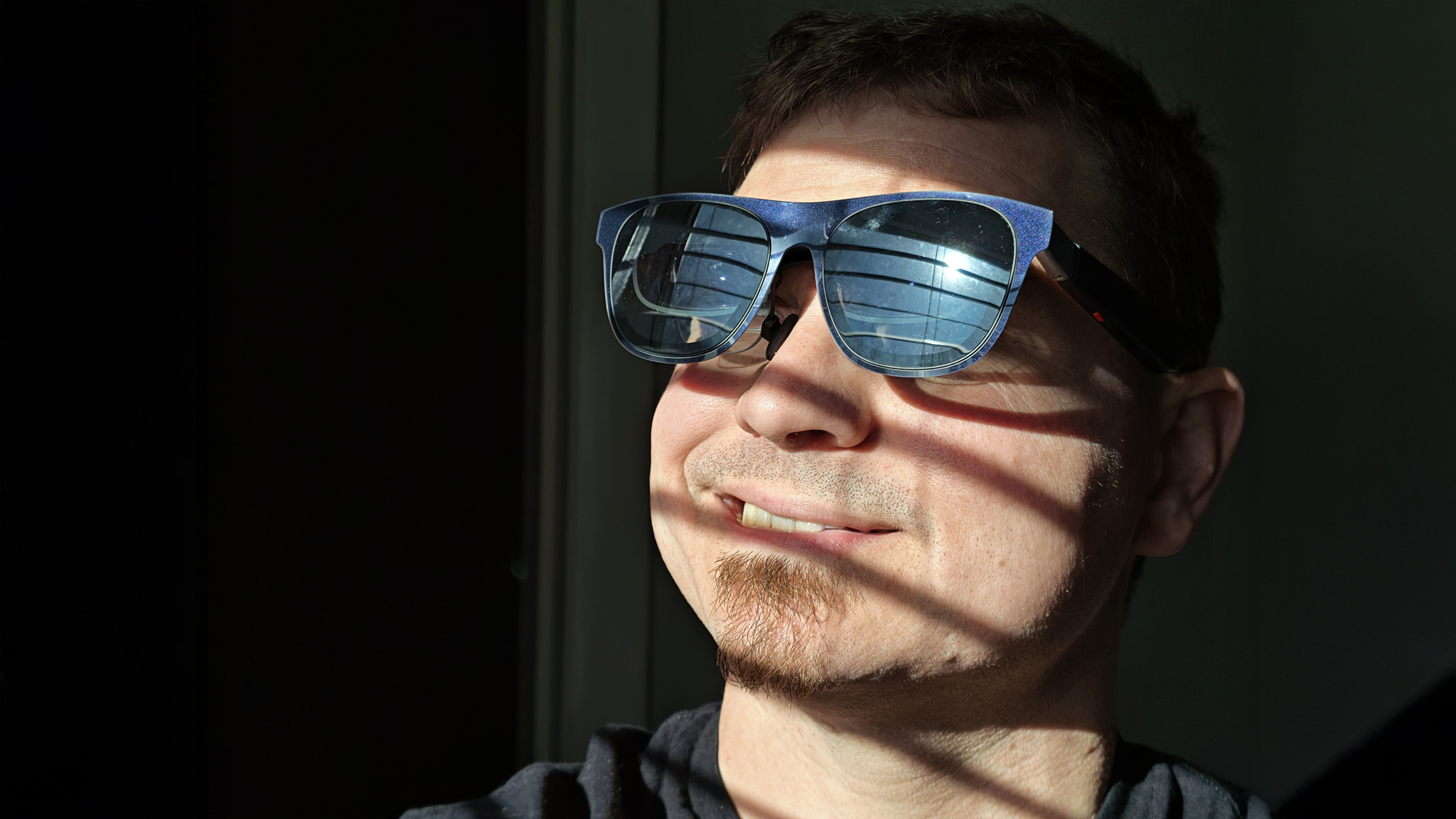
On a technical level, the Android XR/Galaxy XR implementation of the Auto spatialization feature is superior to everything else I've used, but that's only when it wants to work. As I said previously, I noticed several times when the feature simply wouldn't work at all, or would pop in and out even while I was playing a game or watching a video.
This is why Xreal's Real3D technology on its latest Xreal One series glasses remains the superior option for now. Real3D uses the X1 chipset on each pair of Xreal One, Xreal 1S, and Xreal One Pro glasses to turn everything into 3D content. The feature is either on or off, and there's no configuration to deal with. It just works, and you can even adjust the 3D strength within the glasses' menu, too!
The downside to Xreal's implementation is that everything is 3D, and that feels weird when opening menus or other content that simply doesn't translate well into 3D space. I like to assign Real3D to the shortcut key on the top of the Xreal glasses to help make this a convenient toggle.
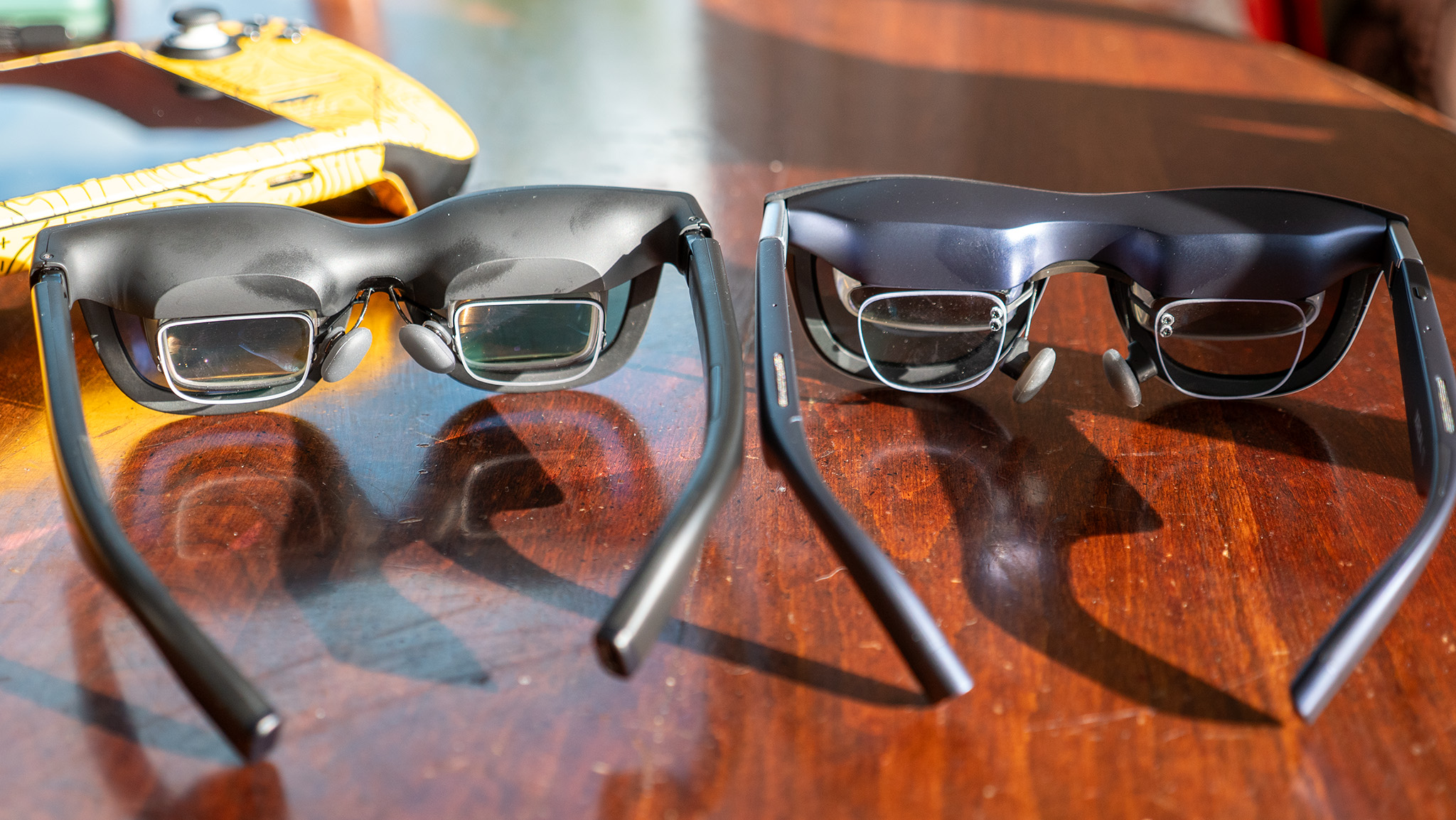
I think Xreal will see its technology surpassed once Google and Samsung can get the Auto spatialization feature to work more consistently, though. The lenses, displays, and overall image quality on the Galaxy XR are substantially better than anything a current pair of smart glasses can produce, which means the 3D quality is simply better-looking than what Xreal can produce on its glasses chipset.
There's also the added bonus that Android XR does not limit the 3D feature to a specific framerate, while Xreal's implementation is currently capped at 30FPS. That makes Xreal's tech less ideal for games but just fine for most videos.
No matter if you've got a Galaxy XR or a pair of Xreal One glasses, seeing 2D content transformed into 3D content is an absolutely magical feeling. It's one of those AI implementations that makes a lot of sense, and it feels like living in a future when the content we play and watch feels like we're truly in the middle of it all.
Xreal 1S is pushing the boundaries of what defines smart glasses. With high-quality micro-OLED panels, native 3DoF spatial tracking for all your content, and an automatic 2D to 3D conversion feature, using Xreal 1S will feel like living in the future.