You're deep in a rabbit hole: comparing hiking boots, researching a trip, reading a piece with seventeen footnotes. Every time you tap a link in Safari, it yanks you away from the page you were on. Open a link, navigate back, open another, navigate back. It gets old fast.
The fix is a single toggle buried in your iPhone settings. Flip it and Safari stops hijacking your attention every time you open a new tab. Links open quietly in the background instead, waiting for you whenever you're ready for them. Here's where to find it.
How to make Safari open links in background tabs
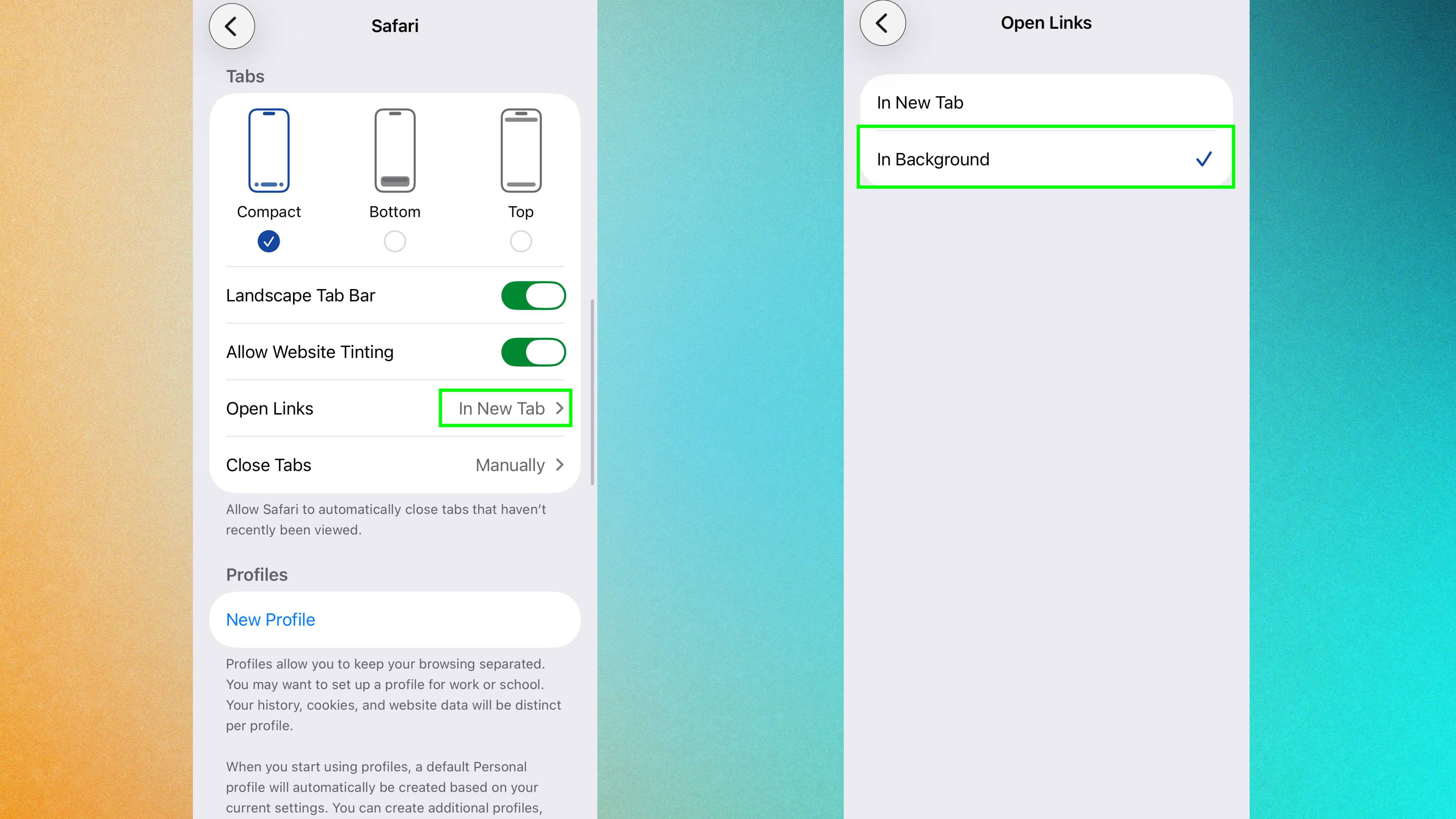
Head into Settings, then go to Safari and scroll down until you find the Tabs section. Next, tap Open Links and in here you'll find two options — switch it from "In New Tab" to "In Background" and you're done.
From here on, long-pressing any link and choosing "Open in New Tab" will let it load quietly behind the scenes while you keep reading. Open as many as you like.
When you're ready, tap the overlapping squares icon to pull up your tab view and everything's waiting for you there, neatly stacked and ready to dive into.
Why this feature is a game-changer
It's a small change that quietly improves a lot of daily browsing. Comparing products before buying something is the obvious use case. Open everything you're considering as background tabs, then flip through them at your own pace rather than bouncing back and forth to search results.
But it's just as useful for anything research-heavy: reading a long article with citations, fact-checking something, or trying to get your head around a topic that requires taking in a few different perspectives at once.
There's also a faster way to open background tabs once you've got the setting enabled. Instead of long-pressing and going through the menu, try tapping any link with two fingers simultaneously.